EasyManua.ls Logo

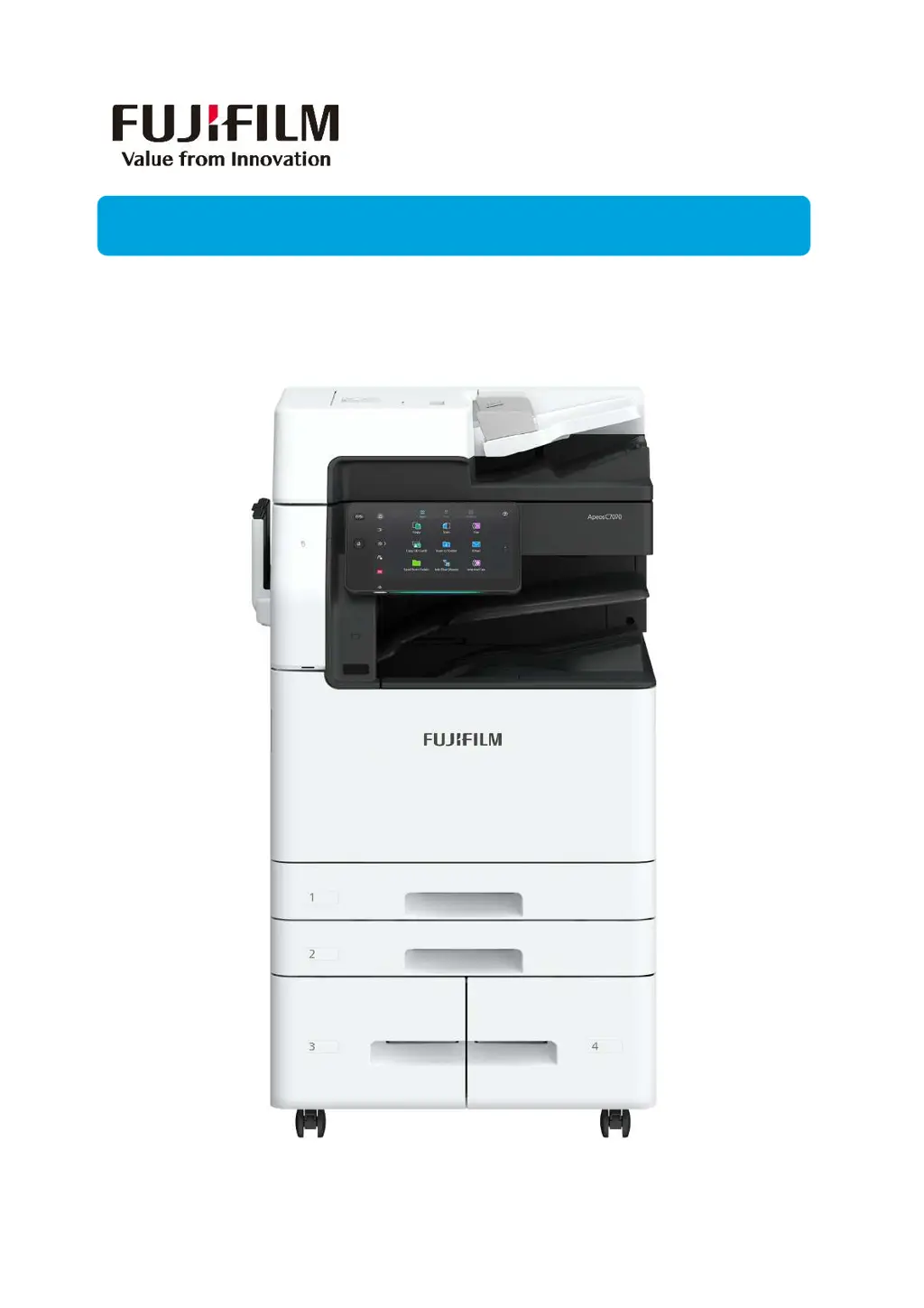
FujiFilm Apeos C3070 - User Manual

FujiFilm Apeos C3070
44 pages
Print Icon
To Next Page IconTo Next Page
Loading...
Quick User GuideQuick User Guide
Apeos C7070/6570/5570/4570/3570/3070
Quick User Guide
Quick User Guide

Other manuals for FujiFilm Apeos C3070

Questions and Answers

  • A
    Amanda MoyerAug 9, 2025
    How to fix a FujiFilm Printer that won't turn on?
    • S
      Samuel KnightAug 10, 2025
      If your FujiFilm Printer isn't powering on, first ensure the power cord is securely plugged into both the printer and the power outlet. If it's already plugged in, try switching the printer off, then reconnecting the power cord to both the outlet and the printer, and then switch the printer back on. Also, ensure the printer is connected to a power outlet that supplies the correct voltage.
  • J
    James ReedAug 17, 2025
    What to do if my FujiFilm Apeos C3070 Printer display is blank?
    • B
      bradleypopeAug 18, 2025
      If the display on your FujiFilm Printer is blank, the printer may be in Power Saver Mode. Press the Power button on the Control Panel to exit the Power Saver Mode.
  • R
    rachelfloresAug 25, 2025
    Why does my FujiFilm Printer make strange noises?
    • V
      Victoria Yu DVMAug 25, 2025
      An odd noise from your FujiFilm Printer can be due to a few reasons. First, ensure the printer is installed on a level and sturdy surface. Second, check that the trays are firmly pushed into the machine. Finally, there may be a foreign object inside the printer. In that case, switch the printer off and remove the object. If you cannot remove the object without dismantling the machine, contact your local representative.
  • S
    Steven GonzalezSep 1, 2025
    How to stop condensation forming in my FujiFilm Apeos C3070 Printer?
    • M
      murphydanielSep 1, 2025
      To prevent condensation in your FujiFilm Printer, set the Sleep Mode trigger time to more than 60 minutes on the control panel, and let the machine stand with its power on for 60 minutes. Before using the printer, ensure no water droplets remain inside (rollers, metal parts, etc.). For frequent condensation, keep the printer powered on by selecting > [Device]> [System Settings] > [System Clock / Timers] > [Warmer Mode] > [On] on the Control Panel. This might resolve the issue.

Summary

Overview of the Apeos Printer

Control Panel and Touch Screen Overview

Provides an overview of the machine's control panel and touch screen interface.

Copying Features and Operations

Reduce or Enlarge Copies

Select copy ratio to enlarge or reduce the size of copies.

Printing Features and Procedures

2-Sided Printing and Job Types

Print 2-sided documents and use job types for secure printing.

Releasing Secure Print Jobs

Release securely stored print jobs from the device using a passcode.

Scanning Features and Workflows

Scan to Email

Scan documents and send them as email attachments.

Scan to PC

Scan documents to a network computer via SMB/FTP.

USB Media Functionality

Printing from USB

Print data/files stored on a USB device.

Scanning to USB

Scan and store scanned data to a USB memory device.

Maintenance Procedures

Clearing Paper Jams

Instructions for clearing paper jams in different machine areas.

Replacing Consumables

Procedures for replacing toner, waste toner, and staple cartridges.

FujiFilm Apeos C3070 Specifications

General IconGeneral
Print Resolution1200 x 2400 dpi
Duplex PrintingYes
Scan Resolution600 x 600 dpi
Copy Resolution600 x 600 dpi
Max Paper SizeA3
FunctionsPrint, Copy, Scan, Fax
Print Speed30 ppm (black/white and color)
Paper SizeA3, A4, B4, B5, A5, Legal, Letter
ConnectivityUSB, Ethernet
Fax Resolution400 x 400 dpi
FaxOptional

Related product manuals