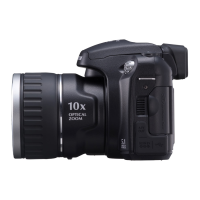
What does 'TOO MANY FRAMES' mean on my FujiFilm FinePix S5200?
- AAlyssa PhillipsSep 10, 2025
If your FujiFilm Digital Camera displays 'TOO MANY FRAMES', note that date sorting can only display a maximum of 4,999 images.

What does 'TOO MANY FRAMES' mean on my FujiFilm FinePix S5200?
If your FujiFilm Digital Camera displays 'TOO MANY FRAMES', note that date sorting can only display a maximum of 4,999 images.
Why do the batteries run out quickly on my FujiFilm FinePix S5200 Digital Camera?
If your FujiFilm Digital Camera batteries run out quickly: * Warm the batteries in your pocket before inserting them. * Wipe the battery terminals with a clean, dry cloth. * Load new or fully charged batteries. * Use the rechargeable battery discharging function to restore the rechargeable batteries to full capacity.
What to do if my FujiFilm FinePix S5200 Digital Camera doesn't take a photograph when the shutter button is pressed?
If your FujiFilm Digital Camera isn't taking photos when you press the shutter button: * Insert an xD-Picture Card. * Insert a new xD-Picture Card or erase unwanted frames. * Format the xD-Picture Card on the camera. * Wipe the xD-Picture Card contact area with a clean dry cloth. * Insert a new xD-Picture Card. * Turn the camera on. * Load new or fully charged batteries.
Why is the playback image dark on my FujiFilm FinePix S5200 even though the flash was used?
If your FujiFilm Digital Camera playback image is dark even when the flash was used, move closer to the subject within the flash range and hold the camera correctly.
How to fix a blurred image on a FujiFilm FinePix S5200 Digital Camera?
If the image from your FujiFilm Digital Camera is blurred: * Clean the lens. * Cancel Macro mode. * Select Macro mode. * Use AF/AE lock or “MF” Manual focus mode to take the picture.
What to do if my FujiFilm FinePix S5200 Digital Camera shows a COMMUNICATION ERROR?
If your FujiFilm Digital Camera displays 'COMMUNICATION ERROR', ensure the USB cable (mini-B) is correctly connected and that your printer is turned on.
Why can't I rotate images on my FujiFilm Digital Camera?
These images cannot be rotated by image formats.
What does 'CAN NOT TRIM' mean on my FujiFilm FinePix S5200 Digital Camera?
The image cannot be trimmed.
What to do if my FujiFilm FinePix S5200 Digital Camera says 'CANNOT BE PRINTED'?
To resolve a 'CANNOT BE PRINTED' error on your FujiFilm Digital Camera, refer to the printer's user manual to confirm it supports JFIF-JPEG or Exif-JPEG image formats. Note that movie and CCD-RAW images cannot be printed, and some images from other cameras may also be incompatible.
Why can't I pop up the flash on my FujiFilm FinePix S5200 Digital Camera?
If you cannot pop up the flash on your FujiFilm Digital Camera, try setting the flash mode to “d” Forced flash mode or another mode excluding the “v” Suppressed flash mode.
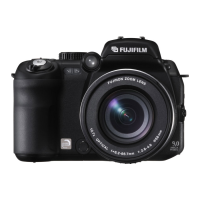
| Sensor Type | CCD |
|---|---|
| Megapixels | 5.1 MP |
| Optical Zoom | 10x |
| Screen Size | 2.5 inches |
| Image Stabilization | No |
| ISO Range | 64 - 1600 |
| Video Resolution | 640 x 480 |
| Battery Type | 4x AA |
| Sensor Size | 1/2.5 inch |
| Image Resolution | 2592 x 1944 |
| ISO Sensitivity | Auto, 64, 100, 200, 400, 800, 1600 |
| LCD Screen Pixels | 115, 000 |
| Viewfinder | Electronic |
| Video Recording FPS | 30 fps |
| Effective Pixels | 5.1 MP |
| Lens | Fujinon |
| Focal Length | 6.3 - 63 mm |
| Aperture Range | f/2.8 - f/5.6 |
| Shutter Speed | 1/2000 sec |
| Storage Media | xD-Picture Card |
| Weight | 450 g |
How to securely attach the camera strap and lens cap.
Instructions for correctly inserting AA-size batteries into the camera.
Guide on how to insert and remove the xD-Picture Card.
How to power the camera on/off and set initial date/time.
How to lock focus and exposure for precise shots.
How to view recorded still images in single or multi-frame playback.
Instructions for deleting selected still images from the camera.
Details on camera focusing mechanisms and error solutions.
Understanding and adjusting shutter speed and aperture for exposure control.
Initializing the xD-Picture Card by formatting it.
Step-by-step guide for installing camera software on Windows.
Step-by-step guide for installing camera software on Mac OS X.
Printing images directly from the camera to a PictBridge printer.
Connecting the camera to a PC for image transfer and management.
Guidelines for using batteries and power adapters correctly.
Explanations and remedies for various warning messages displayed by the camera.
Solutions for common camera problems and errors.
Technical details and specifications of the camera model.
Important safety precautions for using the camera and its accessories.


Loading...