This document describes the MCM 171E / C776 Color Monitor, a high-quality color monitor designed for use in office environments. This manual provides comprehensive information on its features, technical specifications, usage, and maintenance.
Function Description
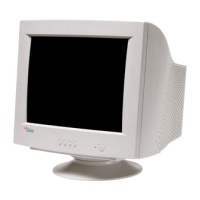
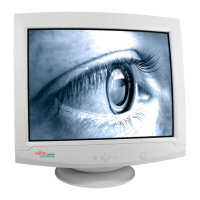
The MCM 171E / C776 is a 17-inch color monitor (17" 90° deflection FST) with a 0.28mm dot pitch, offering a high-resolution display. It supports a wide range of vertical frequencies from 47 to 160 Hz and horizontal frequencies from 30 to 72 kHz, allowing for flexible compatibility with various graphics cards and display modes. The monitor is designed to provide a sharp and clear image, making it suitable for a variety of applications. It features On-Screen Display (OSD) controls for easy adjustment of display parameters. The monitor is also VESA-DDC compatible, allowing for automatic detection and optimal display settings when connected to a compatible PC.
Important Technical Specifications
Electrical Specifications:
- CRT Type: 17", 90° deflection FST
- CRT Dot Pitch: 0.28mm
- CRT Surface: Non-glare
- Input Signal:
- Sync: HV Separate, TTL positive/negative
- Video: HV Composite, TTL positive/negative
- RGB Analog: 0.7V (p-p), positive
- Impedance: 75 Ω Terminated
- Scanning Frequency:
- Horizontal: 30kHz-72kHz (Automatically)
- Vertical: 47Hz-160Hz (Automatically)
- Maximum Resolution: 1280 dots x 1024 lines (Non-interlaced)
- Pixel Clock (Max.): 110 MHz
- Display Size (Standard): Horizontal 306mm, Vertical 230mm
- Power Consumption (Max.): 85 Watts
- Power Supply: AC 100-240V, 60/50Hz ± 3Hz
- Input Connector: D-Sub, 15pin Connectors
- Display Colors: Unlimited
Mechanical Specifications:
- Dimensions:
- Unit (W x D x H): 16.5"(W) x 15.9"(D) x 16.4"(H) / 418mm(W) x 417mm(D) x 417mm(H)
- Carton (W x D x H): 20.9"(W) x 23.0"(D) x 18.2"(H) / 530mm(W) x 584mm(D) x 462mm(H)
- Weight:
- Net: 15.4kg (34.0lbs)
- Gross: 18.2kg (40.1lbs)
Environmental Specifications:
- Operating Temperature: 32°F to 104°F (0°C to 40°C)
- Storage Temperature: -4°F to 140°F (-20°C to 60°C)
- Humidity: 10% to 85% RH, Non-condensing
Preset Operating Modes:
The monitor supports various preset operating modes with different horizontal frequencies, vertical frequencies, and screen resolutions. Examples include:
- 31.5 kHz / 70 Hz / 720 x 400
- 37.9 kHz / 85 Hz / 640 x 480
- 48.4 kHz / 60 Hz / 800 x 600
- 53.7 kHz / 85 Hz / 800 x 600
- 60.0 kHz / 75 Hz / 1024 x 768
- 68.7 kHz / 85 Hz / 1024 x 768
The monitor is designed to reduce power consumption by up to 95% when the PC system is not in use, complying with energy-saving standards like VESA DPMS (Display Power Management Signaling) and Energy Star.
Usage Features
On-Screen Display (OSD) Controls:
The monitor features intuitive OSD controls for adjusting various display parameters. The OSD menu is accessed via buttons on the front panel. Key OSD functions include:
- Brightness: Adjusts the overall brightness of the display.
- Contrast: Adjusts the contrast between light and dark areas.
- H-Position / V-Position: Moves the image horizontally or vertically on the screen.
- H-Size / V-Size: Adjusts the horizontal or vertical size of the image.
- Geometry: Controls image geometry, including pincushion, trapezoid, parallelogram, and rotation.
- Color Mode: Allows selection of predefined color modes or custom color adjustments (Red, Green, Blue gain).
- Language: Selects the OSD menu language (Deutsch, English, Français, Español, Italiano, Färgskärm, Kleurenbeeldscherm).
- Recall: Resets all OSD controls to factory default settings.
Connection to Your Computer:
To connect the monitor to your system:
- Ensure both the PC and the display monitor are switched off.
- Insert the AC power cord into the monitor and then into an AC power outlet.
- Connect the signal cable (D-sub, 15-pin VGA connector) to the 15-pin VGA output of the graphics card and tighten the fastening screws.
- Turn on the monitor, then the PC.
Power Management System:
The monitor supports various power-saving states:
- On: Normal operation.
- Stand By: Monitor is in a low-power state, consuming < 60 Watts.
- Suspend: Monitor is in a deeper sleep state, consuming < 15 Watts.
- Off: Monitor is powered off, consuming < 5 Watts.
These power-saving features help reduce energy consumption and extend the monitor's lifespan.
Maintenance Features
Cleaning:
- Always pull out the power plug before cleaning the monitor.
- Do not clean any interior parts yourself; leave this job to a service technician.
- Do not use any cleaning agents that contain abrasives or may corrode plastic.
- Ensure that no liquid will run into the system.
- Ensure that the ventilation areas of the monitor are free.
- When cleaning the surface of the screen, always use a soft, slightly damp cloth in order to avoid scratching the glass.
- Wipe the monitor housing with a dry cloth. If the monitor is particularly dirty, use a cloth which has been moistened in mild domestic detergent and then carefully wrung out.
Troubleshooting:
The manual provides a troubleshooting guide for common issues:
- No picture: Check AC cord, power switch, signal cable, and graphics card connection.
- Image is scrolling or unstable: Check signal cable and timing settings.
- Picture is fuzzy: Adjust contrast and brightness controls.
- Picture bounces or a waving pattern is present: Check for electrical devices causing interference and ensure proper placement of audio speakers.
- Edges of the display image are not square: Adjust pincushion, trapezoid, and parallelogram settings via OSD.
- Display image is not centered, too small, or too large: Adjust horizontal and vertical image size and position via OSD.
Safety Information:
- The monitor complies with relevant safety regulations for data processing equipment, including electronic office machines.
- If the device is brought into the installation site from a cold environment, condensation can form. Before operating the device, wait until it is absolutely dry and has reached approximately the same temperature as the environment.
- During installation and before operating the device, observe the instructions on environmental conditions in the chapter "Technical data" as well as the instructions in the chapter "Installing an ergonomic video workstation".
- To ensure adequate ventilation, the monitor may only be operated with the monitor foot.
- The color monitor must not be exposed to strong magnetic fields (e.g., caused by magnetic paper clip holders or loudspeakers). Strong magnetic fields could result in a permanent blotchy image.
- The monitor is automatically degaussed when switched on. This results in a magnetic field around the metal edge of the picture tube, which may damage the color or data carriers nearby. Therefore, keep magnetic data carriers away from the monitor.
- The device automatically sets itself to the correct voltage within the range from 100 V to 240 V. Ensure that the local mains voltage lies within these limits.
- The device must be installed in such a way that the user has good access to the appliance socket.
- The ON/OFF switch does not disconnect the device from the power outlet. To disconnect the line voltage completely, remove the power plug from the grounded power outlet.
- Lay all cables so that nobody can stand on them or trip over them. When attaching the cable, observe the instructions in the chapter "Connecting the monitor".
- No extension cables should be used or disconnected during a thunderstorm.
- Ensure that no objects (e.g., necklaces, paperclips etc.) or liquids can get into the interior of the device (electrical shock, short circuit).
- In emergencies (e.g., damaged casing, elements or cables, penetration of liquids or foreign matter), switch off the unit, disconnect the power plug and contact your sales office or our customer service.
- Only qualified technicians may repair the device. Unauthorized opening or incorrect repair may endanger the user.
- When connecting this monitor, particularly when using a high voltage or installing a different type of CRT tube, it may result in a large amount of X-ray radiation being emitted. Devices modified in this way no longer comply with their license and may not be used.
- You may set only those resolutions and refresh rates specified in the "Technical data" chapter. Otherwise you may damage your monitor. If you are in any doubt, contact your sales office or customer service.
Environmental Considerations (TCO'99):
The MCM 171E / C776 monitor is TCO'99 certified, indicating its compliance with strict environmental and ergonomic requirements. This includes:
- Energy Consumption: Designed for low energy consumption, especially in power-saving modes.
- Emissions: Meets stringent requirements for electrical and magnetic fields.
- Materials: Restrictions on hazardous substances like flame retardants (bromine and chlorine), cadmium, mercury, and CFCs (freons). Lead is also restricted.
- Recyclability: Designed to facilitate recycling and minimize environmental impact at the end of its life cycle.
The manual emphasizes the importance of proper disposal and recycling of electronic waste to protect the environment.

 Need help?
 General

 To Next Page