A26361-K598-Z100-2-5E19
A26361-K598-Z100-2-5E19
English 11
English10
Color monitor MCM 171E / C776
Color monitor MCM 171E / C776
Specifications
Electrical Specifications
Mechanical Specifications
Environmental Specifications
ITEM MCM 171E / C776
CRT Type 17
, 90 deflection FST
CRT Dot pitch 0.28mm
CRT Surface Non-glare
H/V Separate, TTL, positive/negative
H/V Composite, TTL, positive/negative
RGB Analog (0.7Vp-p), positive
75 Terminated
30KHz~72KHz (Automatically)
47Hz~160Hz (Automatically)
Maximum Resolution 1280Dots 1024Lines (Non-interlace)
Pixel Clock(Max.) 110 MHz
Display Size (Standard) Horizontal 306mm, Vertical 230mm
Power Consumption(Max.) 85 Watts
Power Supply AC 100~240Volt, 60/50Hz
3Hz
Input Connector D-Sub, 15Pin Connectors
Display Colors Unlimited
ITEM MCM 171E / C776
16.5
(W) 16.5 (D) 16.4 (H)
418mm(W) 419mm(D)
417mm(H)
20.9
(W) 20.0 (D) 18.2 (H)
530mm(W) 508mm(D) 462mm(H)
15.4Kg(34.0Ibs)
18.2Kg(40.1Ibs)
ITEM MCM 171E / C776
32
F to 104 F (0 C to 40 C)
-4 F to 140 F (-20 C to 60 C)
10% to 85% R.H. Non-condensing
Input
Signal
Dimension
Sync
Video
Carton
Unit
Horizontal
Net
Vertical
Gross
Operating
Storage
Humidity
Scanning
frequency
Weight
Temperature
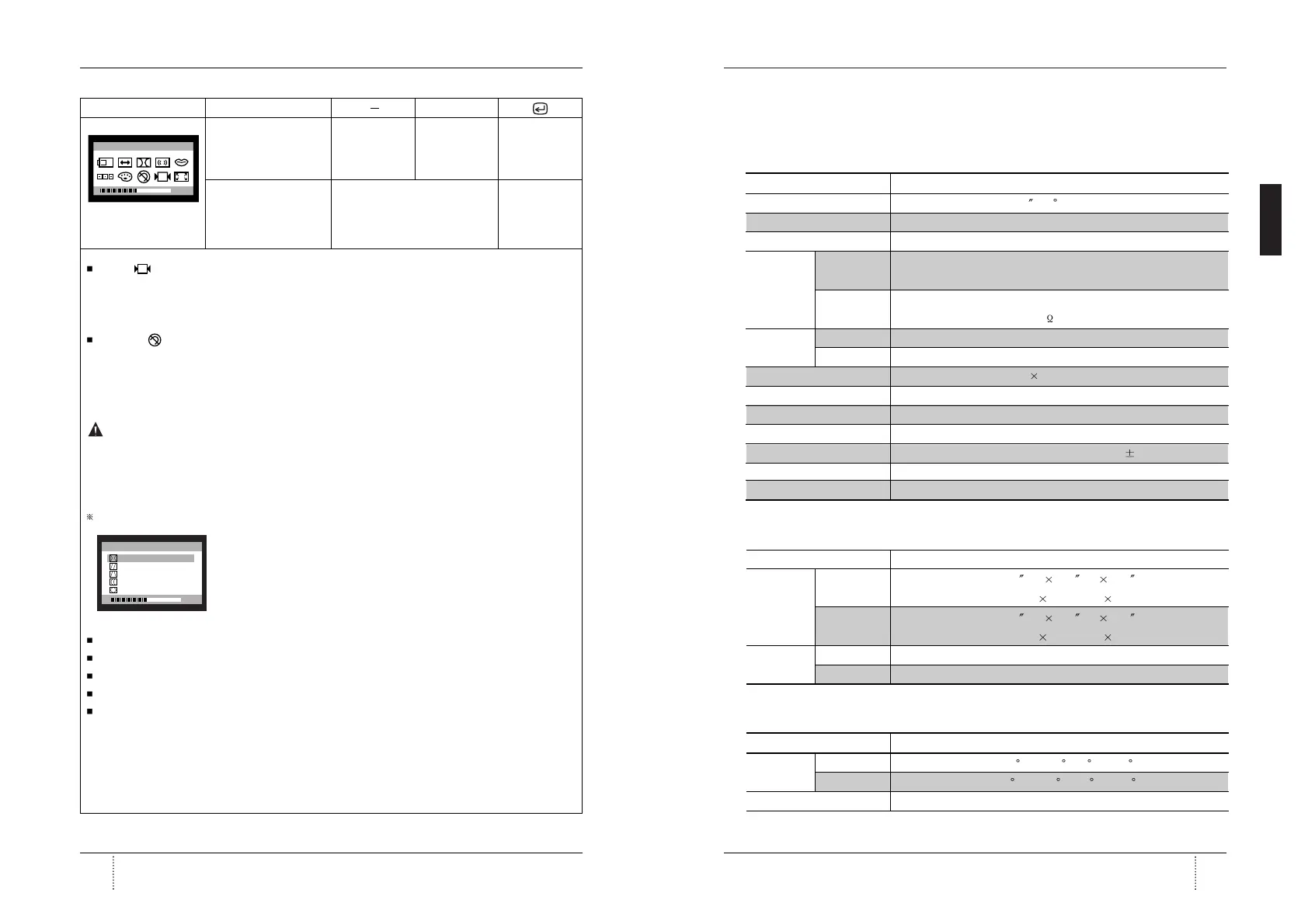
OSD MENU MENU +
13. ZOOM Odd press Shinks the Expands the Exit to No.1
: Selects zoom and image image
blinks the zoom ICON. horizontally horizontally
and vertically. and vertically.
Even press Moves to the function you want. Exit to No.1
: Stops blinking and
ready to move anther
function.
Recall ( ) : Recall control to the factory setting resets all the controls within the all menu.
If you want to return to the factory mode setting, press Recall key 5~8 Sec
continuously.
Degauss ( ) : Eliminates the build-up of stray magnetic fields which alter the correct scan of the
electron beams and affect the purity of the screen colors, focus, and
convergence. When pressed, you screen image will jump and waver a bit as the
screen is demagnetized.
Caution : Please allow aminimum of 20 minutes to elapse between uses of the Degauss
button. Do no hold the button down continuously to avoid decreasing the life the
Deguass circuitry.
Geometry Controls Menu
The Geometry controls allow you to adjust the curvature or angle
of the sides of you display.
Pincushion : Increases or decreases the curvature of the sides either inward or outward.
Parallelogram : Increases or decreases the tilt of the sides either to the left or right.
Trapezoid : Increases or decreases the bottom of the screen to be the same as the top.
Pin Balance : Increases or decreases the curvature of the sides either to the left or right.
Rotation : Increases or decreases the tilt of the screen image relative to a horizontal line.



 To Next Page