EasyManua.ls Logo

Fujitsu LifeBook E752 - User Manual

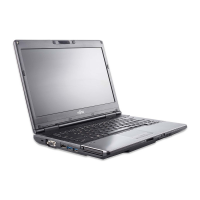
Fujitsu LifeBook E752
380 pages
Print Icon
To Next Page IconTo Next Page
Loading...
User’s Guide
Learn how to use your Fujitsu
LIFEBOOK E752 notebook
Guide
d’utilisation
Découvrez comment utiliser
votre ordinateur portable
Fujitsu LIFEBOOK E752

Table of Contents

Other manuals for Fujitsu LifeBook E752

Questions and Answers

  • D
    Donald GuerreroSep 9, 2025
    How to solve keyboard controller error on Fujitsu Notebook pc?
    • C
      Christopher TorresSep 9, 2025
      To solve a keyboard controller error on your Fujitsu Notebook PC, switch the notebook off using the ON/OFF switch, wait 3-5 seconds, and then switch it back on.
  • R
    robert32Sep 8, 2025
    What to do if external monitor image is unstable on Fujitsu Notebook pc?
    • G
      Gregory SchmidtSep 8, 2025
      If the external monitor image is unstable on your Fujitsu Notebook PC, it might be because the wrong external monitor has been selected or the wrong screen resolution has been set for the application program. Terminate the application program in Windows by pressing Alt + F4. If the fault persists after closing the program, switch over to the notebook’s LCD screen. Set the screen resolution as described in the documentation for your operating system. Select monitor 1 or 2 as described in the documentation for your operating system.
  • J
    jkiddSep 7, 2025
    What to do if LCD screen is difficult to read on Fujitsu Notebook pc?
    • J
      Jonathan CordovaSep 7, 2025
      If the LCD screen on your Fujitsu Notebook PC is difficult to read, it could be due to reflected glare. Try turning the notebook or adjusting the tilt of the screen. You can also increase the screen's brightness.
  • W
    William BuchananAug 22, 2025
    What to do if built-in keyboard does not seem to work on Fujitsu Laptop?
    • A
      Andrew RyanAug 22, 2025
      If the built-in keyboard on your Fujitsu Laptop does not seem to work, it might be in Sleep mode. Push the Power/Suspend/Resume button. If that doesn't help, the application might have locked out the keyboard. Try to use your integrated pointing device to restart your system.
  • J
    Jessica WestSep 5, 2025
    How to fix incorrect date or time on Fujitsu Notebook pc?
    • K
      kpayneSep 5, 2025
      You can correct the date and time on your Fujitsu Notebook PC through the BIOS-Setup-Utility, where you can set the date and time in the main menu. If the issue persists, further assistance is needed.
  • S
    Stephanie BrownSep 3, 2025
    What to do if Fujitsu Notebook pc stops working?
    • H
      Hannah McbrideSep 3, 2025
      If your Fujitsu Notebook PC stops working, here are a few things to check: * The notebook might be in energy-saving mode. Try exiting the energy-saving mode. * An application might be causing the issue. Close the application or restart the notebook. * The battery might be dead. Charge the battery, insert a charged one, or connect the mains adapter.
  • B
    Brandon PierceSep 2, 2025
    What to do if external monitor remains blank with Fujitsu Notebook pc?
    • A
      Anne MendezSep 2, 2025
      If your external monitor remains blank when connected to your Fujitsu Notebook PC, consider these possible causes and solutions: 1. The monitor might be switched off. Ensure the external monitor is powered on. 2. Power saving might be activated. Press any key to continue. 3. The brightness might be set too low. Adjust the brightness of the monitor. 4. The screen output might be set to the notebook's LCD screen. 5. The power or data cables may be improperly connected. Turn off both the monitor and notebook, check the cable connections, and then turn them back on.
  • M
    Michael ChapmanSep 1, 2025
    Why does my Fujitsu LIFEBOOK notebook turn off by itself?
    • V
      vsmithSep 1, 2025
      Your Fujitsu LIFEBOOK notebook might be turning off by itself because of power management settings or battery issues. Try pressing any button on the keyboard or moving the mouse. If that doesn't work, push the Power/Suspend/Resume button. Then, check your power management settings in the Control Panel to adjust the timeout values. Also, verify the condition of the batteries using the Status Indicator panel, and replace or remove any batteries that are shorted.
  • C
    Chris NolanAug 31, 2025
    How to fix Fujitsu LifeBook E752 Laptop no sound?
    • A
      aprilthompsonAug 31, 2025
      If there is no sound coming from the built-in speakers of your Fujitsu Laptop, here are several possible solutions: * Ensure the volume isn't too low by using the [Fn+F9] key combination to increase it. * Check the software volume control settings in your application. * If headphones are plugged in, remove them as this disables the built-in speakers. * Make sure that the speakers have not been muted by Volume icon in the system tray. You can also use the [Fn+F3] key combination to toggle the volume on and off.
  • M
    Melissa TurnerAug 29, 2025
    Why only numerals are written when certain characters are entered on Fujitsu Notebook pc?
    • J
      Jennifer GonzalesAug 30, 2025
      If only numerals appear when typing characters on your Fujitsu Notebook PC, the virtual numeric keypad is likely activated. Press the Num key to deactivate it.

Summary

Preface

About This Guide

Provides an overview of the LIFEBOOK E752 notebook and its manual.

Fujitsu Contact Information

Details how to contact Fujitsu for service and support, including phone and website.

Chapter 1: Getting to Know Your LIFEBOOK

Overview of LIFEBOOK Components

Introduces the components of the Fujitsu LIFEBOOK E752 notebook.

Locating Controls and Connectors

Identifies and describes the location of all controls and connectors on the notebook.

Status Indicator Panel Guide

Explains the meaning of the status indicators and LEDs on the notebook.

Keyboard Overview

Details the layout and functions of the LIFEBOOK notebook keyboard.

Touchpad Pointing Device Functions

Explains how to use the touchpad, including clicking, dragging, and scrolling.

LIFEBOOK Security and Application Panel

Describes the security features and application launch capabilities of the panel.

Chapter 2: Getting Started with Your LIFEBOOK

Understanding Power Sources

Details the notebook's power sources: battery, AC adapter, and optional auto/airline adapter.

Display Panel Operations

Covers opening and adjusting the brightness of the LIFEBOOK display panel.

Starting Your LIFEBOOK Notebook

Guides users through powering on the notebook and the initial boot sequence.

Power Management Features

Explains options for conserving battery power and managing system power settings.

Chapter 4: Troubleshooting Your LIFEBOOK

General Troubleshooting Steps

Provides a procedure to identify and resolve common notebook problems.

Restoring System Image and Software

Guides users on saving and restoring system images and software.

Downloading Driver Updates

Explains how to get the latest drivers and software from Fujitsu's support site.

Chapter 5: Care and Maintenance

Caring for Your LIFEBOOK Notebook

Offers tips for maintaining the notebook's longevity and reliability.

Cleaning Your LIFEBOOK Notebook

Provides instructions for cleaning the notebook's exterior, keyboard, and LCD display.

Battery Care and Maintenance

Details how to care for and maintain the notebook's batteries.

Chapter 6: System Specifications

Detailed System Specifications

Lists the hardware and environmental specifications for the LIFEBOOK notebook.

Device Ports Information

Describes all available device ports on the notebook and port replicator.

Environmental Requirements

Outlines operating and storage temperature and humidity requirements.

Pre-Installed Software Overview

Lists the software applications pre-installed on the notebook.

Appendix A: WLAN User’s Guide

Before Using the Optional Wireless LAN

Provides essential information before setting up and using the wireless LAN device.

Configuring the Wireless LAN

Guides users on how to configure the wireless LAN connection using Windows.

WLAN Troubleshooting

Offers solutions for common problems encountered with the wireless LAN.

WLAN Specifications

Lists the technical specifications for the integrated wireless LAN device.

Appendix B: Fingerprint Sensor Device

Introducing the Optional Fingerprint Sensor Device

Introduces the optional fingerprint sensor and its benefits for system security.

User Enrollment Process

Guides users through the process of enrolling a user and their fingerprint.

Using OmniPass for Authentication

Explains how to use OmniPass for simplifying user authentication procedures.

OmniPass Password Management

Details how to manage passwords and identities within the OmniPass application.

Fingerprint Sensor Troubleshooting

Provides solutions for common issues encountered with adding Windows users or using OmniPass.

Fujitsu LifeBook E752 Specifications

General IconGeneral
Display15.6-inch, 1366 x 768 pixels
GraphicsIntel HD Graphics 4000
Weight2.5 kg
RAM4 GB DDR3
Storage500 GB HDD
Operating SystemWindows 7 Professional
Battery6-cell
PortsHDMI, VGA, Ethernet, Audio in/out
WirelessBluetooth 4.0

Related product manuals