Chapter3 Installing the Sensor Driver Manually by Using Archive Version
Step4 Follow the procedure below to install "fdpvusb.inf" copied in step 3.
<For Windows XP>
(1) Connect the Sensor to the target hardware.
>See> For information on how to connect the Sensor, refer to the
"Sensor Instruction Manual" or "Mouse Type Sensor
Instruction Manual".
(2) The [Welcome to the Found New Hardware Wizard] screen will be
displayed. Select [Install from a list or specific location] and click the
[Next] button.
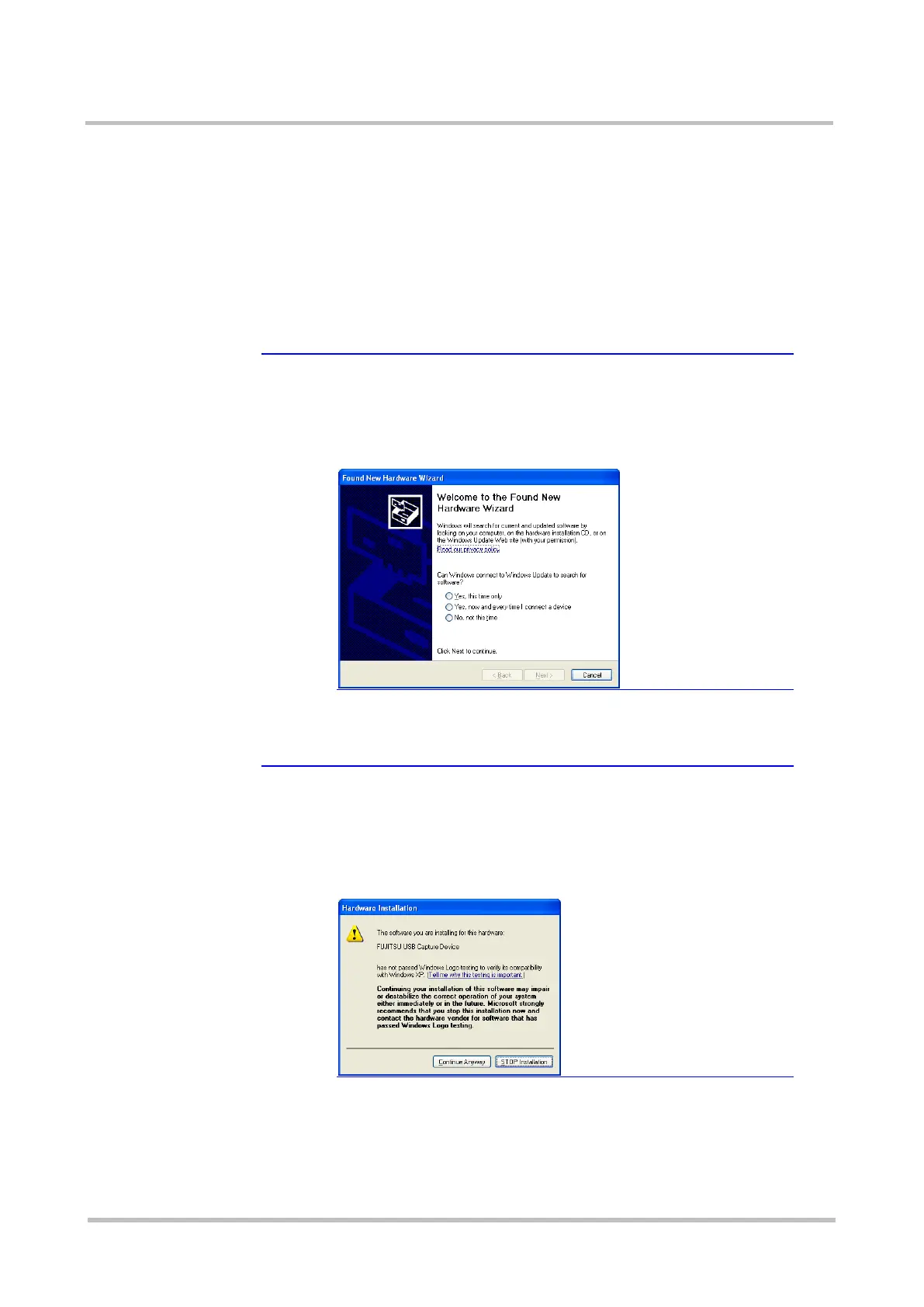
★Tip A message to confirm connection to Windows Update is
displayed
A message to confirm connection to Windows Update may be
displayed at the beginning of the Found New Hardware
Wizard screen in a Windows XP environment.
Select [No, not this time] and click the [Next] button.
(3) Select [Search for the best driver in these locations.], check [Include
this location in the search:] and specify "C:\WINDOWS\system32".
Click the [Next] button.
★Tip A dialog box indicating that the driver has not passed the
Windows Logo testing is displayed
A dialog box indicating that the driver has not passed the
Windows Logo testing may be displayed in a Windows XP
environment.
In that case, click the [Continue Anyway] button to continue
the process.
(4) The [Completing the Found New Hardware Wizard] screen will be
displayed. Click the [Finish] button.
(5) If there are multiple USB ports where the Sensor may be connected,
the Sensor must be detected on each USB port. Disconnect the Sensor
from the target hardware and repeat steps (1) to (4) again.



 To Next Page