3.1 Installing the Sensor Driver in Windows XP / Vista / 7 Environments Manually
<For Windows Vista>
(1) Connect the Sensor to the target hardware.
>See> For information on how to connect the Sensor, refer to the
"Sensor Instruction Manual" or "Mouse Type Sensor
Instruction Manual".
(2) The [Windows needs to install driver software for your FUJITSU
Imaging Device] screen will be displayed. Select [Locate and install
driver software].
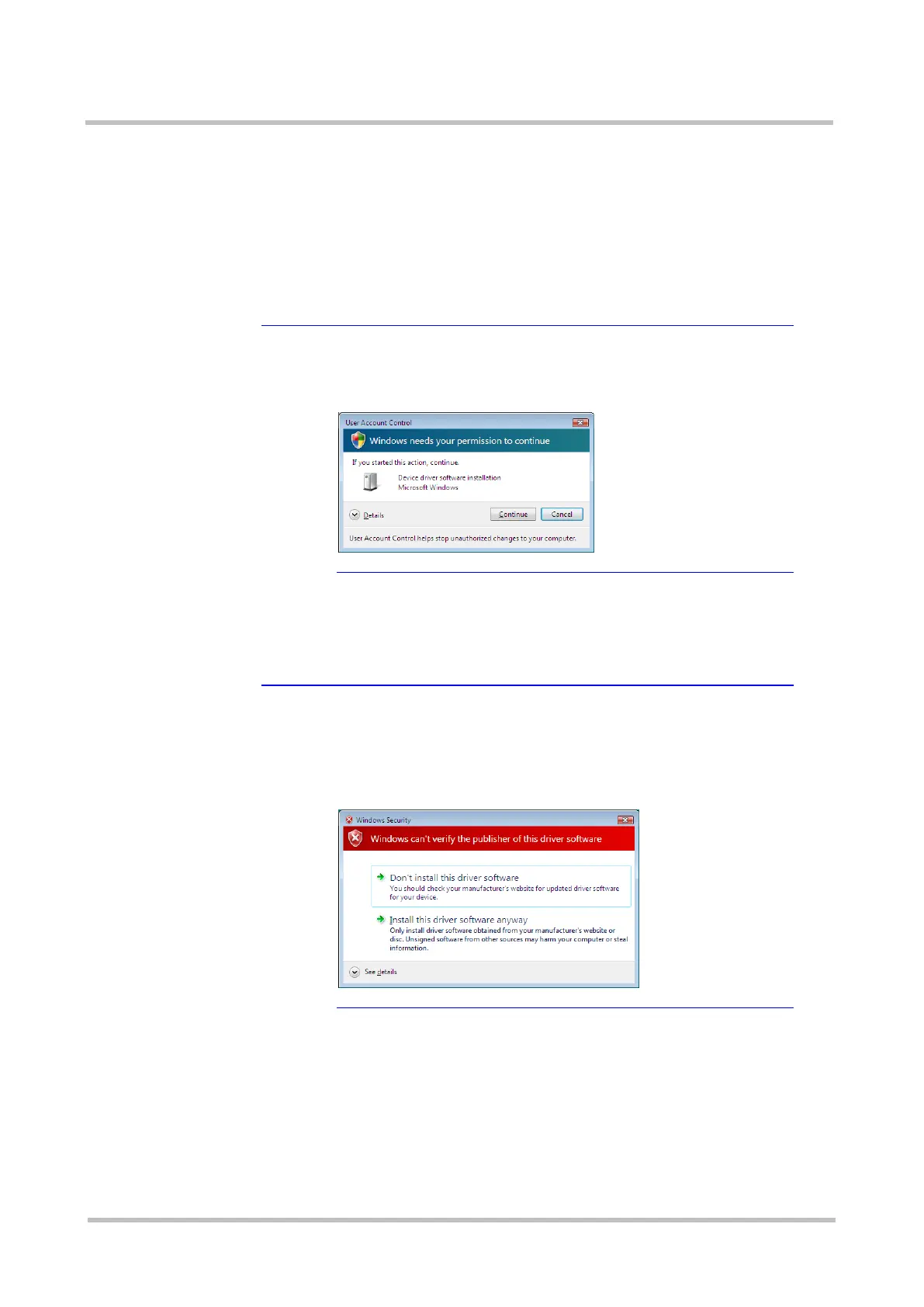
★Tip A [User Account Control] dialog box is displayed
A [User Account Control] dialog box may be displayed in a
Windows Vista environment.
Continue the process by clicking the [Continue] button.
(3) Select [Don't search online].
(4) Select [I don't have the disc. Show me other options.].
(5) Select [Browse my computer for driver software].
(6) Specify "C:\Windows\System32" in [Search for driver software
in this location:] and click the [Next] button.
★Tip A dialog box indicating that Windows can't verify the
publisher is displayed
The following unverified publisher dialog box is displayed
when the installer starts in a Windows Vista environment.
Continue the process by selecting [Install this driver software
anyway].
(7) A message [The software for this device has been successfully
installed] will be displayed. Click the [Close] button.



 To Next Page