Chapter3 Installing the Sensor Driver Manually by Using Archive Version
<For Windows 7>
(1) Connect the Sensor to the target hardware.
>See> For information on how to connect the Sensor, refer to the
"Sensor Instruction Manual" or "Mouse Type Sensor
Instruction Manual".
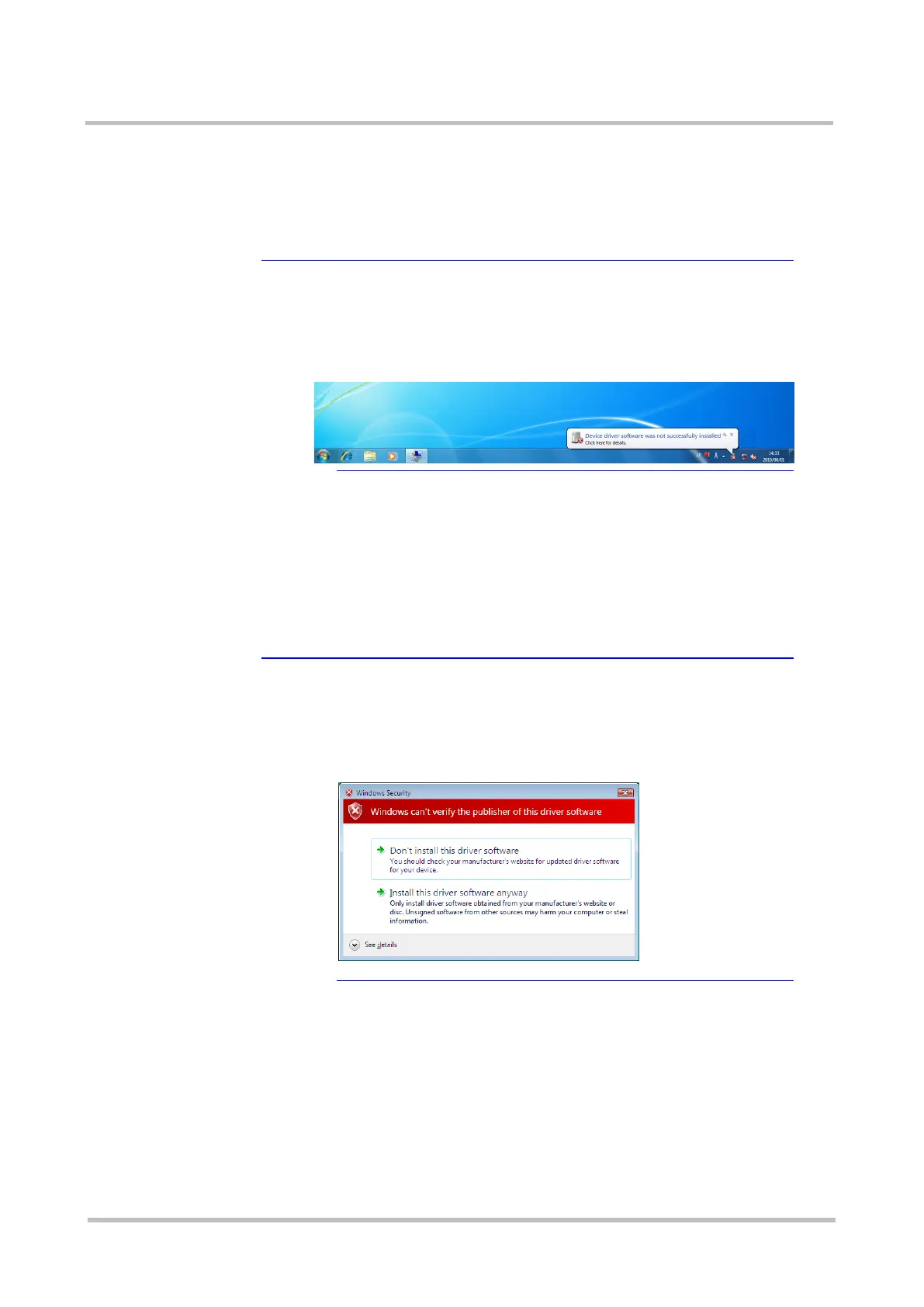
★Tip A message is displayed at the bottom right of the screen to
inform that the device driver cannot be installed
The following message may be displayed at the bottom right of
the screen to inform that the device driver cannot be installed
in a Windows 7 environment; however, this does not cause any
problems. Ignore the message and continue the process.
(2) Start Device Manager.
Select [Hardware and Sound] from Control Panel, and select
[Device Manager].
(3) Update the Sensor driver from Device Manager.
Double-click “FUJITSU Imaging Device” under [Other devices] and
click [Update Driver].
(4) Select [Browse my computer for driver software].
(5) Specify "C:\Windows\System32" in [Search for driver software in
this location:] and click the [Next] button.
★Tip A dialog box indicating that Windows can't verify the
publisher is displayed
The following unverified publisher dialog box is displayed
when the installer starts in a Windows 7 environment.
Continue the process by selecting [Install this driver software
anyway].
(6) A message [The software for this device has been successfully
installed] will be displayed. Click the [Close] button.



 To Next Page