Chapter5 Installing the Sensor Driver for Extended Function (Windows Version)
Step6 Click the [Close] button.
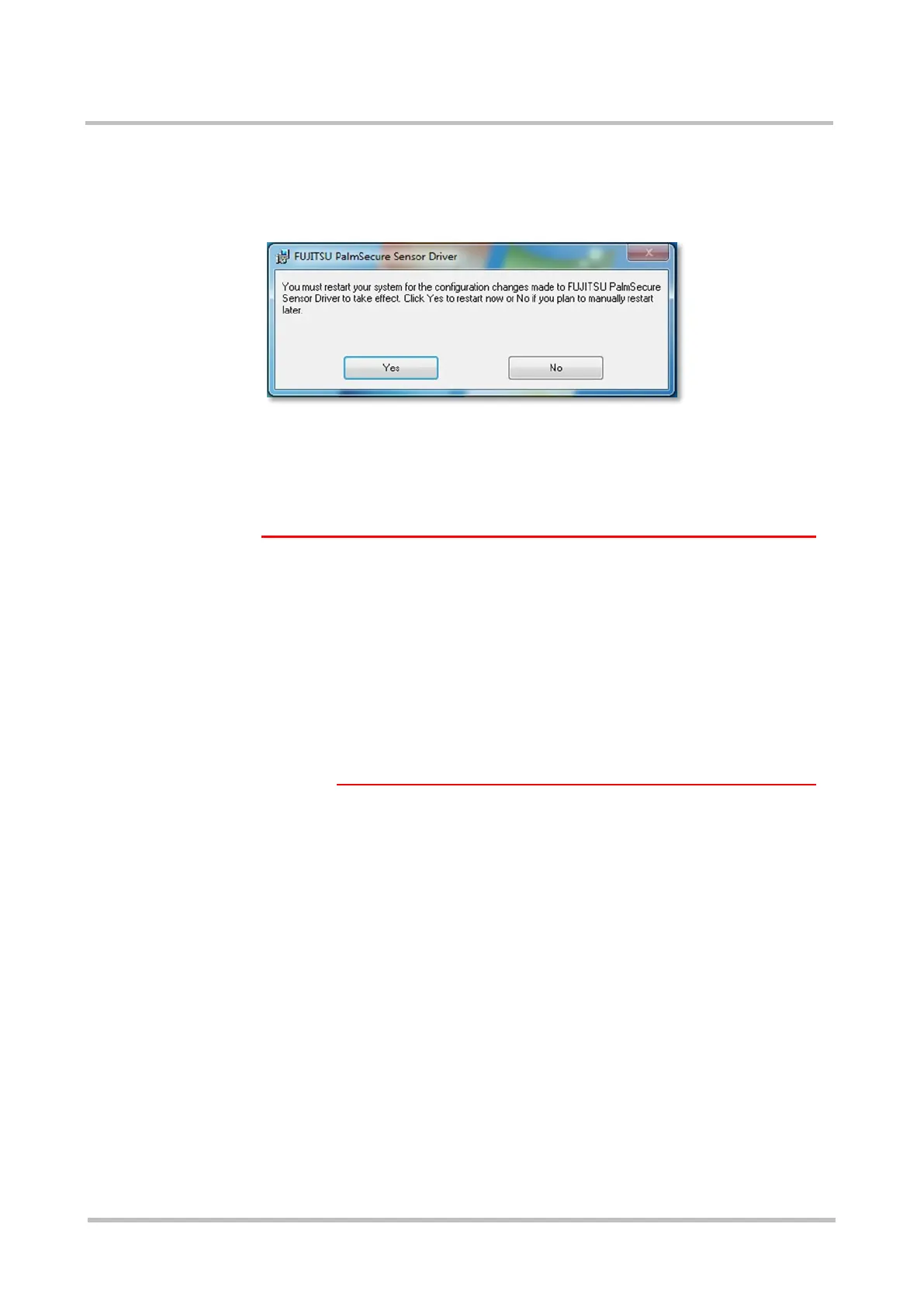
The Installation Complete screen disappears and the restart
confirmation dialog box appears.
Step7 Click the [Yes] button to restart the target hardware.
Step8 Connect the Sensor to the target hardware.
The Sensor is automatically detected.
!Caution Installing on Windows Vista
The following operations are required in the initial installation
after connecting the Sensor.
(1) When “Installing device driver software” is displayed at the
bottom right of the screen, wait for a short while until
“Device driver software installed successfully” is displayed.
(2) After that, a dialog box is displayed to prompt for a restart.
Select “Restart Now” to restart the target hardware.
A message is displayed to inform that update programs
are being configured while restarting the target hardware.
(This process takes several minutes.)
The Sensor is ready when this process is complete and the
target hardware is restarted.
Step9 If there are multiple USB ports where the Sensor may be connected,
the Sensor must be detected on each USB port. Disconnect the Sensor
from the target hardware and repeat step 8 again.



 To Next Page