EasyManua.ls Logo

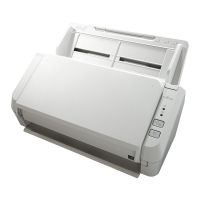
Fujitsu SP-1130 - User Manual

Fujitsu SP-1130
117 pages
Print Icon
To Next Page IconTo Next Page
Loading...
Explains how to configure settings in the
Software Operation Panel.
Explains about troubleshooting.
Explains how to replace the consumables.
Explains how to clean the scanner.
Explains about various ways of scanning.
Explains how to use the Operator Panel.
Explains how to load documents on the
scanner.
Explains the names and functions of parts
and basic scanner operation.
SP-1120/SP-1125/SP-1130
Appendix
Glossary
Contents
TOP
How to Load
Documents
How to Use the
Operator Panel
Various Ways to
Scan
Daily Care
Troubleshooting
Operational
Settings
Replacing the
Consumables
P3PC-5332-01ENZ0
Scanner
Overview
How to Use This Manual
Index
Introduction
Operator's Guide
Thank you for purchasing our Color Image Scanner SP Series.
This manual explains about the basic operations and handling of the scanner.
For details about scanner installation and connections, refer to the Quick Installation Sheet.

Table of Contents

Question and Answer IconNeed help?

Do you have a question about the Fujitsu SP-1130 and is the answer not in the manual?

Fujitsu SP-1130 Specifications

General IconGeneral
ADF Capacity50 sheets
Optical Resolution600 dpi
InterfaceUSB 2.0
Scanner TypeAutomatic Document Feeder (ADF)
Supported OSWindows
Dimensions298 x 135 x 133 mm
Paper WidthA4, Letter, Legal, A5, B5, Envelopes (DL, COM10)

Summary

Scanner Overview

Main Features

Details the key features of the scanner, including speed and efficiency.

Turning the Power ON;OFF

Explains the procedure for powering the scanner on and off.

How to Load Documents

How to Use the Operator Panel

Various Ways to Scan

Daily Care

Replacing the Consumables

Consumables and Replacement Cycles

Lists scanner consumables and their suggested replacement intervals.

Replacing the Roller Set

Provides step-by-step instructions for replacing the brake and pick rollers.

Troubleshooting

Paper Jam

Explains the procedure for safely removing jammed documents from the scanner.

Error Indications on Operator Panel

Details the meaning of operator panel indicators for errors.

Troubleshooting Problems

Lists common scanner issues and guides users to check solutions.

Scanner cannot be powered ON

Troubleshooting flowchart for issues when the scanner does not power on.

Scanning does not start

Provides steps to resolve issues where scanning fails to initiate.

Image Quality Issues

Guides users on how to fix poor or dirty scanned image quality.

Quality of Scanned Text or Lines is Unsatisfactory

Offers solutions for unsatisfactory scanned text or line quality.

Images are Distorted or Not Clear

Provides troubleshooting steps for distorted or unclear scanned images.

Vertical Streaks Appear on Scanned Image

Explains how to troubleshoot vertical streaks in scanned images.

Multifeed Error Occurs Frequently

Provides solutions for frequent multifeed errors during scanning.

Document Not Fed into ADF

Offers troubleshooting steps for frequent issues with documents not feeding into the ADF.

Paper Jams;Pick Errors

Provides solutions for frequent paper jams or pick errors.

Scanned Images Turn Out Elongated

Guides users on how to resolve scanned images appearing elongated.

Shadow Appears on Scanned Image

Explains how to fix shadows appearing at the top or bottom of scanned images.

Black Traces on Document

Offers solutions for issues causing black traces on scanned documents.

Operational Settings

Password Setting for Software Operation Panel

Details how to set, change, clear, or reset the password for the panel.

Appendix

Customer Support

Related product manuals