EasyManua.ls Logo

Fujitsu FP-1000 - User Manual

Fujitsu FP-1000
96 pages
Print Icon
To Next Page IconTo Next Page
Loading...
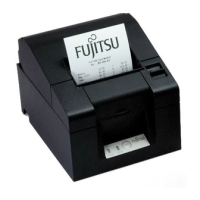
FP-1000
Thermal Printer User’s Manual
Standard Model
FP-1000
Built-in Power Supply Model FP-1000PW
Fujitsu Isotec Limited.
KA02066-Y900-04

Table of Contents

Other manuals for Fujitsu FP-1000

Questions and Answers

Fujitsu FP-1000 Specifications

General IconGeneral
BrandFujitsu
ModelFP-1000
CategoryPrinter
LanguageEnglish

Summary

How to Use This Product Safely

Using This Document Safely

Emphasizes reading and understanding the manual before operating the product.

Using Recycled Parts

Notes the use of recycled parts in product manufacturing for environmental consideration.

Safety Precautions

Warning Marks Explanation

Explains the meaning of warning and caution symbols used throughout the manual.

Graphic Symbols and Meanings

Details graphical symbols and their associated meanings for user guidance.

General Cautions

Handling Precautions

Specific cautions regarding placement, operation, and touching printer parts to prevent damage.

1. Appearance and Name of Components

1-1. Names of Components

Labels and describes the key external parts of the Standard and Built-in Power Supply models.

1-2. Package Contents

Lists all items included in the printer package for user verification.

2. AC Adapter

3. Paper Specifications

3-1. Paper Width

Lists the supported paper widths for printing: 80mm and 58mm.

3-2. Paper Thickness

Specifies the acceptable paper thickness range for optimal printing performance.

3-3. Paper Roll

Details specifications for paper roll diameter, loading method, and end treatment.

3-4. Recommended Thermal Paper

Provides a list of recommended thermal paper models from manufacturers for quality assurance.

4. Preparation

4-1. Connecting the Interface Cable (to the printer)

Guides the connection of serial, USB, or LAN interface cables to the printer's ports.

4-2. Connecting the Interface Cable (to the PC)

Guides the connection of interface cables from the printer to the host computer.

4-3. Connecting the Drawer Kick Cable

Guides the connection of the drawer kick cable for cash drawer activation.

4-4. Connecting the AC Adapter and Cable

Details the procedure for connecting the AC adapter and power cable to the printer.

4-5. Removing the AC Adapter

Provides instructions for safely disconnecting the AC adapter from the printer.

4-6. Installing the Printer

Instructions for horizontal and vertical installation, including optional accessories.

4-7. Power On

Explains the steps to turn on the printer after it has been connected and installed.

4-8. Installing the Printer Software

Guides the installation of printer drivers and utility software from the provided CD.

5. Inserting Paper

5-1. Opening the Top Cover

Guides the user on how to safely open the printer's top cover for paper access.

5-2. Paper Width Setting (Width: 58 mm; 80 mm)

Instructions for configuring the printer to use either 58mm or 80mm paper widths.

5-2-1 Attaching the Separator

Guides the process of attaching the 58mm width separator for correct paper alignment.

5-3. Setting the Paper

Details the steps for loading a new paper roll and feeding it correctly through the printer.

5-4. Closing the Top Cover

Instructions on how to securely close the printer's top cover after paper loading.

6. Control Panel

6-1. Control Panel Overview

Identifies and explains the POWER lamp, ERROR lamp, and FEED button on the control panel.

6-2. Error Indications

Explains how LED lamps and blinking patterns indicate different error states of the printer.

7. Paper Jam Prevention and Removal

7-1. Paper Jam Prevention

Offers tips and best practices to minimize the occurrence of paper jams during operation.

7-2. Paper Jam Removal

A step-by-step guide detailing the procedure to safely remove jammed paper from the printer.

7-3. If the Top Cover Does Not Open

Outlines the procedure to follow if the top cover cannot be opened due to a paper jam or other issue.

8. Troubleshooting

8-1. Power-on and Other Errors

Addresses issues such as no power, failure to start, or illuminated error lamps.

8-2. Cutter Problems

Provides solutions for issues where the cutter fails to cut or return to its correct position.

8-3. Printing Problems

Solves common printing issues like no output, dark/faint print, or uneven printing.

9. Special Mode Operations

9-1. Test Print

Guides the user through performing a test print to verify printer functionality and settings.

9-2. Changing the Setup

Details how to configure printer settings via menus or utility software without a PC.

11. Interface

11-1. Serial Interface

Specifies the parameters and connector pinout for the serial (RS-232C) interface.

11-2. USB Interface

Details the USB interface specifications, including connector type and pinout.

11-3. LAN Interface

Covers the LAN interface specifications, including connector pinout and LED indicators.

11-4. Drawer Kick Connector

Provides pin assignment and connection details for the drawer kick connector.

11-5. Power Specifications

Lists the operating voltage, current, and power consumption for both printer models.

10. Regular Cleaning

10-1. Cleaning Paper Holder and Paper Transport

Guides the cleaning of the paper path components to remove dust and debris.

10-2. Cleaning the Platen Roller

Instructions for cleaning the platen roller to ensure proper paper feeding and print quality.

10-3. Cleaning the Thermal Head

Guides careful cleaning of the thermal head using alcohol solvent to maintain print clarity.

12. Specifications

12-1. General Specifications

Covers printing method, speed, resolution, and character size relationships.

12-2. Cutter Specifications

Details the cutting method and usage limitations for the printer's cutter.

12-3. Paper Roll Supply Specifications

Describes the paper roll loading method and paper near-end detection.

12-4. Interface Specifications

Lists the supported interface types: Serial, USB, and LAN.

12-5. Environment Specifications

Details the operating and storage temperature and humidity ranges for the printer.

12-6. Reliability Specifications

Provides information on the expected life span of printer components like the head and cutter.

13. Usage Precautions

13-1. Paper Related Precautions

Advises on proper paper handling, selection, and settings for optimal print quality.

13-2. Cutter Related Precautions

Cautions regarding the continuous use and handling of the printer's cutter.

13-3. Barcode;2 D Code Printing Precautions

Guides on adjusting settings for reliable barcode and 2D code printing.

13-4. USB Interface Usage Precautions

Provides precautions for using the USB interface, including connection and error handling.

13-5. Installation Precautions

Advises on proper installation environment and handling during cable connection and printer movement.

13-6. Modular Type Connector Usage Precautions

Warns against using non-standard connectors for cash drawers and customer displays.

Related product manuals