EasyManua.ls Logo

Furrion FEHT32N8D - User Manual

Furrion FEHT32N8D
32 pages
Print Icon
To Next Page IconTo Next Page
Loading...
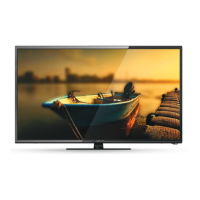
LED HD TV
Owners Manual
Model: FEHT32N8D

Questions and Answers

  • M
    Mr. Eric FranklinAug 13, 2025
    What to do if my Furrion LED TV does not operate?
    • C
      Connie MillerAug 13, 2025
      If your Furrion LED TV isn't operating, try these steps: First, make sure the power cord is securely plugged in. If it is, try a different AC outlet to rule out an outlet issue. Also, check your fuse or circuit breaker to ensure power is being supplied to the TV. As a last resort, unplug the TV for an hour, and then plug it back in to see if it resets.
  • F
    frodriguezAug 17, 2025
    Why is there poor picture or no picture on my Furrion LED TV?
    • K
      Kyle CalderonAug 17, 2025
      If you're experiencing poor picture quality or no picture on your Furrion LED TV, it could be due to several reasons. It might be the station or cable TV provider experiencing issues, so try tuning to another station. Make sure the channels are correctly set into the memory. Verify the connections of your antenna or cable TV and adjust the antenna if needed. Also, check for any potential sources of interference. Finally, ensure that your picture control adjustments are properly configured.
  • S
    Shawn GonzalezAug 20, 2025
    Why is there normal picture but no sound on my Furrion FEHT32N8D LED TV?
    • E
      Edward TurnerAug 20, 2025
      If you see a normal picture but hear no sound on your Furrion LED TV, here are a few things to check: First, review the volume settings to ensure they are at an audible level. Make sure the sound isn't muted by pressing the MUTE button. Try switching to another channel to see if the issue is channel-specific. Finally, inspect the audio cable connections to confirm they are properly connected.
  • D
    davidwilcoxAug 25, 2025
    Why is the remote control not working on my Furrion FEHT32N8D?
    • M
      mark84Aug 25, 2025
      If the remote control isn't working with your Furrion LED TV, first ensure the remote is within range and has a clear line of sight to the TV, without any obstructions. Then, check the batteries in the remote and replace them if necessary. Finally, verify that the correct operating mode is set on the remote (TV, VCR, etc.).
  • J
    joel23Aug 28, 2025
    What to do if Furrion FEHT32N8D LED TV has poor sound or no sound?
    • A
      Alexander WhiteAug 28, 2025
      If your Furrion LED TV has poor or no sound, there are a few things you can check. First, the station or cable TV provider might be experiencing problems, so try tuning to another station. Also, check your sound adjustments, such as volume and mute settings. Finally, look for any sources of possible interference that might be affecting the sound quality.
  • S
    Stephen WoodsAug 31, 2025
    Why is there poor Cable / Satellite TV Reception on my Furrion FEHT32N8D LED TV?
    • J
      Jennifer HarrisAug 31, 2025
      If you're having trouble with cable or satellite TV reception on your Furrion LED TV, here are some things to check: Make sure the antenna amp is turned off for a cable signal. Verify that the incoming cable is correctly connected to your RV. Ensure the cable splitter box has power. Confirm that the incoming cable is connected to the correct cable/satellite wall connection inside your RV. Also, ensure the internal RV coax jump cable is connected to the correct port. Finally, check that your dish has no obstructions.
  • H
    Heidi DuranSep 4, 2025
    Why does my Furrion LED TV shut off by itself?
    • A
      Amy TurnerSep 4, 2025
      If your Furrion LED TV is shutting off unexpectedly, there are a couple of potential reasons. The sleep timer might be set, causing the TV to turn off automatically. Alternatively, the power supply might be interrupted.
  • J
    Joann GonzalezSep 8, 2025
    Why does my Furrion FEHT32N8D AV input play in black and white?
    • M
      Melissa MortonSep 8, 2025
      If your Furrion LED TV's AV input is displaying in black and white, check the RCA connections on the back of the TV and from the source to ensure they are correctly connected. Make sure the yellow connection is in the correct port.

Summary

Safety Warnings

Important Safety Instructions

Key safety instructions for proper use and handling of the appliance.

How to Handle the LCD Panel

Instructions on safely handling the LCD panel to avoid damage or injury.

Possible Adverse Effects on LCD Panel

Explains potential image retention issues and formats to avoid.

Safety Precautions

Precautions for stable placement and ventilation to prevent accidents.

Function Overview

Control Panel

Details the functions and layout of the TV's physical control buttons.

Rear Panel

Describes the various input and output ports located on the back of the TV.

Remote Control

Explains the buttons and functions of the TV remote control.

About Your LED HD TV

Features

Lists and describes the main features of the LED HD TV.

Power Source

Provides information and warnings regarding the TV's power supply and connection.

Before Operation

Whats in the Box

Lists the items included with the TV purchase.

Preparation of your Remote Control

Instructions for installing batteries in the remote control.

Getting Started

Change Settings

Picture Menu

Explains how to adjust picture settings like brightness, contrast, and color.

Advanced Settings

Details advanced picture adjustments for noise reduction and contrast.

Sound Menu

Covers audio settings including treble, bass, balance, and sound modes.

EQ Setting

Allows adjustment of the equalizer for custom sound profiles.

Audio Description

Explains features for audio descriptions, useful for visually impaired users.

Channel Menu

Manages TV channels, including auto scan, manual scan, and channel editing.

Auto Scan

Automatically searches for and stores available TV channels.

Manual Scan

Manually searches for TV channels by frequency.

Analog Manual Scan

Scans for analog channels, allowing selection of color and sound systems.

Channel Edit

Allows editing of channels, including deleting, skipping, or moving them.

Favorite Management

Enables users to create and manage lists of favorite channels.

Signal Information

Displays detailed information about the current TV signal strength and quality.

Lock System

Provides options for parental controls, channel locking, and keypad locking.

Hotel Mode

Configures the TV for hotel use, restricting certain settings.

Setup Menu

Contains general TV setup options like OSD language, mode, and time settings.

Audio Languages

Allows selection of primary and secondary audio languages for broadcasts.

Subtitle

Manages subtitle display, including language selection and hearing impaired options.

Teletext

Explains Teletext broadcast reception and decoding for information services.

Time Settings

Configures TV timers, sleep timers, and time zone settings.

HDMI CEC Control

Enables interactive control of connected HDMI devices via CEC protocol.

PVR Settings

Manages Personal Video Recorder functions, including file management and recording schedules.

File Manager

Accesses and manages recorded programs on connected storage devices.

Scheduled Record

Sets up schedules for recording TV programs automatically.

Scheduled Viewing of TV Programs

USB Operation

Music

Instructions for playing music files from a USB storage device.

Photo

Instructions for viewing photo files from a USB storage device.

Movie

Instructions for playing video files from a USB storage device.

Text

Instructions for viewing text files from a USB storage device.

Trouble Shooting

Specifications

Furrion FEHT32N8D Specifications

General IconGeneral
Screen Size32 inches
Display TypeLED
Resolution1366 x 768
Refresh Rate60 Hz
HDMI Ports3
USB Ports1
Weight10.1 lbs
Power Consumption55W
Aspect Ratio16:9
Built-in SpeakersYes

Related product manuals