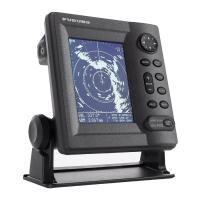
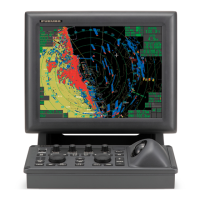
NAVNET GENERAL INFORMATION
Radar setup (manual tuning) for maximum detection:
1. Power on the radar and transmit.
2. Range out to maximum range.
3. Adjust SEA and RAIN control (press [GAIN] key to access) to off or minimum.Set A/C AT [OFF].
4. Adjust GAI
N to maximum
(press [GAIN] key to access and select [MAN] under GAIN SENSITIVITY).
5. Slowly reduce GAIN until only small amounts of noise (in the form of speckles) appear on the display.
6. Set RANGE to the desired range.
7. Adjust SEA control (used to reduce echoes from surrounding waves) as required.
Start at minimum and slowly adjust higher until small targets become distinguishable and clutter is reduced and/or broken
up into small dots (Do not over adjust).
8. Adjust RAIN control (used only in rain conditions) if required.
Start at minimum and slowly adjust higher until unwanted echoes and speckles are reduced (Do not over adjust).
9. This completes the procedure for max
imum receive sensitivity and creates a reference to compare with the radar system
automatic gain, sea and rain functions.
Heading Input; connect to NavNet RADAR DISPLAY only: automatically shared on NavNet network (*see note for NMEA input)
AD10 (Furuno 4-wire): connect only to the heading port of the NavNet radar display (7" or 10" [port 2], 10.4" [port 3])
*NMEA (2-wire): connect to the NavNet radar heading input (pins 1 and 2) or any NMEA port (pins 3 and 4)
If using NMEA heading: Radar display [OUTPUT THROUGH NETWORK] port, turn HDG "ON" required for network sharing.
NOTE: Heading is required for radar chart overlay, waypoint mark (lollipop), TLL (target latitude/longitude), echo stretch, radar north-
up, course-up, true motion and optional ARP11(automatic radar plotter).
The ARP11 requires FURUNO AD10 heading format.
Time Offsets (if used): This is set in [GPS SENSOR SETTINGS] or [NAV SOURCE SETTINGS] depending on the GPS source.
BBWGPS antenna: Press [MENU], [SYSTEM CONFIGURATION], [NAV OPTION], [GPS SENSOR SETTINGS], edit
[LOCAL TIME OFFSET] to proper offset (only for display with BBWGPS antenna connected).
External GPS source:Press [MENU], [SYSTEM CONFIGURATION], [NAV OPTION], [NAV SOURCE SETTINGS], edit
[LOCAL TIME OFFSET] to proper offset (for any display with an external GPS source and/or network displays).
IMPORTANT: Time must be offset the same for each display on the network (example: -05.00 hrs.) for proper waypoint operations.
Displaying different screen colors; factory programmed or user selectable "MANUAL" (displays menu selected colors)
Multi color radar display: Press [MENU], [RADAR DISPLAY SETUP], select "ECHO COLOR", change to "MULTI COLOR".
Chart color selections: Press [MENU], [CHART SETUP], [CHART DETAILS] (selections depend on type, C-MAP or Navionics)
Select Pre programmed or Manual color selection:
1. Enable settings by pressing [POWER/BRILL], [HUE] and selecting [DAY], [NIGHT], [TWILIGHT] or [MANUAL]
MULTIPLE DISPLAY NETWORKS:
A maximum of four(4) displays are possible on the network
Chart source allows for three additional HOST NAMES plus using own chart source.
Additional network devices including BBFF1, BBFF3 sounders and/or FAX30 weatherfax units can also be added.
Output Through Network Sentences: (Configure only on NavNet display with position source connected)
1. Press [MENU], [SYSTEM CONFIGURATION], [PORT SETUP], [OUTPUT THROUGH NETWORK]
2. Set GGA, VTG and ZDA to "ON" for proper position and waypoint operations (Not required in single display systems)
3. Press [RETURN], [MENU] to return to normal operations.
NOTE: Set CHART SOURCE options on each display in the network properly (even if no chart is present)
1. This allows for future expansion of addtional charts of same type i.e. Navionics or C-Map.
2. Proper type display software; Navionics or C-MAP/NT is required (type noted on display chart door).
3. All displays within a network can then use any chart from any display on the network.
4. Access CHART SOURCE using INSTALLATION SETUP (hold [MENU] while powering on display.
5. Press [MENU], [SYSTEM CONFIGURATION], [INSTALLATION SETUP], [NETWORK SETUP], edit "CHART SOURCE".
6. Include all displays HOST NAME's within the network omitting its own HOST NAME, then press [ENTER].
7. Press [RETURN], [MENU] to return to normal operations.
POWER OFF then ON after any "MENU CHANGES" to store the new information.
Refer to the Wiring configurations page or Installation and Operator Manuals regarding detailed information on any steps


 To Next Page
 Loading...