3. EQUIPMENT SETUP
3-2
How to operate the menus
The following procedure shows how to use the menu system.
1. Press (power switch) on the switch box to turn the power on.
2. After the startup process completes, the last used display appears and a warning
message is displayed. After reading the message, tap [OK].
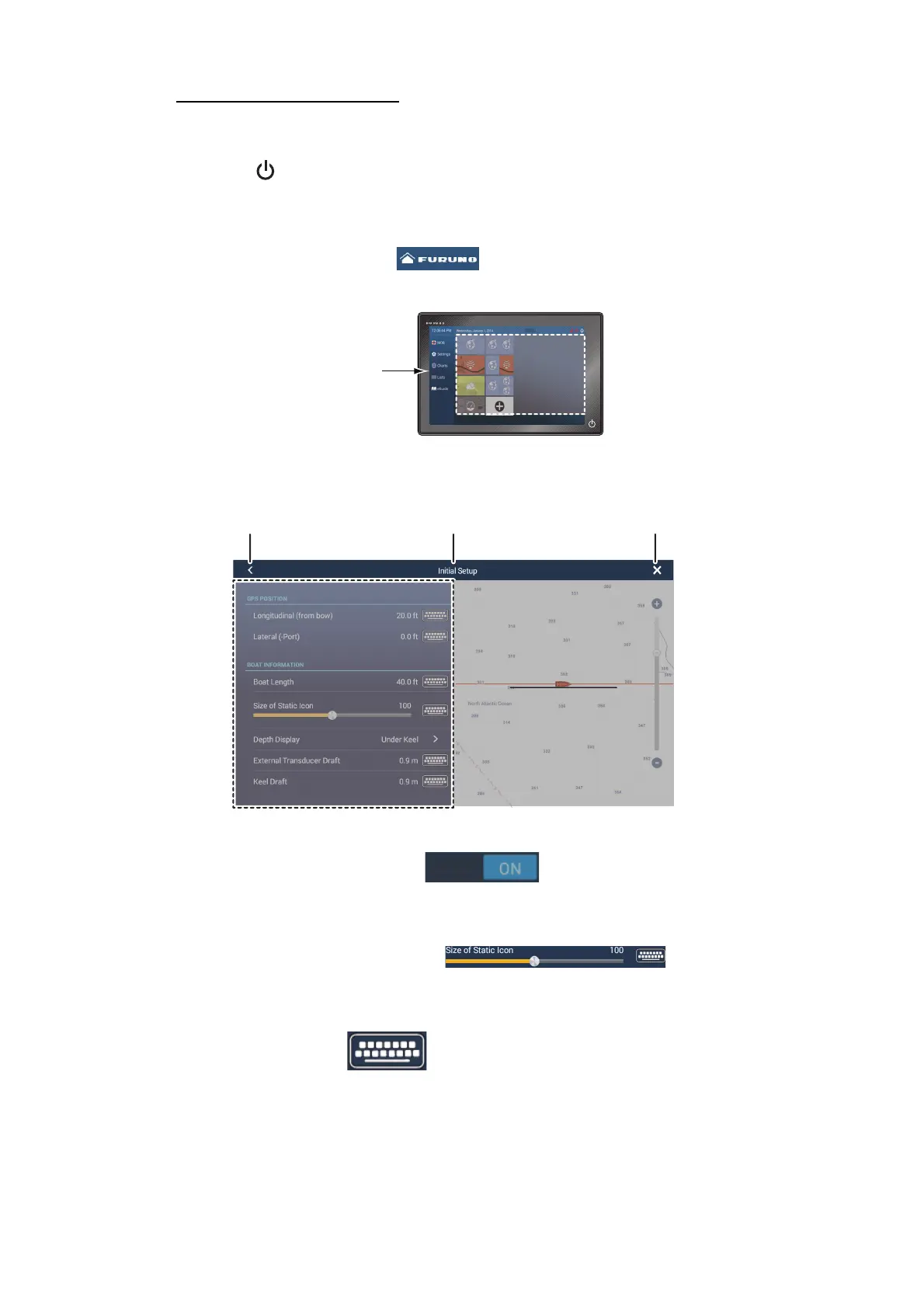
3. Tap the [FURUNO] icon ( ) to show the home screen and display mode
settings.
4. Tap [Settings] to open the [Settings] menu.
5. Drag the menu to show [Initial Setup], then tap [Initial Setup].
6. Depending on the menu item selected, the following operations are available:
• [ON]/[OFF] toggle switch.
Tap to switch between [ON] and [OFF]. [ON] activates the function, [OFF]
deactivates the function.
• Slidebar and keyboard icon.
Drag the slidebar to adjust the setting. Settings may also be adjusted using the
software keyboard for direct input.
• Keyboard icon.
Referring to the figure on the following page, use the software keyboard to input
alphabet or numeric characters.
7. Tap [Close] (Indicated as an “X”) at the top right-hand side of the screen to exit.
Home menu
D
ispla
y
Mo
de Sett
i
ngsDisplay Mode SettingsDisplay Mode Settings
Menu title Close iconBack icon
Menu
items
Preview screen
Changes made in the
menu can be
previewed here
Preview screen
Changes made in the
menu can be
previewed here











 To Next Page