user manual GSC_4 13
2.4 Onscreen text keyboard
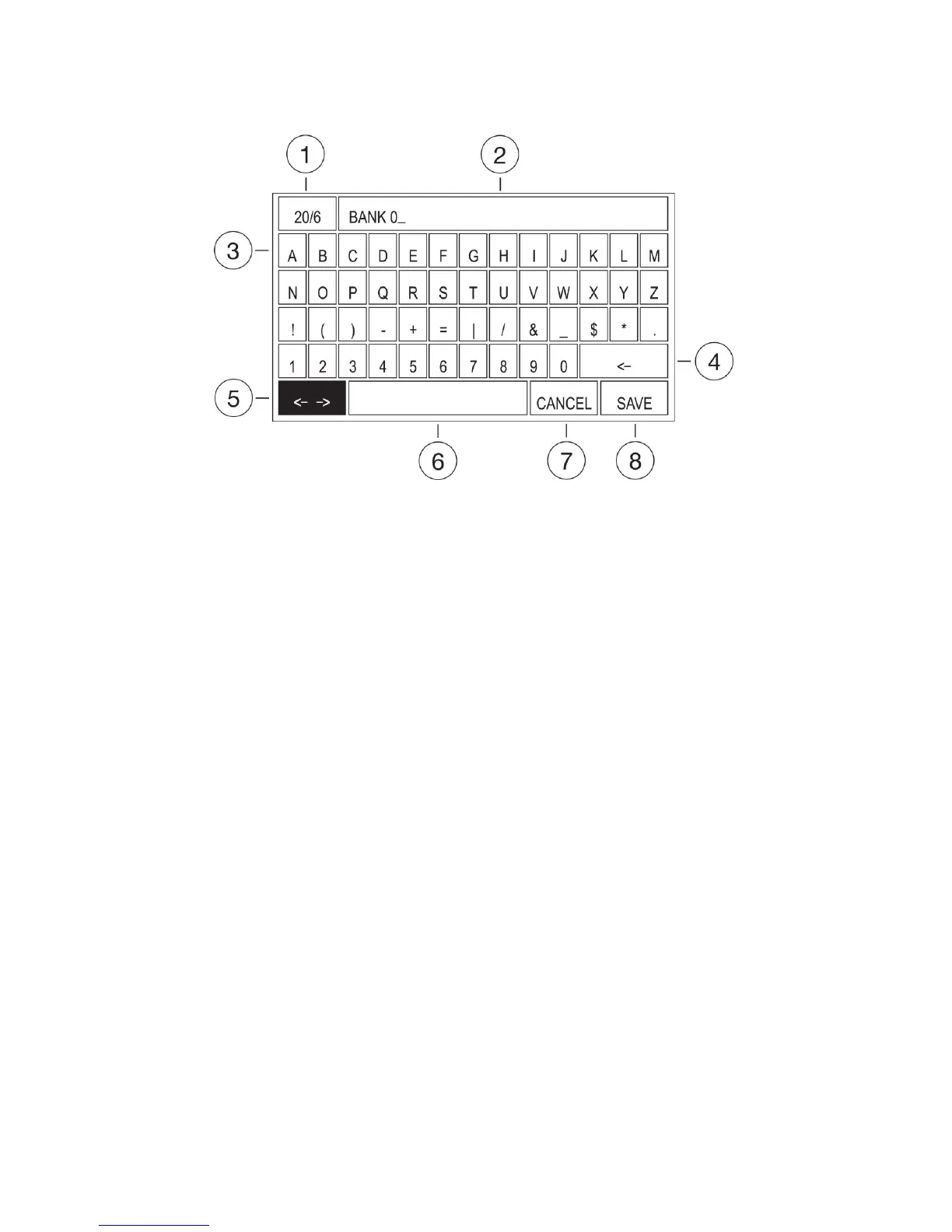
Figure 2.4 Onscreen text keyboard
Description:
1 –Field: indicates the maximum number of characters for typing/number of already entered characters.
2 – Entered characters.
3 – Letters, numbers and special characters field.
4 – BACKSPACE key field
5–MOVETHECURSORkeyeld
6 – SPACE key field
7 – CANCEL key field
8–SAVEkeyeld
Thisscreenisfortextwritingandediting.TheMOVECURSOReldistherstactiveeldafterthescreen
is displayed. In the editing field there is a selected text for editing. At this instance there are few options:
- Press OK to keep the text and move the cursor to the end of the text.
- Press LEFT and RIGHT ARROWS to keep the text and move the cursor to the desired text position.
- Press UP ARROW and select the desired character by pressing given ARROWS and then press
OK to overwrite the text by the selected character.
- Press UP ARROW and select the BACKSPACE field and press OK to clear the text.
Use ARROWS to select a character. Press OK to add the selected character to the text.
At anytime you can press the ESC key to quit editing with no text overwrite and then select the CANCEL
key field and press OK for the same result.
TosaveoverwritesselecttheSAVEeldandpressOK.


 To Next Page