G-PLAY Installation Guide
Pa
e 9
9.2 Creating the Required File Folders on G-PLAY
Mac OS X
Now that G-PLAY is initialized, four folders must be created
to store the various types of media files.
1. Double click on the G-PLAY icon.
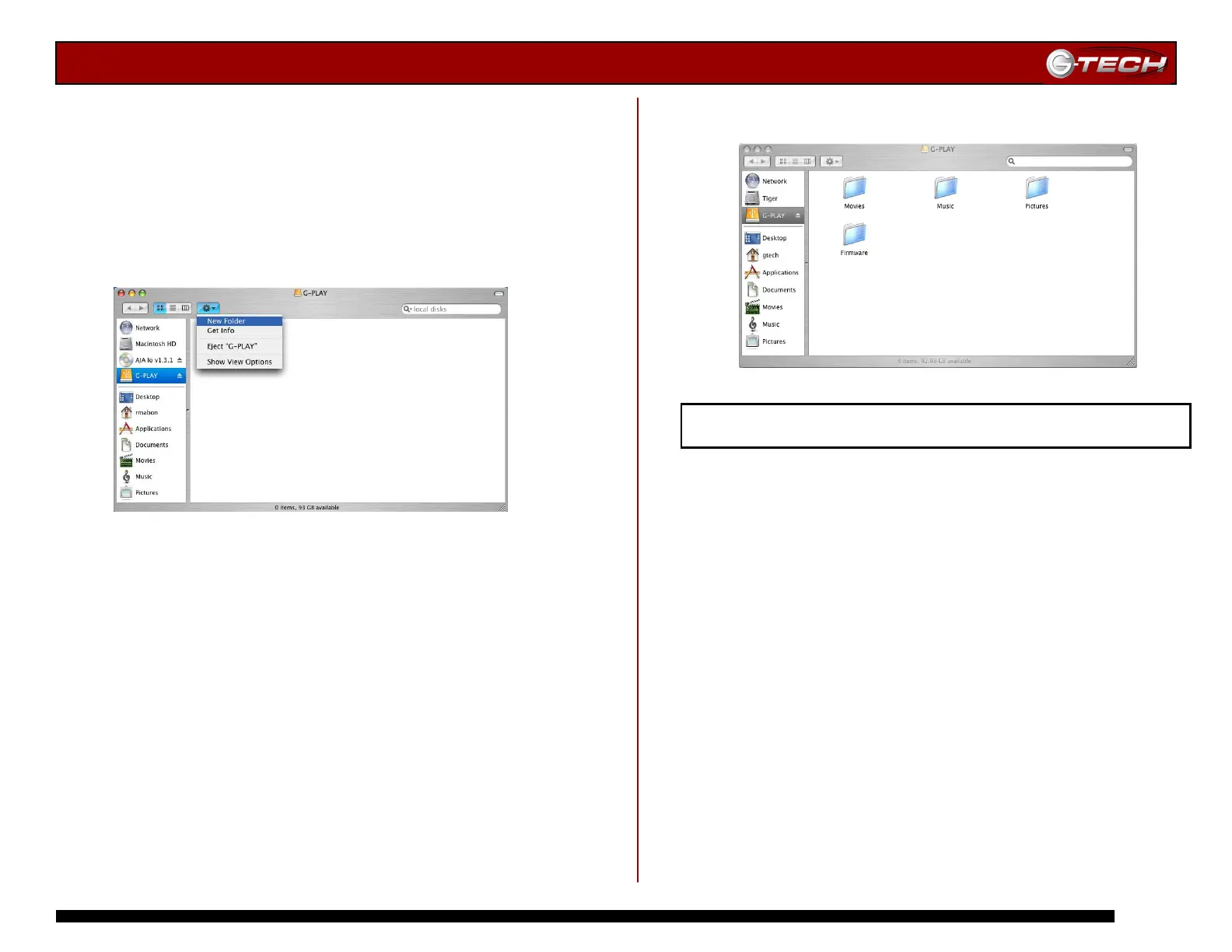
2. Click on the “Gear” symbol and select New Folder as
shown below.
3. Name the new folder Firmware.
4. Repeat the above steps and create three additional new
folders with the following names…
• Movies
• Music
• Pictures
Note: DO NOT change the names of these folders. G-PLAY uses
these exact names to locate files. These folders can be
customized. For example, the Movies folder can be spilt into
sub-directories with names such as “Action”, “Adventure”, etc.
The Music folder can be spilt into “Rock”, “Classical”, etc.
Note: G-PLAY can also double as a standard USB hard drive. You
can create another folder (“Data” for example) to store your data
files. This folder will only be visible and accessible when G-PLAY is
attached to your computer.
5. Your G-PLAY should now have the following folders:
Proceed to Section 10 – Loading G-PLAY with Content













 To Next Page