Chapter 4 -- Installation--Device Manager
4 - 7
Device Manager
If you wish to make changes to the configuration of your eQCM 10M after it has already been installed, you
must use the Windows Device Manager. Steps for getting to the Device Manager can vary by operating system,
so check your operating system’s online help for more specific information on how to get to the Windows
Device Manager.
Under Windows XP, right clicking on the My Computer icon and selecting Properties brings up the System
Properties dialog box. Select the Hardware Tab and then click on the Device Manager button. This should
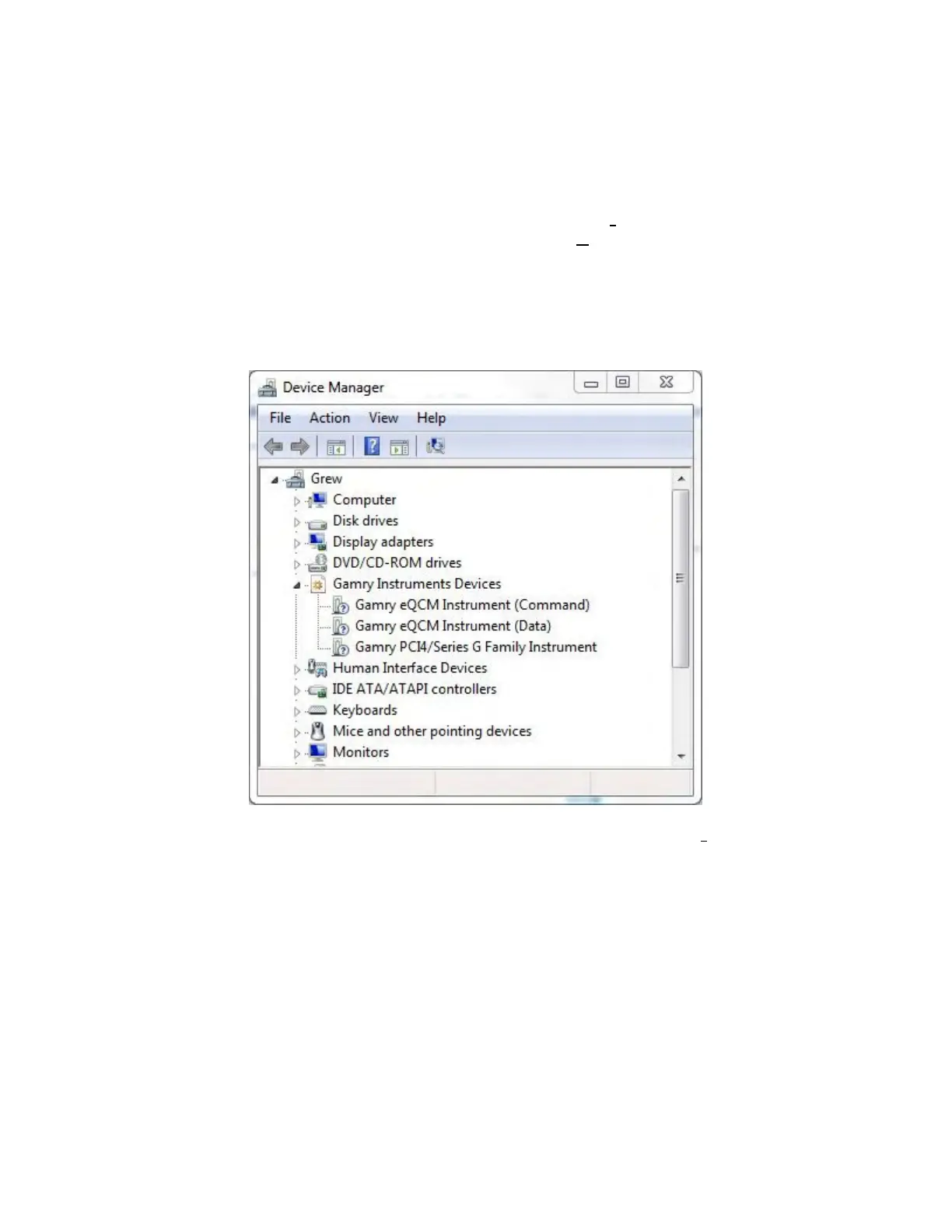
bring up the Device Manager screen. Clicking on the + sign next to Gamry Instruments, should expand the
tree view to give you a screen that looks similar to the following figure:
Figure 4-6
Device Manager Window
You can now right click on any of the Devices listed under Gamry Instruments and select Properties to look at
or change its configuration. An example is shown below in Figure 4-7.


 To Next Page