Introduction
WARNING
See the Important Safety and Product Information guide in
the product box for product warnings and other important
information.
Always consult your physician before you begin or modify
any exercise program.
Getting Started
When using your watch the first time, you should complete
these tasks to set it up and get to know the basic features.
1 Press LIGHT to turn on the watch (Device Overview,
page1).
2 Follow the on-screen instructions to complete the
initial setup.
During the initial setup, you can pair your smartphone
with your watch to receive notifications, sync your
activities, and more (Pairing Your Phone, page47).
3 Charge the device (Charging the Watch, page60).
4 Start an activity (Starting an Activity, page6).
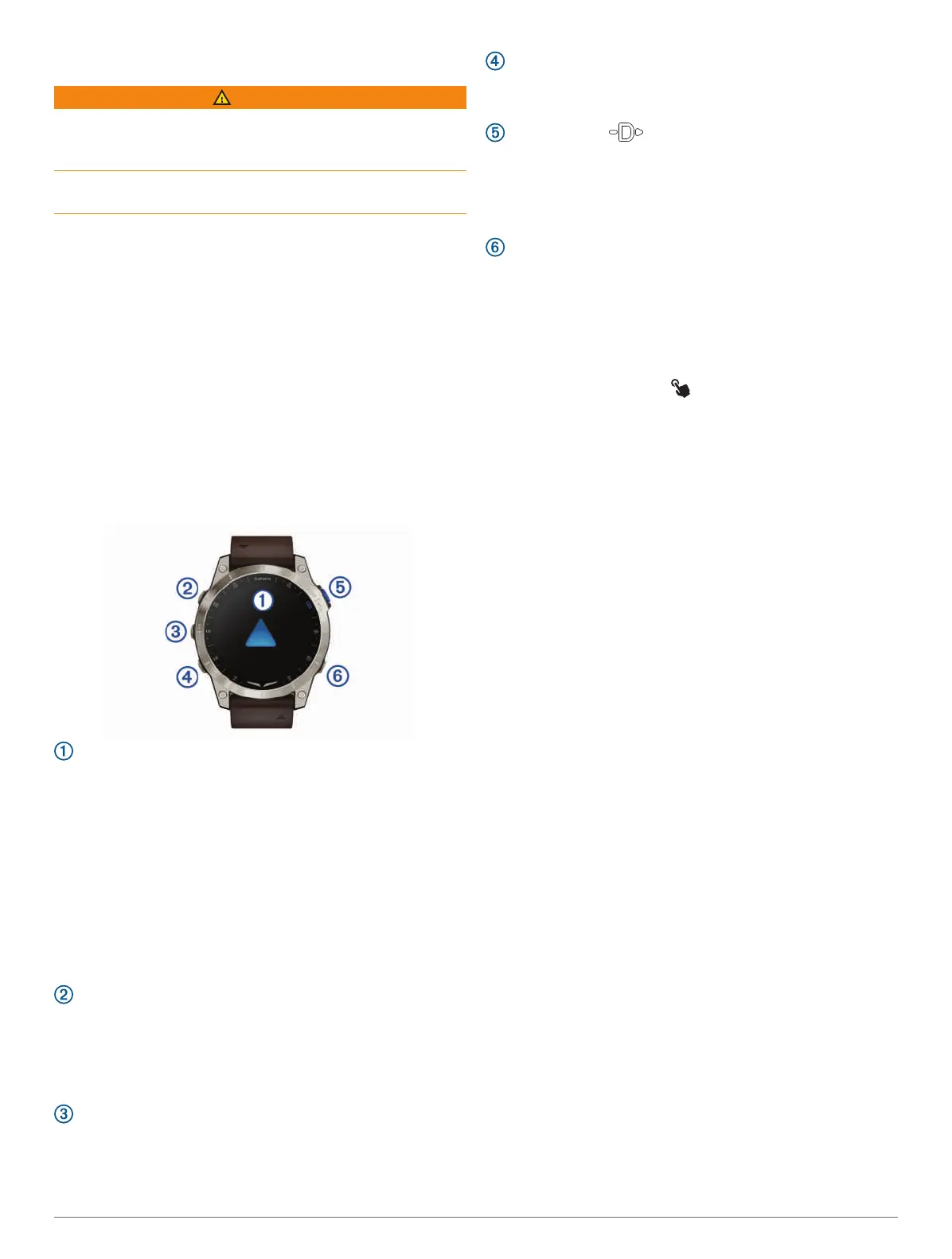
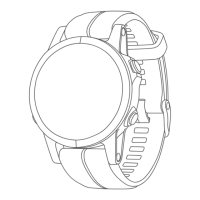
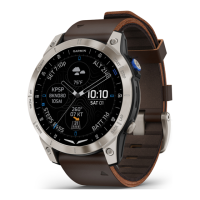
Device Overview
Touchscreen
• Tap to choose an option in a menu.
• Hold the watch face data to open the glance or
feature.
NOTE: This feature is not available on all watch
faces.
• Swipe up or down to scroll through the glance loop
and menus.
• Swipe right to return to the previous screen.
• Cover the screen with your palm to return to the
watch face and turn down the screen brightness.
LIGHT
• Press to turn on the device.
• Press to turn down the display brightness.
• Quickly press twice to turn on the flashlight.
• Hold to view the controls menu.
UP·MENU
• Press to scroll through the glance loop and menus.
• Hold to view the menu.
DOWN
• Press to scroll through the glance loop and menus.
• Hold to view the watch face from any screen.
START·STOP
• Press to choose an option in a menu.
• Press to view the activity list and start or stop an
activity.
• Hold to navigate to an aviation waypoint.
BACK·LAP
• Press to return to the previous screen.
• Press to record a lap, rest, or transition during a
multisport activity.
• Hold to view the nearest airports from any screen.
Enabling and Disabling the Touchscreen
• Hold LIGHT, and select .
• Hold MENU, select System > Touch, and select an
option.
TIP: To quickly enable or disable the touchscreen, you
can assign a hot key shortcut to the hold function of the
buttons (Customizing the Hot Keys, page60).
Using the Watch
• Hold LIGHT to view the controls menu (Controls,
page35).
The controls menu provides quick access to frequently
used functions, such as turning on do not disturb mode,
saving a location, and turning the watch off.
• From the watch face, press UP or DOWN to scroll
through the glance loop (Glances, page25).
• From the watch face, press START to start an activity
or open an app (Activities and Apps, page6).
• Hold MENU to customize the watch face (Customizing
the Watch Face, page25), adjust settings (System
Settings, page58), pair wireless sensors (Pairing Your
Wireless Sensors, page42), and more.
Clearing User Data with the Kill Switch Feature
The Kill Switch feature quickly removes all saved user-
entered data and resets all settings to the factory default
values.
1 Customize a button or button combination for the Kill
Switch feature (Customizing the Hot Keys, page60).
2 Hold the button or button combination you customized
to activate the Kill Switch feature.
TIP: You can press any button to cancel the Kill Switch
feature during a 10-second countdown.
After 10 seconds, the watch deletes all user-entered data.
Introduction 1



 To Next Page