1
Go to www.garminconnect.com/start, and download the
Garmin Express
™
application.
2
Follow the on-screen instructions to set up Wi‑Fi with Garmin
Express.
TIP: You can register your device at this time.
Your device attempts to upload your saved activity to your
Garmin Connect account following each activity. You can
also hold on your device to start uploading your saved
activities.
Turning Off Wi
‑
Fi Technology
From the Forerunner home screen, select > Settings >
Wi-Fi > Auto Upload > Off.
Navigation
You can use the GPS navigation features on your device to view
your path on a map, save locations, and find your way home.
Adding the Map
You can add the map to the data screens loop for an activity
profile.
1
Select an activity profile.
2
Select > Activity Settings > Data Screens > Map >
Status > On.
Map Features
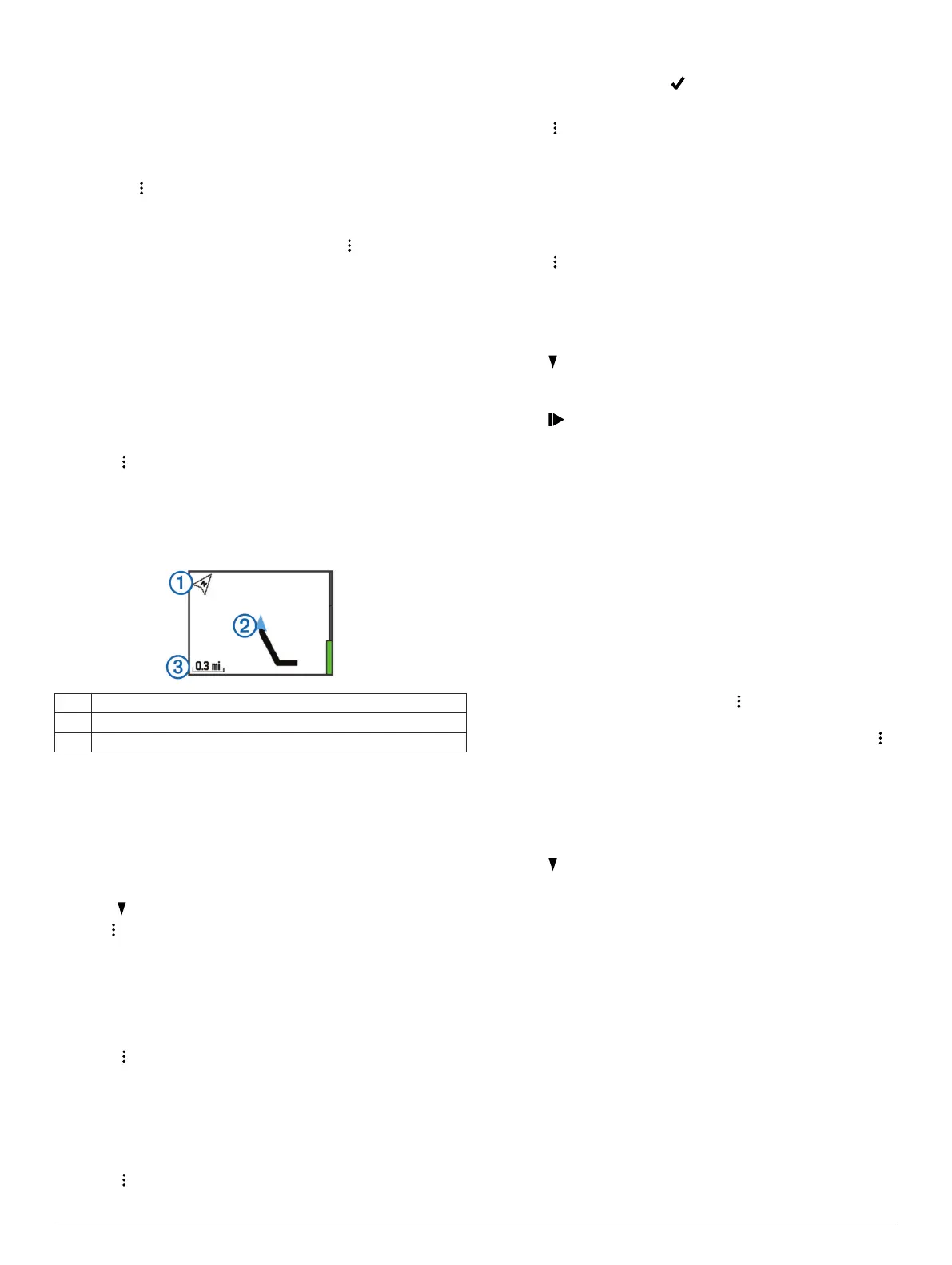
When you start the timer and begin to move, a black line
appears on the map, showing you where you have traveled.
À
Points to north
Á
Your current location and heading
Â
Zoom level
Marking Your Location
Before you can mark a location, you must enable the map
screen for your activity profile and locate satellites.
A location is a point that you record and store in the device. If
you want to remember landmarks or return to a certain spot, you
can mark a location.
1
Go to the place where you want to mark a location.
2
Select to view the map.
3
Hold .
4
Select Save Location.
The location appears on the map with the date and time.
Viewing Your Current Elevation and Coordinates
TIP: This procedure provides location details and another way to
save your current location.
1
Select > Navigation > Where Am I?.
Your device must locate satellites before it can display your
location information.
2
If necessary, select Save Location.
Editing a Location
You can edit the name of the saved location.
1
Select > Navigation > Saved Locations.
2
Select a location.
3
Select Name.
4
Edit the name, and select .
Deleting a Location
1
Select > Navigation > Saved Locations.
2
Select a location.
3
Select Delete > Yes.
Navigating to a Saved Location
Before you can navigate to a saved location, you must locate
satellites.
1
Select > Navigation > Saved Locations.
2
Select a location.
3
Select Go To.
The compass appears. The arrow points toward the saved
location.
4
Select to view the map (optional).
A line appears on the map from your current location to the
saved location.
5
Select to start the timer and record the activity.
Navigating Back to Start
At any point during your activity, you can return to your starting
location. For example, if you are running in a new city, and you
are unsure how to get back to the trail head or hotel, you can
navigate back to your starting location.
NOTE: Garmin
®
recommends that you locate satellites and start
the timer before attempting to navigate back to your starting
location. If not, the device navigates you to the starting location
of the last saved activity.
NOTE: Garmin recommends enabling the map screen for your
activity profile in order to view your route on the map. By default,
the compass screen appears to navigate you back to your
starting location.
1
Select an option:
• If the timer is still running, select > Navigation > Back
to Start.
• If you stopped the timer and saved your activity, select
> Navigation > Back to Start.
The device navigates you to the starting location of the
last saved activity. You can start the timer again to prevent
the device from timing out to watch mode.
The compass appears. The arrow points toward your starting
point.
2
Select to view the map (optional).
A line appears on the map from your current location to your
starting point.
Courses
You can send a course from your Garmin Connect account to
your device. After it is saved to your device, you can navigate
the course on your device.
You can follow a saved course simply because it is a good
route. For example, you can save and follow a bike friendly
commute to work.
You can also follow a saved course, trying to match or exceed
previously set performance goals. For example, if the original
course was completed in 30 minutes, you can race against a
Virtual Partner trying to complete the course in under 30
minutes.
Navigation 7


 To Next Page