53
Reference
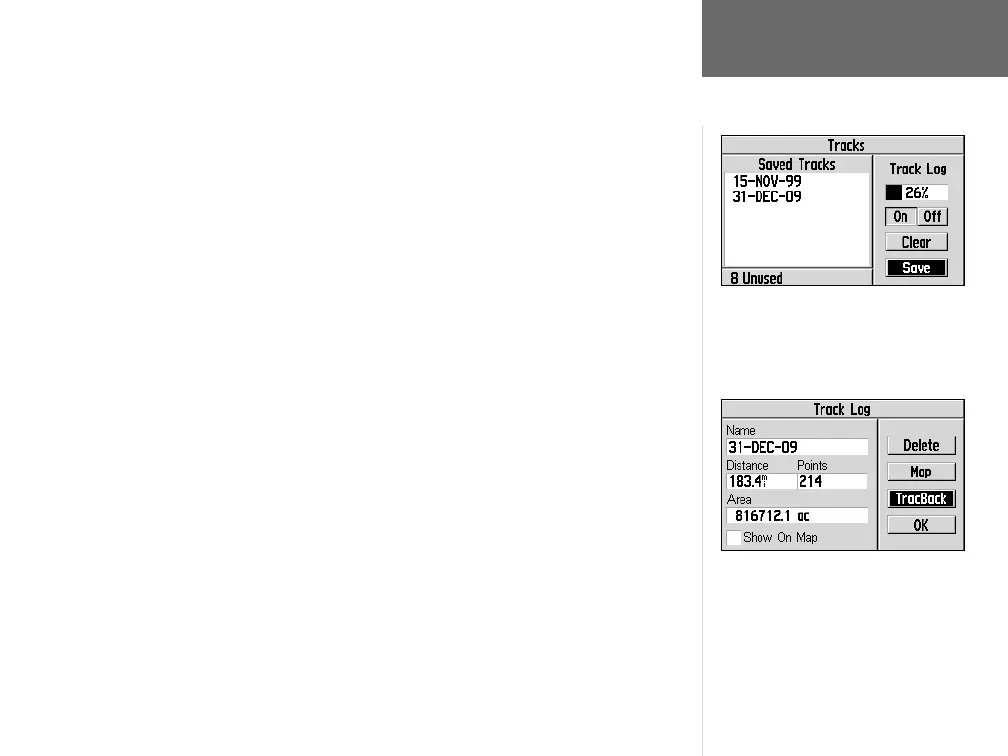
To save the track log currently being recorded:
1. Follow the steps on page 50 to select ‘Tracks’ and display the Saved Tracks Page.
2. Use the ROCKER KEYPAD to highlight ‘Save’ and press ENTER.
To display additional information for a saved track:
1. Follow the steps on page 50 to select ‘Tracks’ and display the Saved Tracks Page.
2. Use the ROCKER KEYPAD to highlight a track log in the ‘Saved Tracks’ list and
press ENTER. Information for the save track log is displayed, including distance,
number of points and area calculation. On-screen buttons are also provided to
delete the track log, show it on the map or enable the TracBack feature.
To use the TrackBack feature:
1. Follow steps 1 and 2 above, under “To display additional information for a saved
track”.
2. Use the ROCKER KEYPAD to highlight ‘TracBack’ and press ENTER. A pop-up
menu will present two options: ‘To Beginning’ (retracing your steps back to the fi rst
track log point) or ‘To End’ (retracing the track log in the same sequence it was
saved). Use the ROCKER KEYPAD to select the desired option and press ENTER.
Main Menu: Tracks
To retrace your steps, select the TracBack
function from the track log information
screen.
To save a track log, select the on-screen ‘Save’
button from the Saved Tracks Page.
GPS V OM.indd 10/3/01, 1:53 PM53


 To Next Page