29
Reference
Map Page: Options
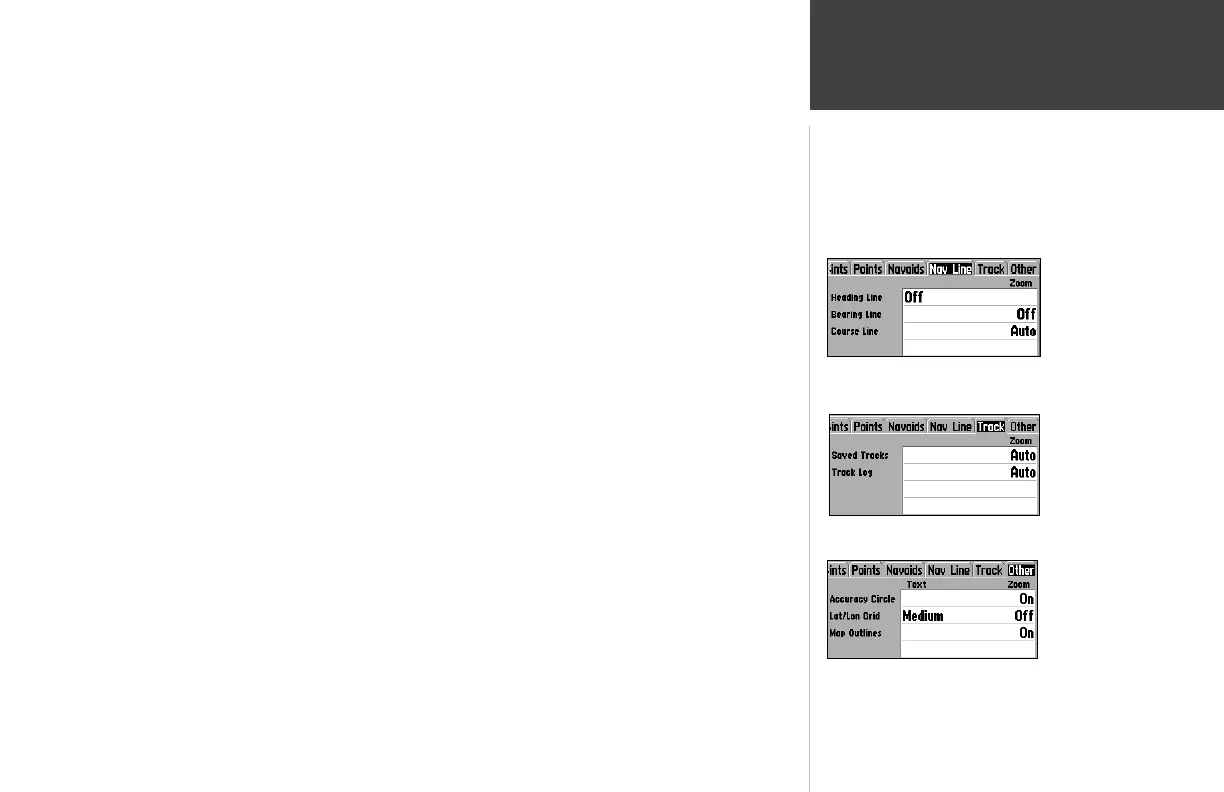
Nav Line Tab—
Heading Line— On/Off: draws an extension from the end of the boat icon in the direction of
travel.
Bearing Line— On/Off: toggles the black/white line which points to the current navigation point.
Course Line— Auto, Off, 20 ft.-800 mi.: sets the maximum zoom scale at which the desired
course line should appear on the screen.
Track Tab— Saved Tracks/Track Log
Zoom— Auto, Off, 20 ft.-800 mi.: sets the maximum scale at which the feature should appear on
the screen. Some types of data only display up to certain zoom scales.
Other Tab—
Accuracy Circle— On/Off: toggles the circle “On” and “Off”. The circle represents the approximate
accuracy of the unit based on EPE, DOP, and basemap quality. Your position is within the circle.
Lat/Lon Grid— Text— None, Small, Medium, and Large: controls the screen size of the name.
Zoom— Auto, Off, 20 ft.-800 mi.: sets the maximum scale at which the feature should appear.
Map Outlines— On/Off: toggles the coverage boxes for BlueChart/MapSource data “On” and “Off”.
From the map setup page, you can access the following menu options by pressing MENU:
• Defaults— restores settings back to factory settings for the tab highlighted.
• All Map Defaults— restores settings back to factory settings for all tabs.
• Set Up Page Layout — the layout of the data fi elds may be changed to show more fi elds (with a
smaller number size) or less fi elds (with a larger number size). You may also choose to show a Compass
Tape on the Map Page only.
To set up the page layout:
1. Press the MENU key to display the Page options.
2. Highlight ‘Set Up Page Layout’ and press ENTER.
(continued)
Other Tab
Track Tab
Nav Line Tab
GPSMAP178CManual.indd 29 3/19/2004, 3:10:09 PM



 To Next Page