Quick Start
15
Features and Data Entry
Features and Data Entry
The following screen features and terms are referred to both in this Quick Start Guide and through-
out the Pilot’s Guide.
CURSOR — A highlighted area on the screen (white text on black background) which can be moved
up/down/left/right with the ARROW KEYPAD in order to select individual fi elds on the display.
Moving the cursor to a given location allows you to begin data entry or scroll through a list.
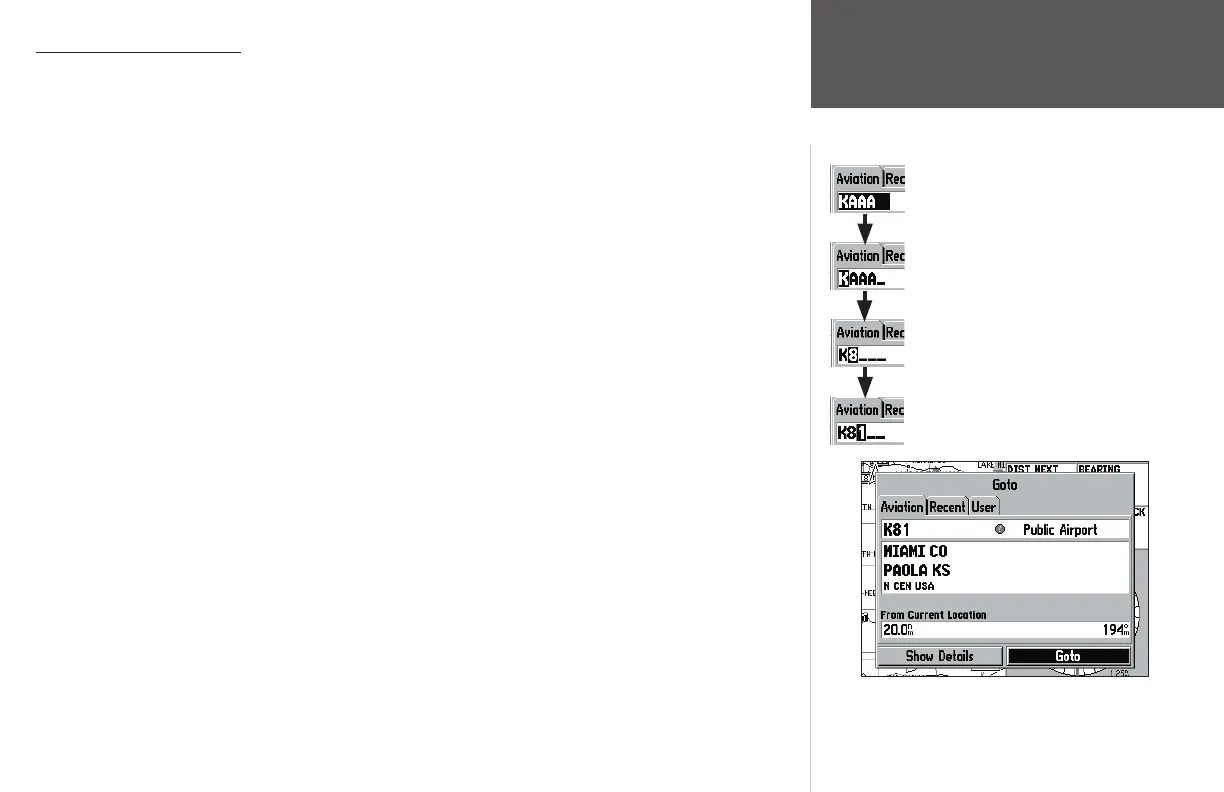
FIELD — The location on a page (such as the “waypoint name fi eld” shown at right) where a group
of characters or an option is entered and displayed. The cursor is placed on a fi eld (using the ARROW
KEYPAD) either to begin data entry or to select options.
To enter data in a data fi eld:
1. Use the ARROW KEYPAD to highlight the desired data fi eld and press ENTER to begin data entry.
2. Use the ARROW KEYPAD to enter the desired data. The UP/DOWN arrows select the desired char-
acter; the RIGHT arrow moves to the next character fi eld; the LEFT arrow moves back to the previous
character fi eld or, when pressed at the left-most character fi eld, clears the entire data fi eld.
3. When the desired data has been entered, press ENTER to confi rm.
ON-SCREEN BUTTON — Similar to “Field”. Place the cursor on a button and press ENTER to select
the action corresponding to that button. An example of an on-screen button is the ‘Goto’ button that
appears at the bottom of the waypoint information pages.
SCROLL BAR — When viewing a list of items that is too long to display on a single page, a scroll bar
appears along the right-hand side of the list. The position of the scroll bar shows which portion of the
list is being displayed. The height of the scroll bar gives a feel for the number of items in the list (i.e.,
the shorter the bar, the longer the list and vice versa).
To scroll through a list of items, use the UP/DOWN portion of the ARROW KEYPAD.
DEFAULT — A system-selected format, built into either the operating software or the unit’s memory,
that will be followed unless the user chooses a different setting. For example, the default setting for
speed readings (in ‘Aviation’ mode) is ‘knots’, but this setting can be changed to ‘miles per hour’ or
‘kilometers per hour’. Once a setting is changed, the new setting is retained until another change is
made or until the ‘Restore Defaults’ menu option is selected.
Example of cursor and on-screen button. The cursor is highlighting
the on-screen ‘Goto’ button. Press ENTER to select.
Example of on-screen cursor and data entry.
1. Use the ARROW KEYPAD to place the
cursor on the waypoint name fi eld.
2. Press ENTER.
3. Press RIGHT on the ARROW KEYPAD
to move to the second character. Then
UP/DOWN on the ARROW KEYPAD to
select the desired character.
4. Press RIGHT on the ARROW KEYPAD
to move to the third character. Then UP/
DOWN to select the desired character.
5. Press ENTER to complete data entry.
190-00283-01_0B.indd 15 2/6/2003, 11:12:58 AM







 To Next Page