provides a turn-by-turn navigation path to the destination,
avoiding land and other obstacles (Auto Guidance,
page 16).
When you are using a compatible Garmin autopilot
connected to the chartplotter using NMEA 2000
®
, the
autopilot follows the Auto Guidance route.
NOTE: Auto Guidance is available with premium charts, in
some areas.
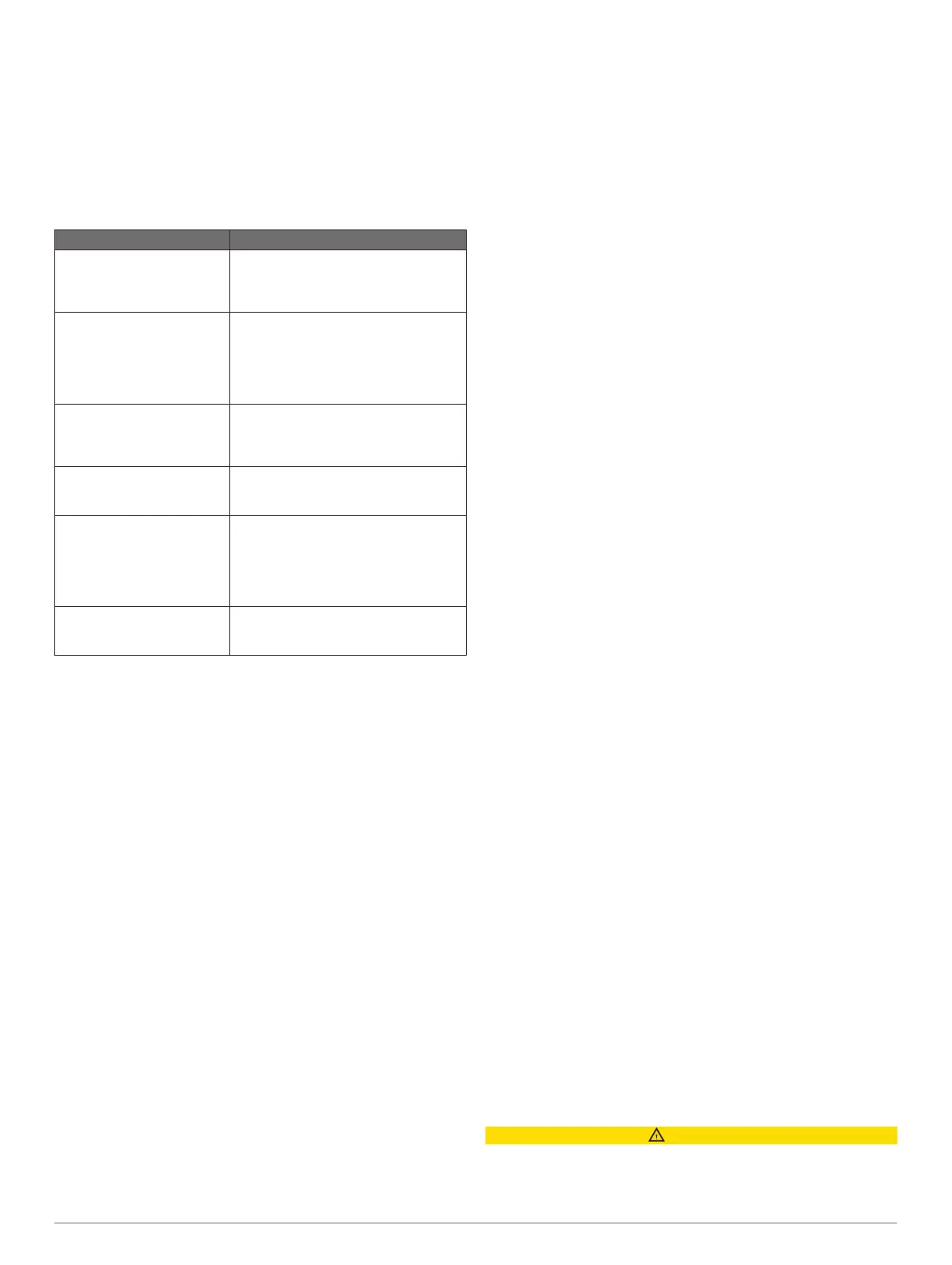
Basic Navigation Questions
Question Answer
How do I make the
chartplotter point me in the
direction in which I want to go
(bearing)?
Navigate using Go To (Setting and
Following a Direct Course Using Go To,
page 15).
How do I make the device
guide me along a straight line
(minimizing cross track) to a
location using the shortest
distance from the present
location?
Build a single-leg route and navigate it
using Route To (Creating and
Navigating a Route From Your Present
Location, page 15).
How do I make the device
guide me to a location while
avoiding charted obstacles?
Build a multi-leg route and navigate it
using Route To (Creating and
Navigating a Route From Your Present
Location, page 15).
How do I make the device
steer my automatic pilot?
Navigate using Route To (Creating and
Navigating a Route From Your Present
Location, page 15).
Can the device create a path
for me?
If you have premium maps that support
Auto Guidance and are in an area
covered by Auto Guidance, navigate
using Auto Guidance (Setting and
Following an Auto Guidance Path,
page 16).
How do I change the Auto
Guidance settings for my
boat?
See Auto Guidance Path
Configurations, page 16.
Destinations
You can select destinations using various charts and 3D chart
views or using the lists.
Searching for a Destination by Name
You can search for saved waypoints, saved routes, saved
tracks, and marine services destinations by name.
1
Select Info > Services > Search by Name.
2
Enter at least a portion of the name of your destination.
3
If necessary, select Done.
The 50 nearest destinations that contain your search criteria
appear.
4
Select the destination.
Selecting a Destination Using the Navigation Chart
From the Navigation chart, select a destination.
Searching for a Marine Services Destination
NOTE: This feature is available with premium charts, in some
areas.
The chartplotter contains information for thousands of
destinations offering marine services.
1
Select Info > Services.
2
Select Offshore Services or Inland Services.
3
If necessary, select the marine service category.
The chartplotter shows a list of the nearest locations and the
distance and bearing to each.
4
Select a destination.
You can select Next Page or Previous Page to view
additional information or to show the location on a chart.
Stopping Navigation
While navigating, from the Navigation or Fishing chart, select
an option:
• Select Menu > Stop Navigation.
• When navigating with Auto Guidance, select Menu >
Navigation Options > Stop Navigation.
Waypoints
Waypoints are locations you record and store in the device.
Waypoints can mark where you are, where you are going, or
where you have been. You can add details about the location,
such as name, elevation, and depth.
Marking Your Present Location as a Waypoint
From any screen, select Mark.
Creating a Waypoint at a Different Location
1
Select Info > User Data > Waypoints > New Waypoint.
2
Select an option:
• To create the waypoint by entering position coordinates,
select Enter Coordinates, and enter the coordinates.
• To create the waypoint using a chart, select Use Chart,
select the location, and select Select.
Marking an SOS Location
You can mark an SOS or MOB (man overboard) location.
1
Hold SOS for one second.
2
Select the SOS type.
3
If necessary, select OK to navigate to the man overboard
location.
If you selected OK, the chartplotter sets a direct course back to
the location. If you selected another type of SOS, the call details
are sent to the VHF radio. You must send the call using the
radio.
Viewing a List of all Waypoints
Select Info > User Data > Waypoints.
Editing a Saved Waypoint
1
Select Info > User Data > Waypoints.
2
Select a waypoint.
3
Select Review > Edit.
4
Select an option:
• To add a name, select Name, and enter a name.
• To change the symbol, select Symbol.
• To change the depth, select Depth.
• To change the water temperature, select Water Temp..
• To change the comment, select Comment.
Moving a Saved Waypoint
1
Select Info > User Data > Waypoints.
2
Select a waypoint.
3
Select Review > Move.
4
Indicate a new location for the waypoint:
• To move the waypoint while using the chart, select Use
Chart, select a new location on the chart, and select
Move Waypoint.
• To move the waypoint using coordinates, select Enter
Coordinates, and enter the new coordinates.
Browsing for and Navigating to a Saved Waypoint
CAUTION
The Auto Guidance feature is based on electronic chart
information. That data does not ensure obstacle and bottom
clearance. Carefully compare the course to all visual sightings,
14 Navigation with a Chartplotter








 To Next Page