Tips and Shortcuts (8700 model)
• Press to turn on the GPSMAP 8700 device.
You can also turn on and off the device using a Garmin chartplotter on the network, a GMM
™
monitor, or a
GRID
™
remote control.
You can put the device to sleep using the GRID 20 remote control.
• Select from any screen to open to the home screen.
• Select Options to open additional settings about that screen.
• Select to close the menu when finished.
• When the device is sleeping, touch the screen to wake the device.
• Press to open additional options, such as locking the touchscreen.
• From any screen, press repeatedly to scroll through the brightness levels when connected to a Garmin
GMM monitor, a GRID remote, or a GRID 20 remote. This can be helpful when the brightness is so low you
cannot see the screen.
• Depending on the features of your chartplotter, not all feature buttons are visible are on the home screen.
Swipe right or left to view the additional feature buttons.
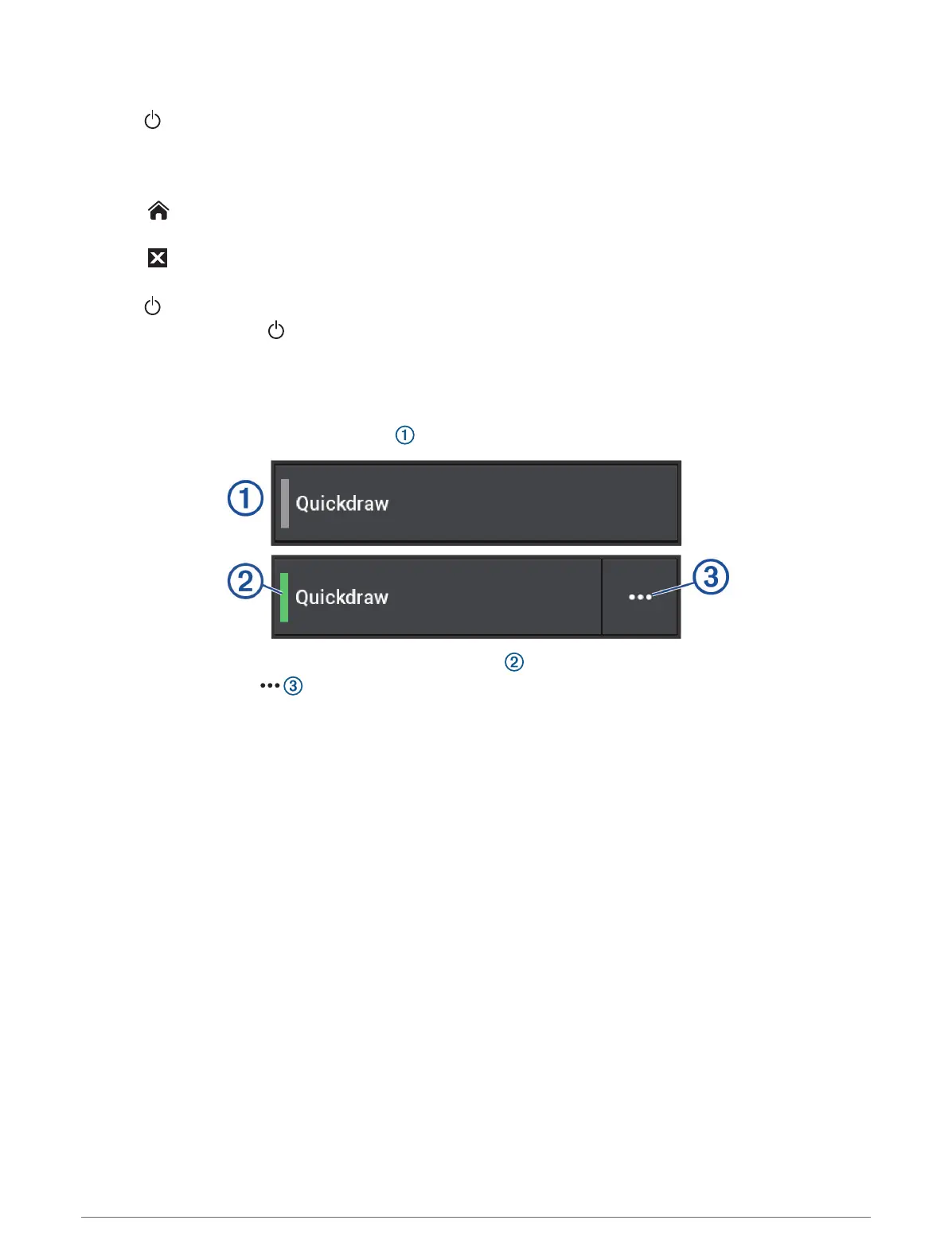
• On some menu buttons, select the button to enable the option.
A green light on an option indicates the option is enabled .
• When available, select to open the menu.
Accessing Owner's Manuals on the Chartplotter
1 Select Info > Owner's Manual.
2 Select a manual.
3 Select Open.
Accessing the Manuals from the Web
You can get the latest owner's manual and translations of manuals from the Garmin website. The owner's
manual includes instructions for using device features and accessing regulatory information.
1 Go to garmin.com/manuals/GPSMAP8400-8600.
2 Select the Owner's Manual.
A web manual opens. You can download the entire manual by selecting Download PDF.
Garmin Support Center
Go to support.garmin.com for help and information, such as product manuals, frequently asked questions,
videos, software updates, and customer support.
8 Introduction





 To Next Page