EasyManua.ls Logo

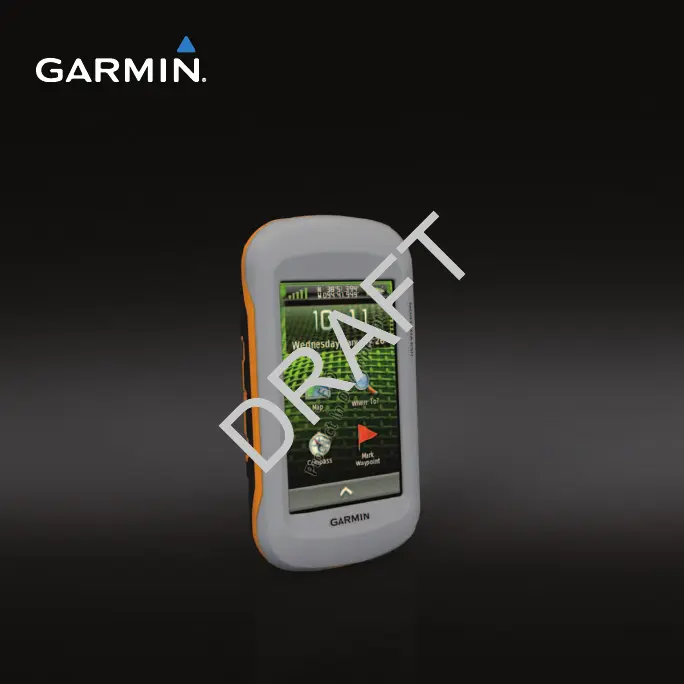
Garmin Montana 600 - User Manual

Garmin Montana 600
59 pages
Print Icon
To Next Page IconTo Next Page
Loading...
montana
series
owners manual
600, 650, 650t

Table of Contents

Other manuals for Garmin Montana 600

Questions and Answers

  • P
    Patricia PearsonJul 26, 2025
    What to do if my Garmin Car Navigation system doesn't acquire satellite signals?
    • C
      cynthia58Jul 26, 2025
      If your Garmin Car Navigation system isn't acquiring satellite signals, try these steps: First, move your device out of parking garages and away from tall buildings and trees. Then, turn on the device and remain stationary for several minutes.
  • M
    markfischerJul 31, 2025
    How to restore factory settings on Garmin Car Navigation system?
    • C
      Cheyenne ChandlerJul 31, 2025
      To reset all customized settings on your Garmin Car Navigation system back to the factory defaults, select > Setup > Reset > Restore All Settings.
  • M
    Michelle OrtizAug 6, 2025
    How to reset Garmin Car Navigation system when the screen is not responding?
    • F
      fuentesjasonAug 6, 2025
      If the screen of your Garmin Car Navigation system is not responding, try resetting the device by removing and reinstalling the batteries. Note that this action will not erase any of your data or settings.
  • A
    Alexander AcostaAug 12, 2025
    What to do if my Garmin Car Navigation system won't go into mass storage mode?
    • C
      Curtis CarpenterAug 12, 2025
      If your Garmin Car Navigation system is connected to the computer but will not go into mass storage mode, it may be due to a corrupted file. To resolve this: 1. Disconnect the device from your computer. 2. Turn off the device. 3. Hold while you connect the device to your computer. 4. Continue holding for 10 seconds or until the device goes into mass storage mode.
  • A
    Austin BoydAug 18, 2025
    Why can't I see new removable drives for my Garmin Car Navigation system?
    • J
      Joy MccoyAug 18, 2025
      If you have several network drives mapped on your computer, Windows may have trouble assigning drive letters to your Garmin drives. See the Help file for your operating system to learn how to assign drive letters.

Summary

Getting Started

Device Overview

Physical overview of the device, identifying key components and ports.

Battery Information

Details how to install and use battery packs or AA batteries for the device.

Registering Your Device

Instructions on how to register the Garmin device online.

About the Main Menu

Explains the main screen layout and its components.

Using the Touchscreen

Guide on operating the device using its touchscreen interface and navigation icons.

Profiles

Explains what profiles are and how they optimize device settings for different activities.

Waypoints, Routes, and Tracks

Waypoints

Defines waypoints and provides instructions for creating, finding, editing, and deleting them.

Routes

Explains routes as sequences of waypoints and covers creating, editing, and viewing them.

Tracks

Explains tracks as recordings of a path and covers recording, saving, and viewing them.

Where To? Menu

Finding a Location by Name

Steps to search for destinations by entering their names.

Finding a Point of Interest

How to locate specific points of interest like restaurants or hotels on the map.

Navigation

Starting Navigation

Step-by-step guide to begin navigating to a selected destination.

Map

Explains the map display, position icon, and track logs.

Compass

Information on the device's 3-axis compass and its use for navigation.

Trip Computer

Information on the trip computer's display of speed, distance, and other travel statistics.

Camera and Photos

Taking a Photo

Guide on how to take photos with the device, including focus and capture methods.

Viewing Photos

How to view photos taken with the device or transferred from other sources.

Geocaches

Downloading Geocaches

Instructions on how to download geocache data from the internet to the device.

Navigating to a Geocache

Guide on how to navigate to a selected geocache location using the device.

Applications

Using the 3 D View

Instructions on how to use and manipulate the 3D map view for better visualization.

Setting a Proximity Alarm

How to set up proximity alarms that alert you when approaching a specific area.

Satellite

Information on the satellite page, displaying location, accuracy, and signal strength.

Customizing Your Device

Customizing the Main Menu and Application Drawer

How to rearrange icons and customize the main menu and application drawer.

Customizing Specific Pages

How to customize data fields and dashboards for map, compass, and trip computer pages.

System Settings

Overview of system settings, including GPS mode, text language, and interface options.

Calibrating the Touchscreen

Steps to calibrate the touchscreen if it is not responding correctly.

Map Settings

How to configure map display options like orientation, guidance text, and zoom levels.

Tracks Settings

Configuration options for track recording, including method, interval, and color.

Position Format Settings

How to set the position format, map datum, and map spheroid for location display.

Routing Settings

How to configure route calculation methods and guidance preferences.

Device Information

Updating the Software

Guide on how to update the device's software using a computer.

Specifications

Technical specifications of the device, including water resistance and operating range.

About the Batteries

General information and warnings related to device batteries.

Maximizing Battery Life

Tips and methods to increase the battery life of the device.

Connecting the Device to a Computer

Steps to connect the Garmin device to a computer for data transfer or charging.

Appendix

Optional Accessories

Information about purchasing optional accessories like mounts and fitness sensors.

Data Field Options

Details on available data fields and their descriptions for customization.

Troubleshooting

Common problems and their solutions for the Garmin device.

Garmin Montana 600 Specifications

General IconGeneral
Sport (fitness, running)No
Marine (chartplotters, sounders)Yes
Routes quantity200
Number of waypoints4000
Form factorHandheld
Product colorBlack
InterfaceUSB, NMEA 0183
Internal memory3072 MB
Display diagonal4 \
Display resolution272 x 480 pixels
Display number of colors65536 colors
Display size (HxV) (imperial)3.5 x 2 \
USB 2.0 ports quantity1
Battery typeAA
Battery life (max)16 h
Number of batteries supported3
Weight and Dimensions IconWeight and Dimensions
Depth36.4 mm
Width74.8 mm
Height144.2 mm
Weight333 g

Related product manuals