Changing the mouse, touchpad, or pointing device settings
www.gateway.com
125
Changing touchpad or pointing device settings
Help and Support
For more information about changing
mouse settings, click Start, then click
Help and Support. Type the keyword
mouse settings in the Search box,
then click the arrow.
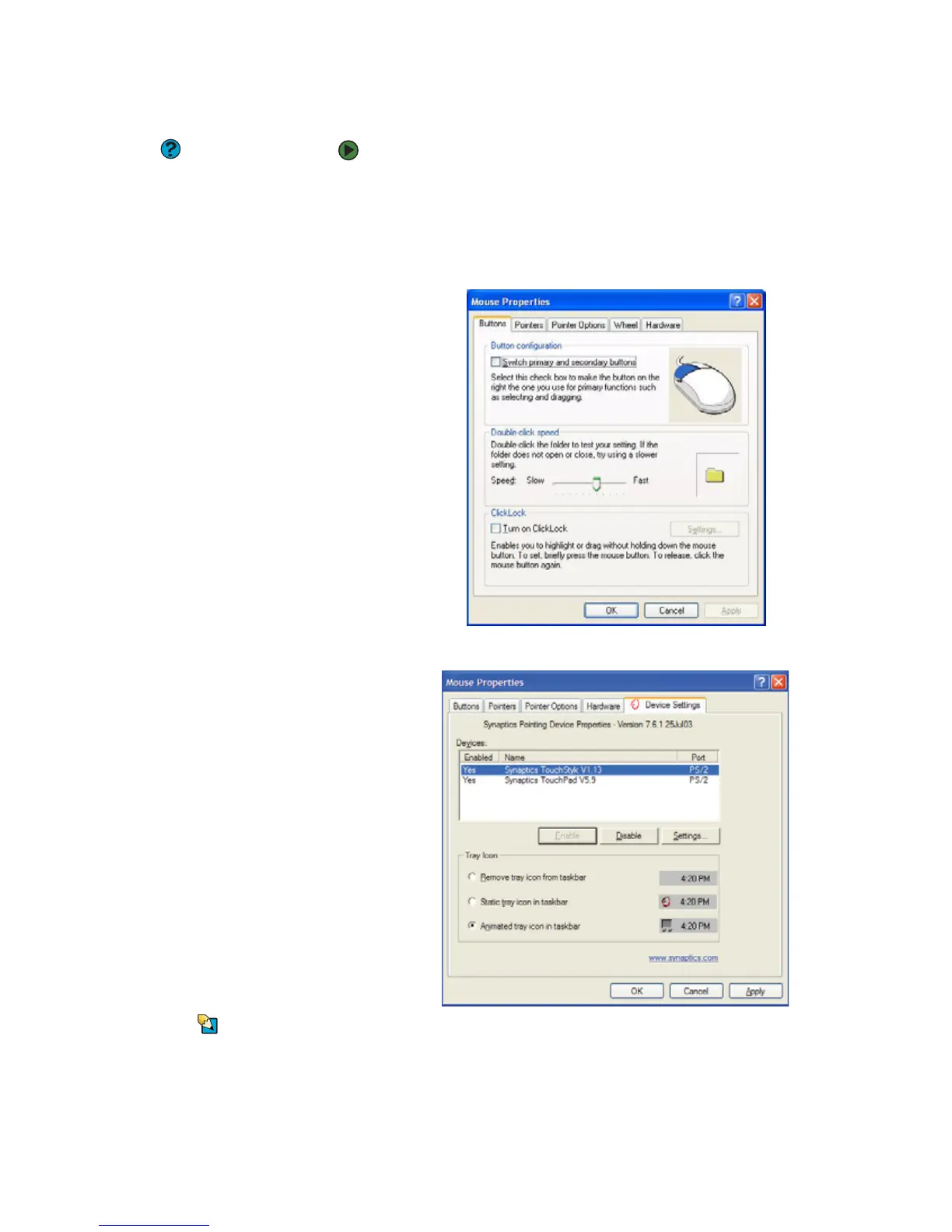
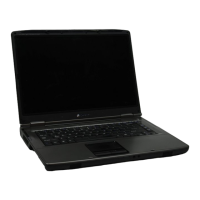
To change your touchpad or pointing device settings:
1 Click Start, then click Control Panel. The Control Panel window opens. If
your Control Panel is in Category View, click Printers and Other
Hardware.
2 Click/Double-click the Mouse icon. The Mouse Properties dialog box
opens.
3 Click the Device Settings tab, then click the device you want to modify.
Tips & Tricks
You can turn the touchpad and optional
pointing device on or off, depending on
which device you prefer to use.
4 If you want to turn the device on or off, click Enable or Disable.



 To Next Page