CHAPTER 3: Recovering Your System www.gateway.com
28
Important
Use a permanent marker to label each
disc “Gateway Driver and Application
Recovery.” As you remove each disc from
the drive, use the marker to label each
disc 1 of x, 2 of x, 3 of x, and so on.
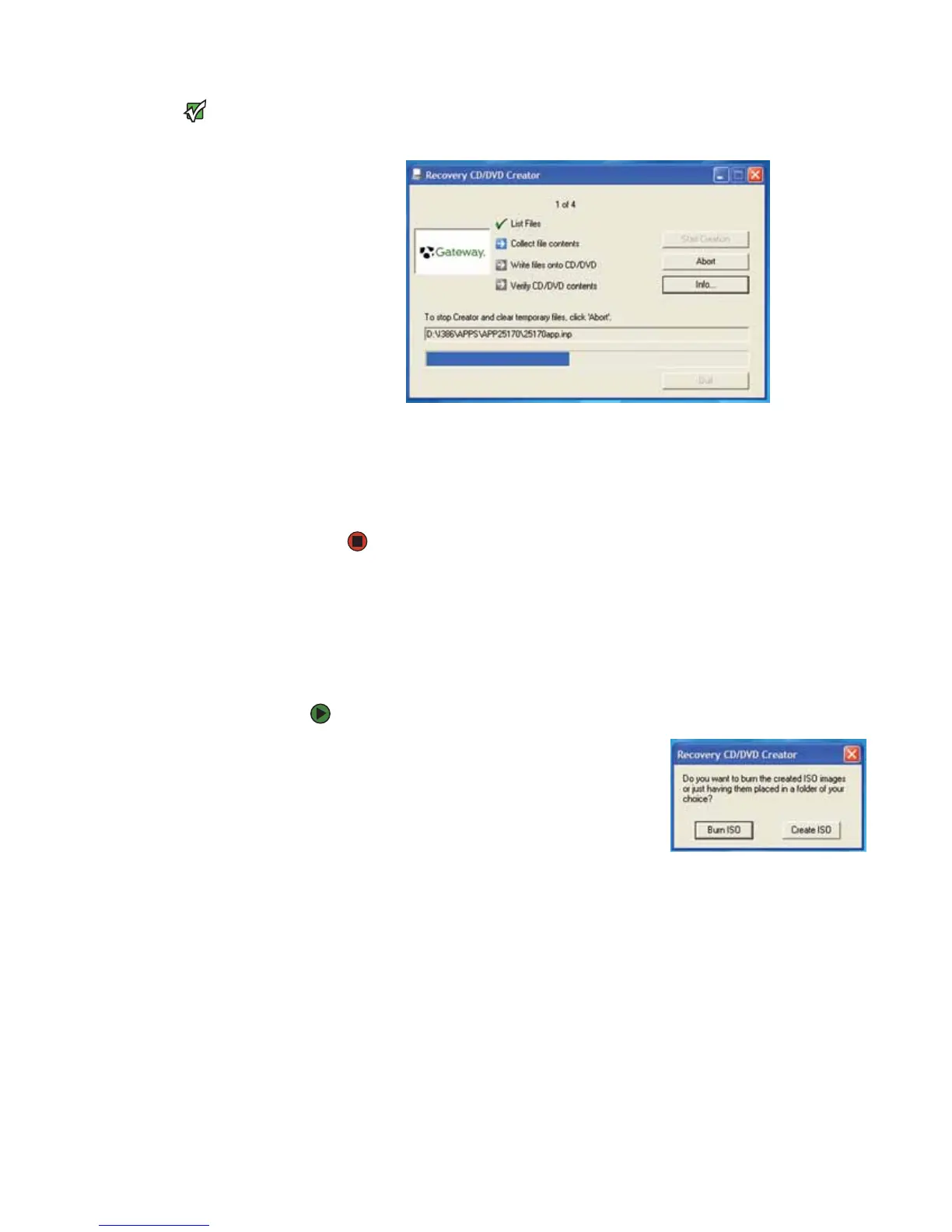
7 Click OK. The program prepares the recovery files, then records the
recovery files to the blank disc(s).
8 If a message tells you to insert another blank disc, remove the completed
disc, then insert a blank disc.
9 When you see the message “The Recovery ISO Image has been created
successfully,” remove the last disc from the drive, then click OK.
10 Store the discs in a safe place for future use. You are done.
Copying drivers and applications recovery files to a network
You can copy driver and application recovery files to a network location, so you
can burn unlimited sets of drivers and applications recovery discs from a
different notebook that has a recordable drive.
To copy drivers and applications recovery files to a network:
1 Click Start, All Programs, System
Recovery, then click Create My
Drivers-Applications CD(s). A message
asks you if you want to “Burn ISO” (record
recovery discs) or “Create ISO” (copy the files
to a drive).



 To Next Page