19
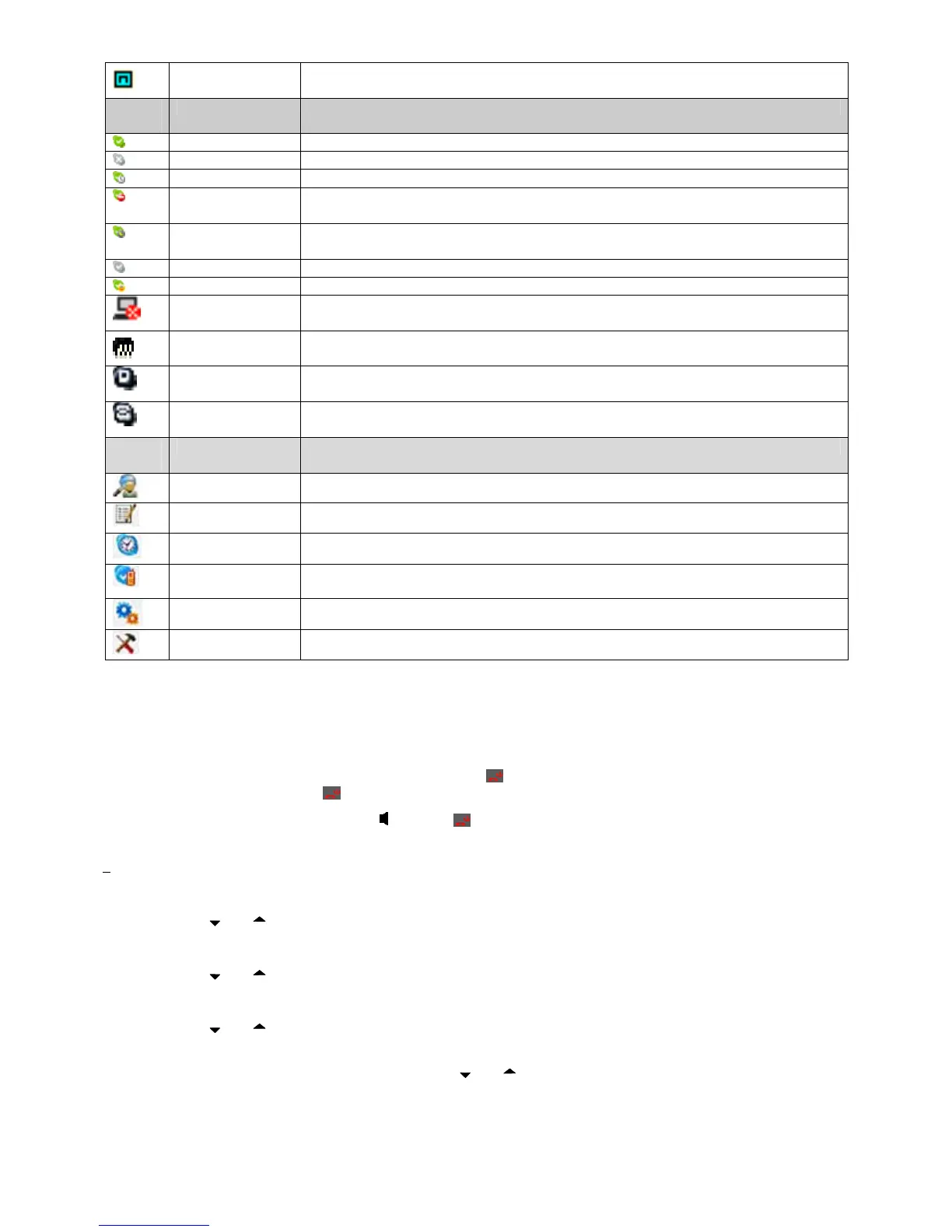
Message waiting
icon
Indicate that there is message waiting.
Skype
Icon
Online icon Indicate that the user is online.
Offline icon Indicate that the user is offline.
Away icon Indicate that the user is away.
Do Not disturb
icon
Indicate that the user is busy.
Not Available icon Indicate that the user is in not available status.
Invisible icon Indicate that the user is in invisible status.
Skype me icon Indicate that the user is in Skype me status.
PC not available
icon
Indicate the handset can not access the Skype successfully.
Conference icon It is used in IP phonebook to indicate that a Skype contact is invited to a Skype conference
call.
SkypeIn icon It is used in IP phonebook and IP call logs to indicate the type of Skype contact.
SkypeOut icon It is used in IP phonebook and IP call logs to indicate the type of Skype contact...
Large
Icon
Phone Book icon Indicate that there is phone book and it can be set.
Call Log icon Indicate that there is call log and it can be set.
Timer icon It is used to access timer settings.
Handset Settings
icon
It is used to access handset settings.
Base Settings icon It is used to access base settings.
Function icon Indicate that there are other functions.
Using the Handset Telephone
Basic Operation
Power On/Off Operation
The handset is powered on by plugging the battery or long press key for 2 seconds when the handset is in power off state.
To power off the handset, long press key for 2 seconds.
Note: If the handset is put on the cradle, only
key and are functional.
Selecting the Language
4different languages are available for selection for each handset. Proceed as follows to select a language:
z Press [SKL] button to enter the main menu.
z Press
or key to select [Handset Settings].
z Press [SKL] button to enter [Handset Settings].
z Press
or key to scroll through the menu until [Language] appears.
z Press [SKL] button to enter language selection.
z Press
or key to select the required language.
z When English is selected, press [SKR] button to confirm without additional input language, or press [SKL] button
to add an additional input language, then press
or key to select the additional language and press [SKL]
button to confirm.
z Press [SKL] button to confirm the selection when selecting other language except English.
Note: The following languages are available: English, EΛΛHNIKA,Бългapcки,Türкçe,


 To Next Page