EasyManua.ls Logo

GE 21878 - User Manual

GE 21878
36 pages
Print Icon
To Next Page IconTo Next Page
Loading...
21878
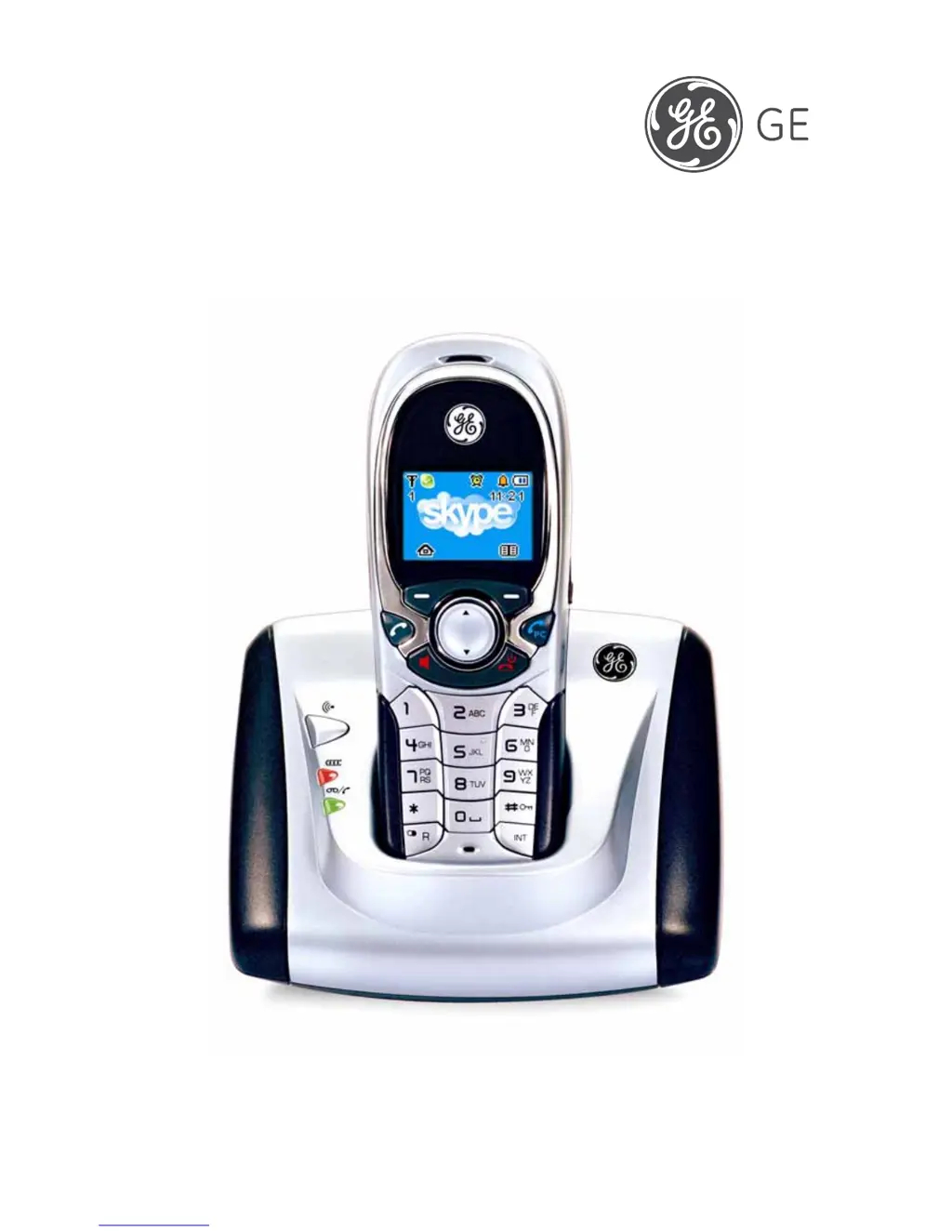
Digital Cordless Telephone
With PSTN and Skype Support
User’s Guide

Table of Contents

Questions and Answers

  • V
    Vincent DeckerAug 16, 2025
    What to do if there is no dial tone when pressing the 'Talk' button on my GE 21878 Cordless Telephone?
    • J
      Joseph SotoAug 16, 2025
      If you're not getting a dial tone when you press the “Talk” button on your GE Cordless Telephone, ensure that the base unit is powered on and that the handset is not too far from the base unit. Check the connection and move the handset closer to the base.
  • J
    Jason RodgersAug 19, 2025
    Why is the audio quality bad on my GE Cordless Telephone?
    • D
      David StarkAug 19, 2025
      If you are experiencing bad audio quality on your GE Cordless Telephone, it might be due to interference from nearby electrical appliances. Try moving the PC to a different location. Also, thick walls or the handset being too far from the base unit could be the reason. Move the handset closer to the base unit. Additionally, ensure you have a good quality internet connection and audio device.
  • R
    Richard GonzalezAug 22, 2025
    Why does my GE 21878 not ring when a call comes in?
    • A
      alexischambersAug 22, 2025
      If your GE Cordless Telephone does not ring when you receive a call, it's possible the ringer is turned off. Verify that the ringer is enabled.
  • J
    Jose VillaAug 25, 2025
    What does it mean if there is no signal icon on my GE 21878 Cordless Telephone?
    • T
      Timothy JeffersonAug 26, 2025
      If your GE Cordless Telephone shows no signal icon, it could be due to the handset not being registered or being out of range. Try registering the handset or moving it closer to the base.
  • W
    William AbbottAug 28, 2025
    Why is my GE 21878 Cordless Telephone blinking with no radio connection to the base station?
    • D
      duncanjessicaAug 28, 2025
      If your GE Cordless Telephone is not connecting to the base station and is blinking, it could be due to several reasons. The handset might be out of range or not registered, or the base station may not be working. Try registering the handset. Also, unplug and then plug the power adapter into the power outlet (220-230V AC / 50 Hz) and the power jack on the base bottom.
  • D
    denise29Aug 30, 2025
    Why does the battery icon remain empty on my GE Cordless Telephone after charging?
    • J
      Jonathan HenryAug 31, 2025
      If the battery icon on your GE Cordless Telephone remains empty even after charging for 16 hours, the handset’s battery may be defective. Consider purchasing a new rechargeable battery. Also, ensure the handset is properly placed on the base unit or charger and that the battery icon is scrolling.
  • Y
    ymoonSep 3, 2025
    Why is registration not working on my GE 21878 Cordless Telephone?
    • M
      Michael FigueroaSep 3, 2025
      If your GE Cordless Telephone is not registering, it could be due to an insufficiently charged battery or the handset and base station not being prepared for registration. Charge the battery for 16 hours and unplug and then plug in the power adapter.
  • W
    Wendy BergSep 6, 2025
    What to do if my GE 21878 has no display?
    • L
      Larry PayneSep 6, 2025
      If your GE Cordless Telephone displays nothing on the screen, it could be because the battery has not been charged. Charge the battery or replace it.
  • J
    Joseph RhodesSep 9, 2025
    What to do if my GE Cordless Telephone has no reactions to keystroke?
    • J
      johnsonbethSep 9, 2025
      If your GE Cordless Telephone is not responding to keystrokes, the keypad might be locked. Press the * key for longer than 2 seconds. Also, ensure you are close enough to the base station.
  • C
    Charles PerezSep 12, 2025
    Why is there no beep when I place my GE 21878 Cordless Telephone on the charger?
    • W
      Wendy GonzalesSep 12, 2025
      If you don't hear a beep when placing the handset on the charger for your GE Cordless Telephone, make sure the handset is properly placed on the charger. If that doesn't work, clean the charging contacts with a clean, dry cloth. Also, verify that the charger is powered on.

Summary

Precautions of Use

General Safety

General safety guidelines and precautions for using the telephone.

Safety Warnings

Warnings about electrical shock, moisture, and usage during storms.

Battery Safety Precautions

Packaging Contents

Lists all items included in the product package for the telephone.

Installation

Step-by-step guide for setting up the base station and connecting power.

Getting Started

Install and Charge Battery Pack

Instructions for inserting and charging the handset batteries for initial use.

System Requirements

Minimum and recommended PC specifications for software compatibility.

Software Installation

Guide to installing the SKYLINK 2-in-1 Phone Utility software.

Uninstall the Software

Operation Guide

Phone Monitor Overview

Explains the status and information displayed in the phone utility monitor.

Handset Registration and Management

Covers handset registration, PIN reset, and online updates.

Skype Sound Device Settings

Features

Menu Structure (Handset)

Phone Book Menu Structure

Outlines the navigation path for phone book functions.

Call Log Menu Structure

Details the menu hierarchy for accessing call history.

Timer Menu Structure

Shows the menu path for clock and alarm settings.

Handset Settings Menu Structure

Illustrates the navigation for handset configurations.

Advanced Handset Settings

Covers detailed options like call barring, wallpaper, and key tones.

Base Settings Menu Structure

Depicts the menu flow for base station configurations.

Function Menu Structure

Shows the menu path for games and Walkie Talkie.

Handset and Base Layouts

Key Functions Overview

Explains the purpose and usage of each key on the handset.

LCD Display

Display Screens and Icons

Visual examples of menu screens and descriptions of LCD icons.

Using the Handset Telephone

Basic Operation and Language Selection

Covers powering on/off and selecting the user interface language.

Making Internal and PSTN Calls

Procedures for internal calls and standard external PSTN calls.

Making SkypeOut Calls

Step-by-step guide for making calls via SkypeOut.

Making Skype Calls

Initiating direct Skype-to-Skype conversations.

IP Calls During Ongoing Calls

How to manage IP calls alongside existing PSTN calls.

Answering and Redialing Calls

Instructions for taking calls and redialing previous numbers.

Phone Book Dialing and Muting

Dialing contacts and muting microphone/ringer.

Call Transfer and Conference Calls

Procedures for transferring calls and setting up conferences.

Call Waiting and Volume Adjustments

Managing multiple calls and adjusting audio volumes.

Handset Features: Paging, Speakerphone, Key Lock

Using handset locating, speakerphone, and keypad lock functions.

Status Indicators and Short Keys

Explains warning signals, confirmation signals, and short key definitions.

Call Log

Managing Call Records

Procedures for browsing, saving, and deleting call log entries.

Deleting Call Log Entries

Detailed steps for removing specific or all call records.

Phone Book

Searching Phone Book Entries

How to efficiently find contacts within the phone book.

Storing New Contacts

Step-by-step instructions for adding new entries to the phone book.

Organizing Contacts and Speed Dial

Grouping contacts and setting up speed dial numbers.

Emergency Call and Area Code

Configuring emergency numbers and area codes.

Handset Settings

Ringer Customization

Settings for ringer type, volume, and on/off options.

Prefix Settings

Configuring and editing prefix numbers for calls.

Call Barring and Message Waiting

Restricting calls and managing message waiting notifications.

Display and Tone Settings

Adjusting wallpaper, contrast, and key tones.

Auto Answer Configuration

Setting up the automatic answering feature.

Handset and Menu Style Settings

Naming handsets and choosing menu display styles.

Backlight and IP Contact Management

Configuring display backlight and managing online contacts.

Handset Registration

Steps to register a handset with the base station.

Base Settings

Handset Management: De-Registration and Selection

Removing handsets and selecting a specific base.

Default Handset Settings Reset

Restoring handset configurations to factory defaults.

Base Ringer and Priority Settings

Configuring base ringer type, on/off, and ring priority.

Dial Mode, System PIN, and Flash Time

Setting dialing mode, system PIN, and flash time.

NET Status and Default Settings

Checking network status and resetting base defaults.

Function

Games: Snake and Guess Number

Instructions for playing the built-in games.

Walkie Talkie Operation

How to use the Walkie Talkie feature for communication.

Timer

Setting Date;Time and Alarm

Procedures for setting the clock and alarm functions.

Alarm Configuration Options

Various settings for the alarm function.

Technical Specifications

General Product Care

Troubleshooting Guide

General Troubleshooting Issues

Solutions for common problems like registration and display.

Connection and Audio Troubleshooting

Resolving issues with radio connection, dial tone, and audio quality.

Skype and PC Connectivity Issues

Troubleshooting Skype link, PC audio, and software setup.

Environment

GE 21878 Specifications

General IconGeneral
BrandGE
Model21878
CategoryCordless Telephone
LanguageEnglish

Related product manuals