MDS 05-7280A01, Rev. A MDS TransNEXT Technical Manual 23
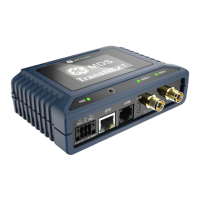
Figure 3-1. PC Connection for Web Management
Use of a current browser is highly recommended.
Logging On
Connect the unit to a PC via an Ethernet connection.
Configure your PC network settings to an IP address on the same subnet as the unit. The default
subnet mask is 255.255.255.0.
Enter the unit’s IP address in a web browser window, just as you would enter a website address.
When the login screen appears (Figure 3-2. Login Screen), enter the User Name and Password for
the unit. (The default entries for a new unit are Admin for username and a unique 10-character
password printed on the unit.) Click the Login button.
Figure 3-2. Login Screen
After successful login the initial web page is displayed. Every page includes a banner section at the top as
shown in Figure 3-3 below:
Figure 3-3. Web UI / banner
The default page after login is the “Dashboard”. Other pages are available by clicking any of the
selections to the right of the TransNEXT name.
Choices are:
• Dashboard
• Configuration
• Actions
• Logging
Clicking the “Logout” button on the far right terminates the current Web UI session and brings the device
back to the Login Screen.
NOTE Using the browser’s screen refresh button will behave like selecting “Logout”. Please avoid
use of screen refresh unless a logout is intended.
Each of the main page selections is explained below.

 To Next Page
 Loading...