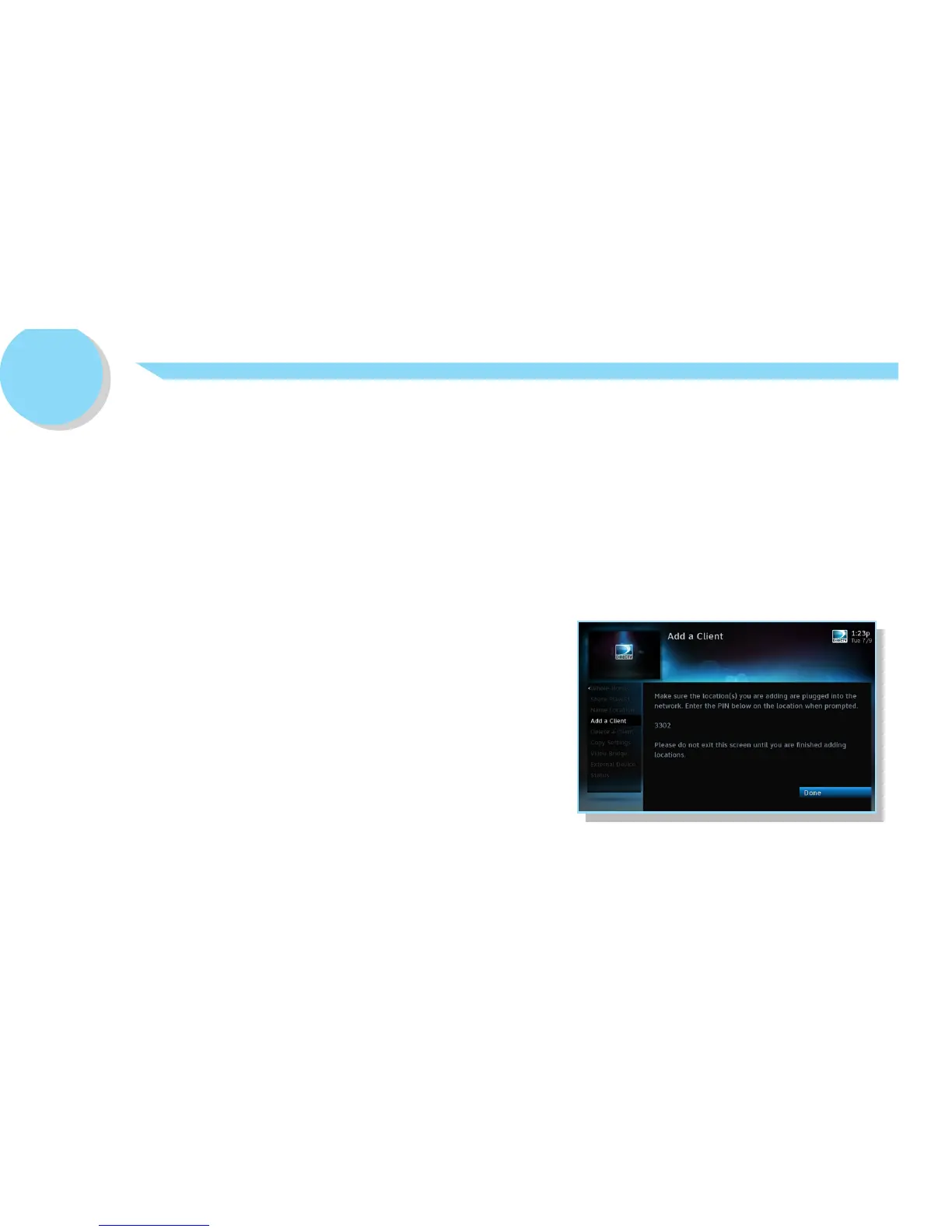
Step 3. Start the Add a Client Guided Setup.
Go to the Genie HD DVR to begin the Add a Client guided setup:
• On your Remote, press MENU, select Settings & Help, select Settings, then Whole-
Home. Then select Manage Clients, and then Add a Client.
• Note the PIN that displays on the Add a Client screen -- you will need to enter the PIN on
your WGM at its location.
• Return to the location where you set up your WGM.*
3
* IMPORTANT: DO NOT EXIT the Add a Client screen or press DONE on
your Receiver when you go to the WGM Client location for setup. Be sure to
return to the Receiver within 20 minutes to finish, or the Add a Client setup
will time out and you will need to start the setup over.


 To Next Page