ENGLISH
4
Note: After the tablet’s device driver has been properly installed, a small tablet icon ( ) will
appear in the system tray, which is normally at the lower right corner of the screen.
7. Usage Tips
7.1 Double tapping
When you double tap the digital pen (equivalent to a double click with a mouse), try to keep the
pen tip away from the tablet’s surface, or at least try to lift the pen tip as fast as possible before
the second tap.
7.2 Storing the digital pen
To store the pen, make sure the pen tip does not touch anything, and especially do not let the
pen stand in a cup or penholder with the tip down. Place the pen in a penholder, or turn the pen
tip pointing upward or horizontally with the pen tip free of any pressure by other objects.
7.3 Scrolling function of digital pen
The digital pen has the same function as a normal mouse when scrolling pages. Press the first
button of the digital pen (same function as the mouse middle button) over the tablet’s working
area.
7.4 Using a pen without a mouse
You may install the digital pen, digital mouse, and a regular mouse in your computer at the
same time and you can also remove them to a different computer as well. However, only one
device is able to work at a time.
Do not use more than two devices at the same time in case the screen cursor is jittering or
not moving.
II. Pen tablet configuration
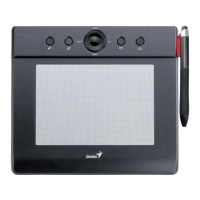
You may configure the pen tablet by modifying the functions of the pen tip and the two barrel buttons.
Tap [Start] > [Settings] > [Control Panel], and double-tap the [io Tablet ] icon, or tap on the
tablet icon ( ) in the system tray, usually located at the lower right corner of the screen. You may
also adjust the pressure sensitivity of the pen by determining the scope of the tablet’s working area,
or (re-) program the hot-cells of your pen tablet by modifying device driver.


 To Next Page