ENGLISH
9
III. Storing the Digital pen and changing the Pen Battery & Tip
1. Storing the digital pen properly:
To store the digital pen, make sure that the tip does not touch anything, especially, do not let the
pen stand in a cup or penholder with the tip down. It is recommended to place the pen in a pen
holder or store it with the pen tip pointing upward, or place it horizontally with the pen tip free of any
other objects.
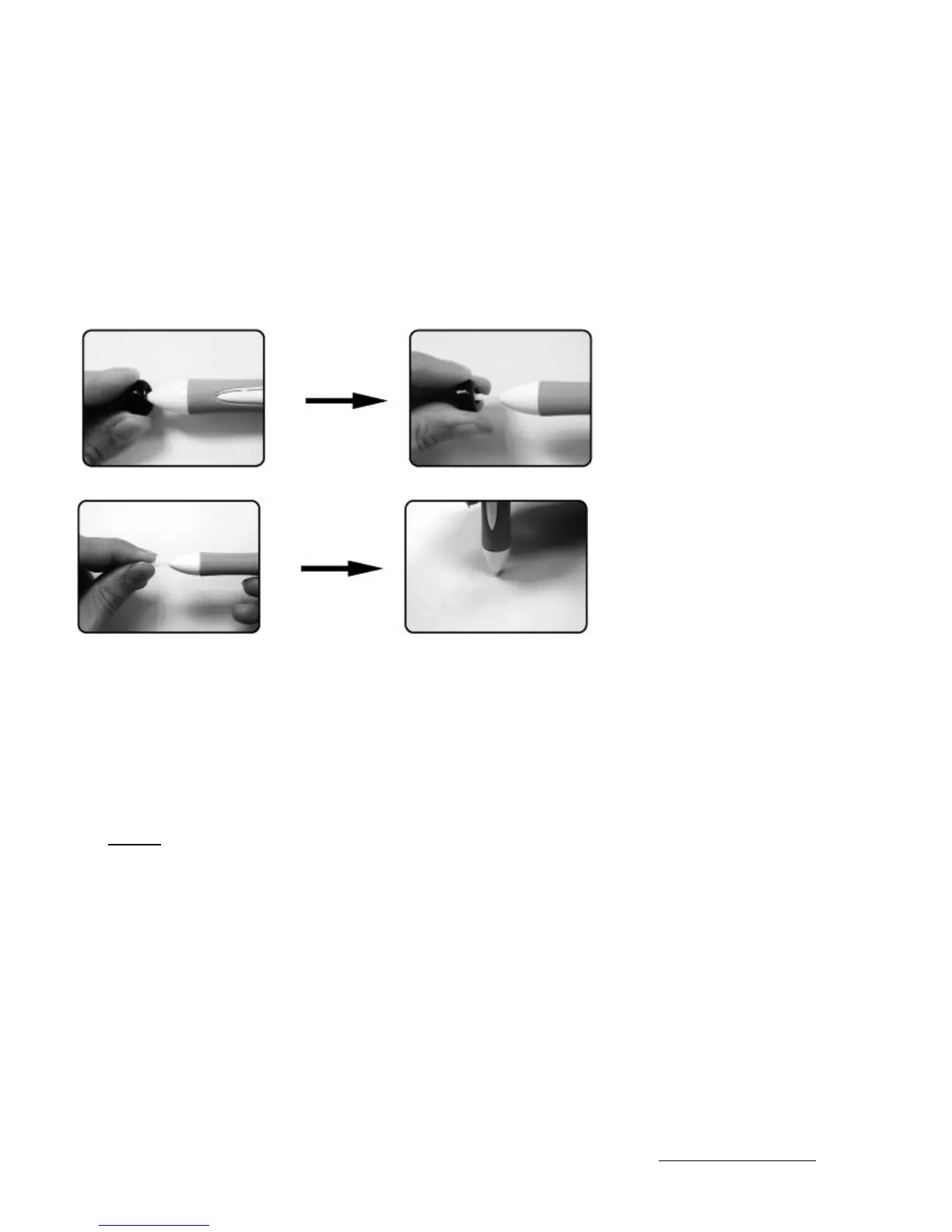
2. Changing the wireless stylus pen tip
A: Pull out the pen tip from the digital pen by using the Pen Clip.
B: Push the pen tip into the digital pen.
IV. Question & Answer
Question 1: How can I get the latest update or uninstall the software?
??
?
Answer: You can download the new driver from our website.
1. Uninstall your old driver: Click [Start] ► [All Programs] ► [TABLET] ► [Uninstall].
2. Download the latest version of the driver from the download section and save it to your hard disk.
3. Unzip the file in a folder on your hard disk (with Windows built-in unzip utility or a program like
Winzip).
4. Double-click the Setup.exe in the folder where you unzipped the file.
Question 2: The tablet cannot work. What can I do?
Check if the following is okay.
1. Remove the tablet's USB plug from the computer.
2. Uninstall the tablet driver from the system.
3. Re-connect the tablet's USB to the computer.
3.1 Check whether the tablet's LED is on or not? If the LED is unlit, that means your tablet is at
fault.
3.2 Test your pen in the tablet working area, if it can work as a mouse, it means the hardware is
OK.
4. You can download the latest version of driver directly from our website www.geniusnet.com
.


 To Next Page