Genius Scanner
20
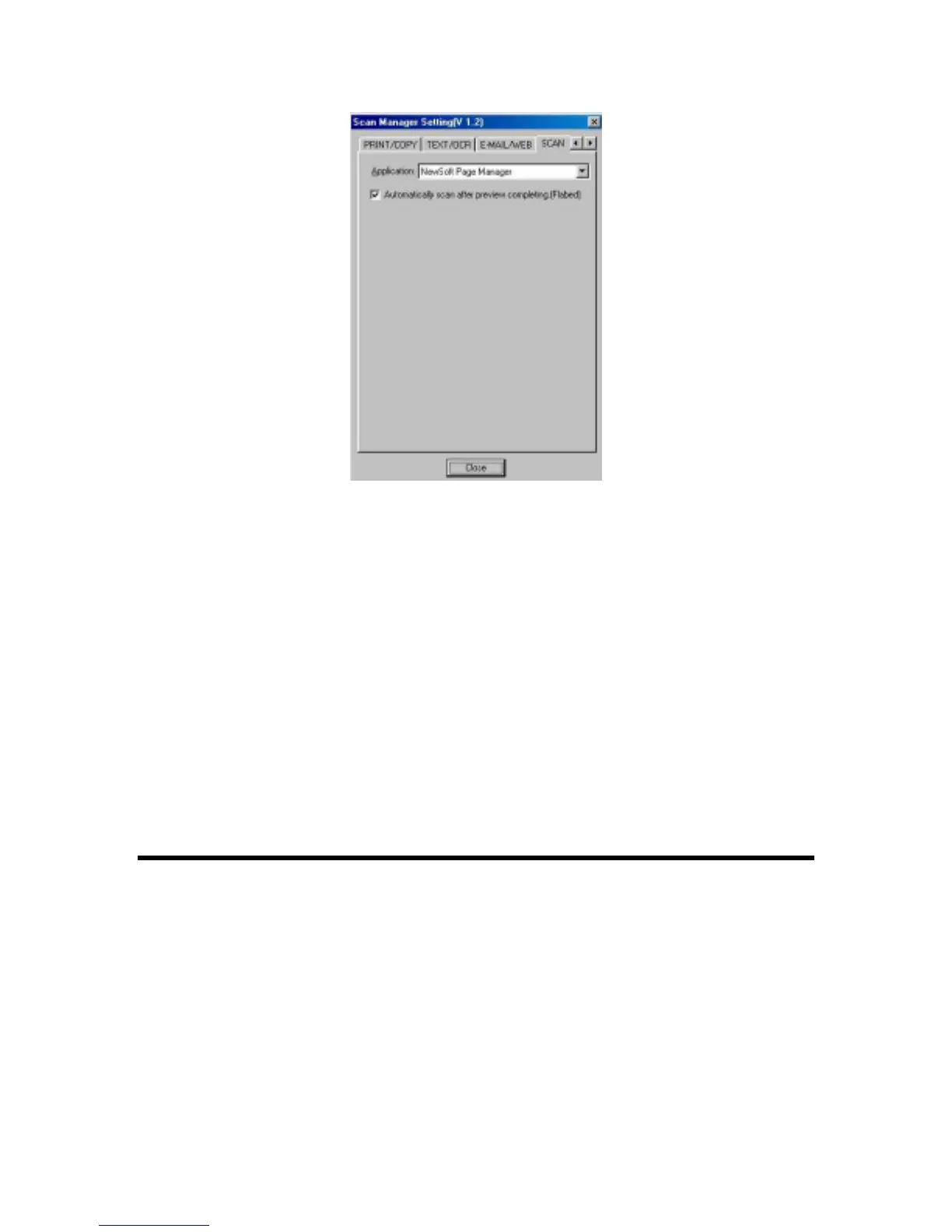
To Use the “SCAN” Button
1. Place a document or picture face down on the scanning glass.
2. Press the “SCAN” Button on the scanner.
Note: Skip to step 5, if you have checked “Automatically scan after preview completing
(flatbed)” within Scan Manager.
3. The “PageManager” will be launched with the “Genius TWAIN” displayed on the screen.
4. Press Scan button on the Genius TWAIN window to start scanning.
5. The scanned file will be saved automatically under the folder of “INBOX” in “PageManager”
software.
6. To scan another image, press the Scan button on the Genius TWAIN window again. Repeat
the above steps until all the scanning tasks are completed.
"E-MAIL/WEB" Button
Ensure that you have already installed the “E-mail program” (supporting MAPI protocol) or
“Bridgewell Page abc” software in your computer before using the “E-mail/Web button” as the
“E-mail button” or the “Web button”.
To Set a Default Simple MAPI Client (i.e. Outlook Express)
1. Choose Program in the Start Menu.
2. Select “Outlook Express.”
3. In the drop-down menu of Tools, select options
#
Select “Make Outlook Express as my
default email program” and “Make Outlook Express as my default Simple MAPI client.”



 To Next Page