Expanding Your Computer 4-2
Connecting an External Monitor
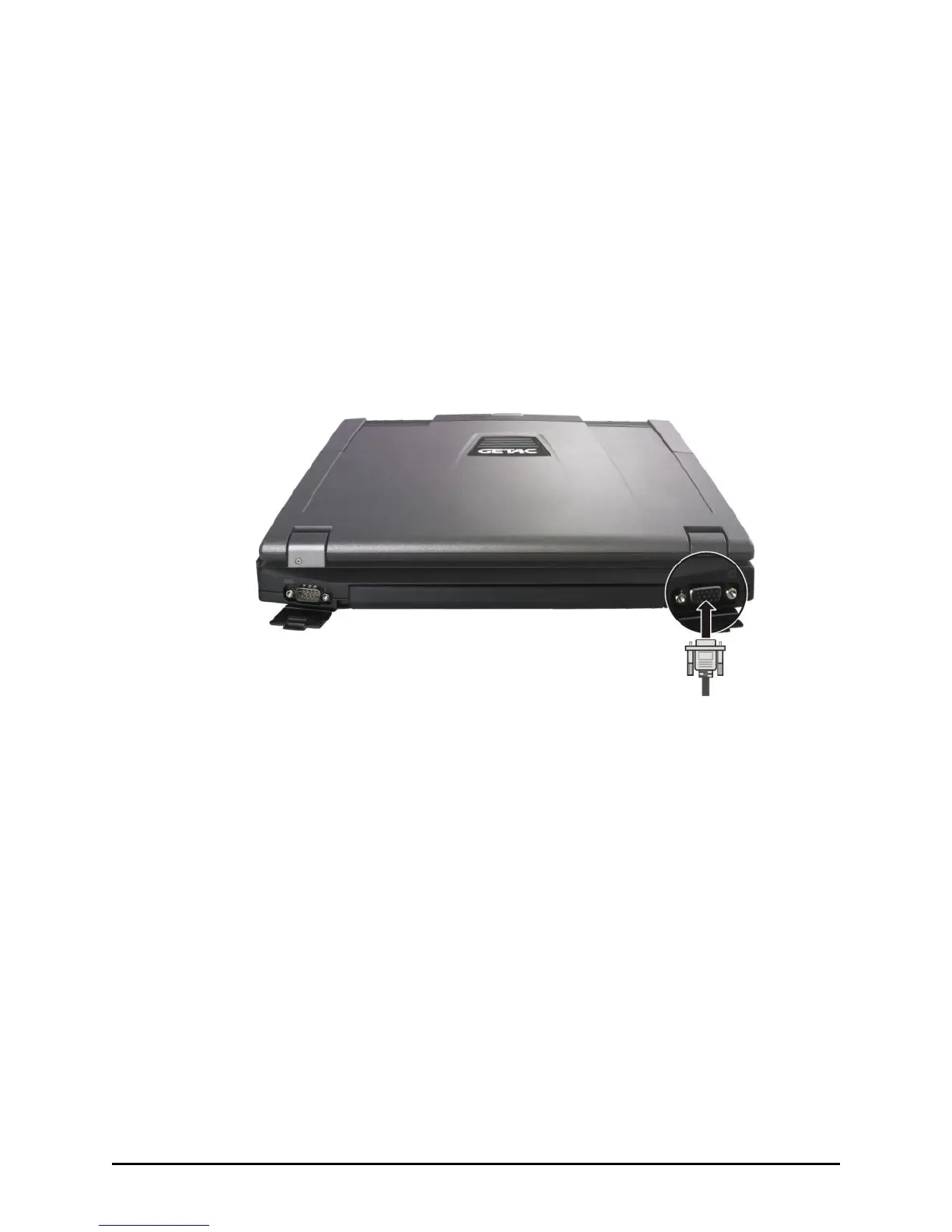
If you want the benefits of a larger display screen with higher resolution,
you can connect an external display monitor to your computer. Follow
this procedure to connect an external monitor:
1. Make sure that the computer is not turned on.
2. Plug the monitor’s D-type signal connector to the computer’s VGA
connector.
3. Plug one end of the monitor’s power cord into the power socket on
the monitor and the other end to an electrical outlet.
4. To use the monitor, turn on the monitor before turning on the
computer.
5. The monitor should respond by default. If not, you can switch the
display to the monitor or to both (simultaneous display), or to
multi-display by pressing the Fn+F5 hot key. In Windows Vista, you
can also change the display through the Display Settings Properties.
In Windows XP, you can also change the display through the settings
in Display Properties.
6. You can change display settings through your operating system. See
your operating system documentation or online help for specific
information.



 To Next Page