Custom Tuning (Position = C, ID = C)
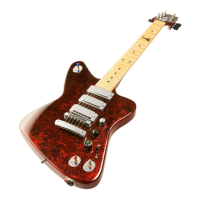
Firebird X has eleven onboard tunings. The easiest way to create custom tunings is with the
FBX Editor; however, if you don’t have access to a computer, you can create custom tunings
within Firebird X itself, and replace onboard tunings with your custom tuning or tunings.
Custom Tuning Preset Creation Step-by-Step
1. Tune strings to the desired pitches. The allowed string pitch ranges with the
recommended string gauges (0.010” to 0.046” (frequencies are rounded off to the nearest
Hertz) are:
2. Enter the Red Bank, then rotate the Gear Shift knob to the C position.
3. Push down on the Digital Varitone control. All string LEDs change to red to indicate
Firebird X is ready to analyze the string pitches. The peg LED shines cyan.
4. Pluck each string individually to ensure the most accurate pitch detection. After the
pitch has been detected, the associated string LED turns green. Damp the string you just
plucked, then move on to the next string.
5. After detecting all string pitches, Firebird X clears all string LEDs and the C LED starts
blinking blue. This indicates the default preset “slot” where the custom tuning will be
stored.
6. To save the custom tuning to a different preset, rotate the Gear Shift knob to the desired
preset slot.
7. Push down on the Digital Varitone knob to store the custom tuning in the selected
preset. All string LEDs flash blue to confirm the operation was successful, then Firebird X
returns to whichever patch had been selected prior to entering the Red Bank.
8. Return the silver tog-pot to its center position.
Page 31
String Lowest Pitch Highest Pitch
E A1 (55Hz) Ab2 (104Hz)
A D2 (73Hz) Db3 (139Hz)
D G2 (97Hz) Gb3 (185Hz)
G C3 (130Hz) B3 (247Hz)
B E3 (164Hz) Eb4 (312Hz)
e A3 (220Hz) Ab4 (416Hz)


 To Next Page