GD-Link Adapter User Guide
13
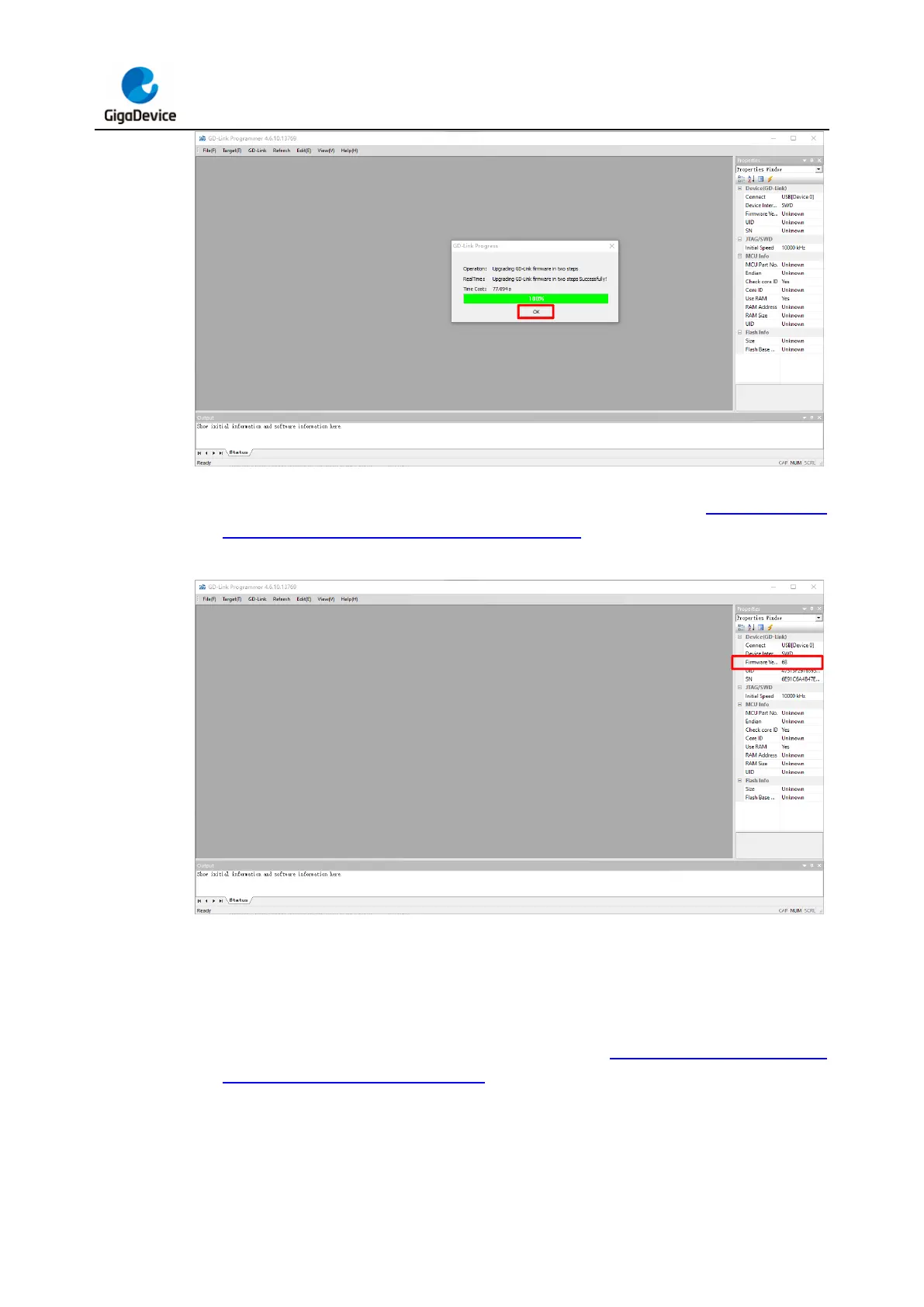
5. The firmware version number is displayed on the right side of the interface, indicating that
the firmware upgrade is successful. The prompt interface is shown in Figure 3-13. GD-
Link adapter update firmware situation 1 figure 6.
Figure 3-13. GD-Link adapter update firmware situation 1 figure 6
3.3.2. Update prompt type 2
1. After clicking tool menu "GD-Link->Updata Firmware", user can directly update the
firmware without powering off and then long pressing KEY1 to power on, and click “OK”
for firmware update. The prompt interface is shown in Figure 3-14. GD-Link adapter
update firmware situation 2 figure 1.
Figure 3-14. GD-Link adapter update firmware situation 2 figure 1



 To Next Page