Remove the items from the carton. You should have the following items,
based on what was ordered:
● A Global Payments Smart Terminal – A920 with paper roll installed
● An external power supply
● USB to mini USB cable
● Roll of thermal printer paper
● Charging Base (optional)
Remove the clear protective film from the LCD screen.
Save the shipping carton and packing material for future use.
Terminal ON/OFF
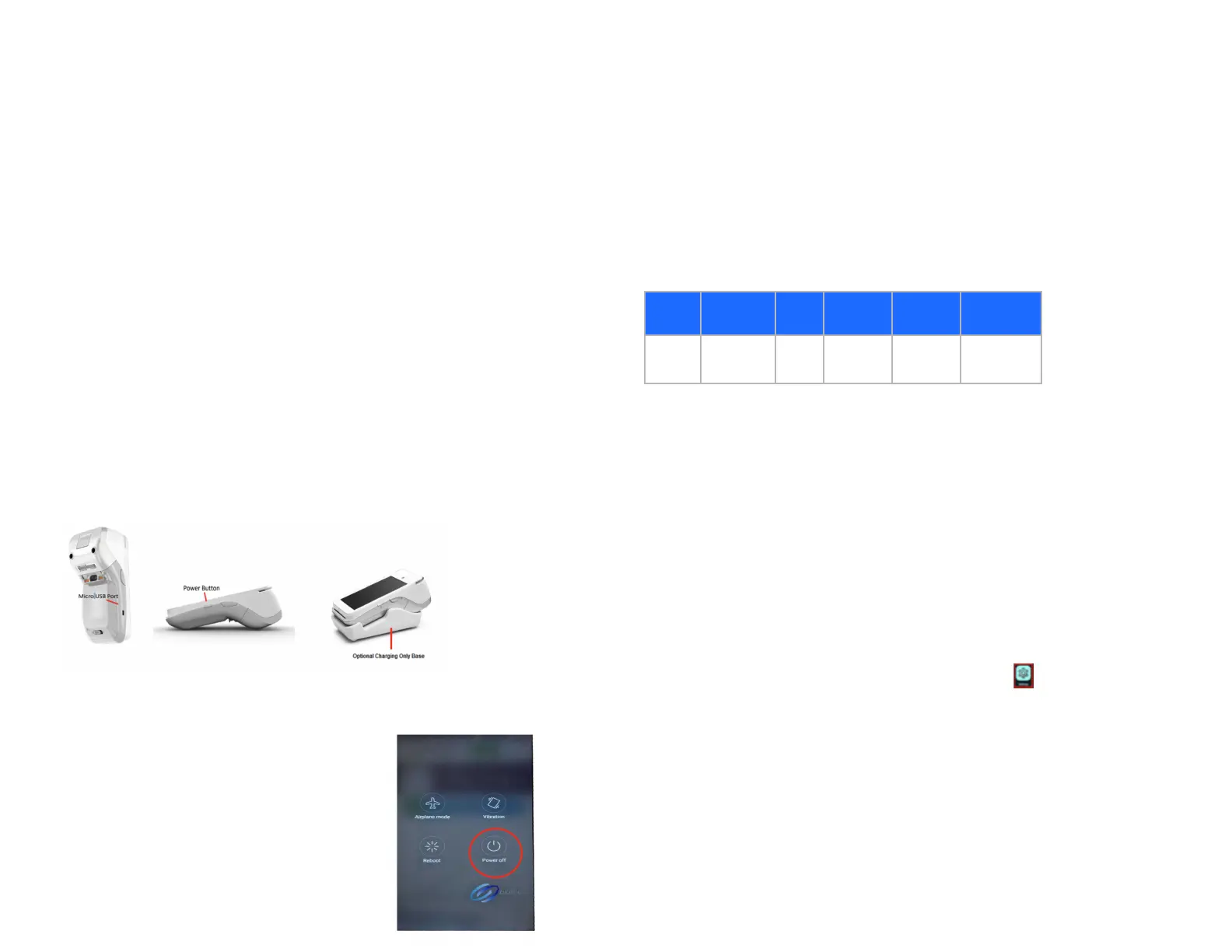
When the terminal is connected to the power supply, it will automatically
power up. You can also turn on the PAX A920 using the small rectangular
button on the right side of the terminal. Press and hold the button for 2-4
seconds until the screen illuminates.
1. To turn off the device, hold down the power button until you are
presented with the following four
options:
● Airplane mode
● Sound / Vibration
● Reboot
● Power off
2. Tap “Power Off”, then tap “Power Off” again.
3. The device will then shut down.
Battery management
Designed for both indoor and outdoor uses, the portable PAX A920
comes with extended battery life and improved battery management. The
PAX A920 will charge the battery until 100% and then it will stop charging.
Charging instructions
Before powering on the PAX A920, the battery should be fully charged.
Charge the device by plugging the USB end of the cable into a PC or
power supply and then plugging the Mini USB end into the port on the left
side of the terminal. Charge the battery until full.
Battery status display
Whether charging or not, the battery level percentage can be displayed
on the status bar by turning “show battery percentage” on.
1. At the Android Home screen, tap on Settings.
2. Enter your password.
3. Tap the green checkmark.
© 2022 Global Payments Inc. All Rights Reserved.
SM-212136-v1.1EN


 To Next Page