50 Infotainment System
DVD Distortion
Video distortion can occur when
operating cellular phones, scanners,
CB radios, Global Position
Systems (GPS)*, two-way radios,
mobile fax, or walkie talkies.
It might be necessary to turn off the
DVD player when operating one of
these devices in or near the vehicle.
*Excludes the OnStar
®
System.
Cleaning the RSE Seatback
Console
Use only a clean cloth dampened
with clean water to clean the
RSE seatback console surface.
Cleaning the Video Screen
Use only a clean cloth dampened
with clean water. Use care when
touching or cleaning the screen as
damage could result.
Navigation
Using the Navigation
System
Use the buttons on the navigation
system and the available touch
screen buttons on the navigation
screen to operate the system.
See Overview on page 4.
Various functions are disabled when
the vehicle is moving.
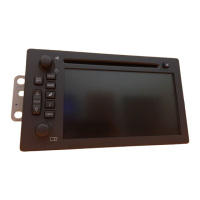
Navigation Control Buttons
The control buttons are on the
faceplate of the navigation system:
Radio Preset Keys 1-6: Press the
preset buttons 1 through 6 to store
radio stations.
VOL /
O (Volume/Power): Press to
turn the system on and off. Use to
adjust the volume for the audio,
OnStar
®
, voice guidance, and voice
recognition voice prompts.
MENU/SEL: Turn to find a station
on the radio, or go to the next/
previous track on a CD.
SELECT (Multifunction Knob):
Press the multifunction arrows to
scroll and highlight a feature. Press
to activate the highlighted feature.
FAV (Favorite): Press FAV to open
a favorite list of stored mixed-band
preset pages. See “Radio Settings”
under AM-FM Radio on page 11 for
more information.
TONE: Press to access the Sound
screen to adjust bass, midrange,
and treble. See AM-FM Radio on
page 11 for more information.
CONFIG (Configure): Press to
adjust features for radio, navigation,
display, phone, vehicle, or time.
See Configure Menu on page 76 for
more information.
INFO (Information): Press for
Weather information (if equipped)
and climate control displays
(if equipped).














 To Next Page