76 Infotainment System
Route Guidance Active
If an OnStar destination is
downloaded while route guidance is
already active, the system displays
a pop-up screen and does the
following screen function:
.
Press Go, the navigation system
adds the downloaded destination
before the next waypoint of the
existing route (closest to the
current vehicle position).
.
All other buttons on the pop-up
screen operate as described
under Route Guidance Not
Active.
Previous Destinations
Previously downloaded OnStar
destinations are saved under
Previous Destinations in the
navigation system where they can
be accessed or saved to the
address book.
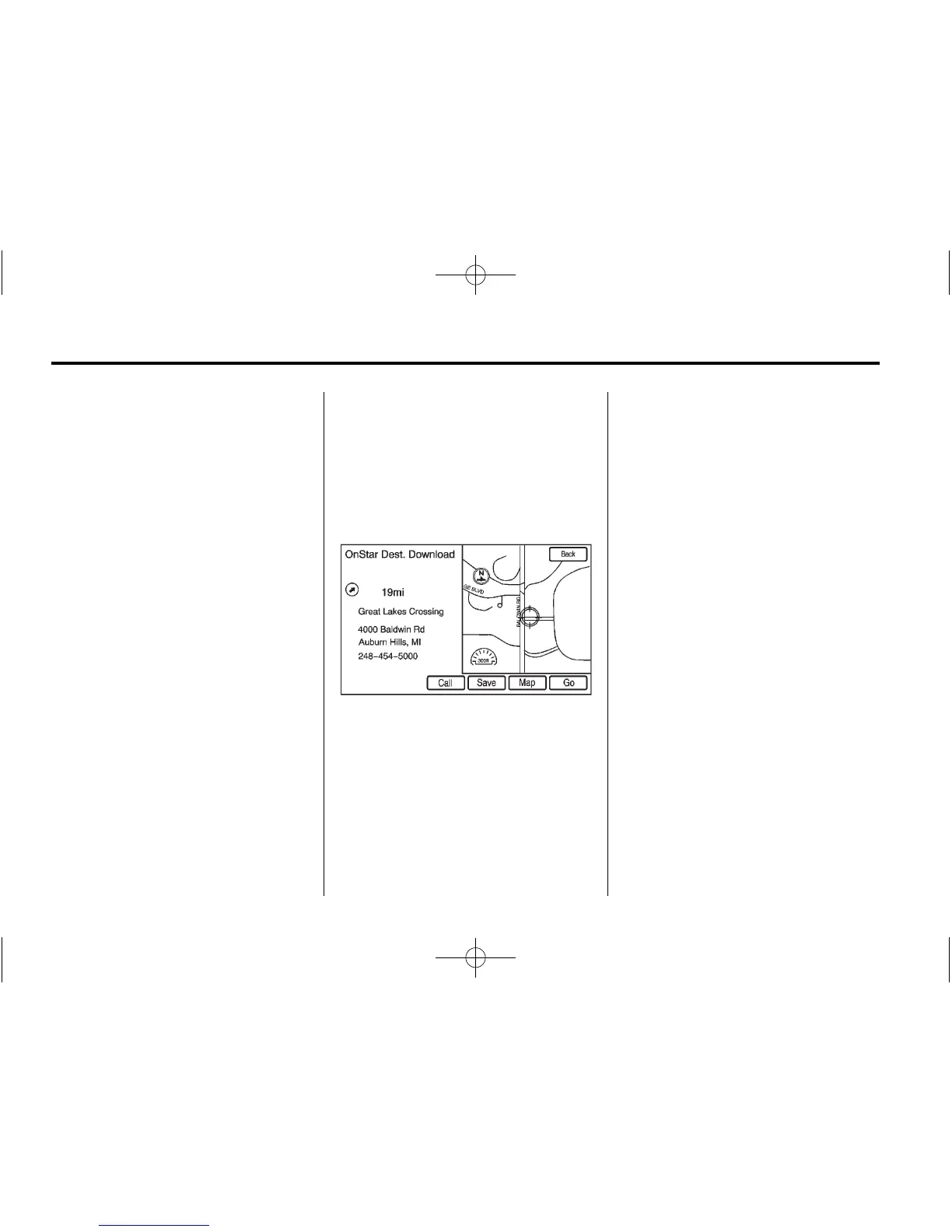
Map Destination Screen Functions
If the map screen is used to show
destination, it has map screen
capabilities such as Go, Save,
Zoom, Scroll, etc. The address is
shown at the top of the screen.
Destination Map Screen
Configure Menu
Adjust features and preferences
through the Configure Menu. The
last selected menu screen displays.
Adjust features for Sound, Radio,
Nav (navigation), Display, or Time.
Radio
Press CONFIG to enter the Config
Menu features. Turn the MENU/SEL
knob until Radio displays. Press the
MENU/SEL knob or press the Radio
screen button to make changes for
radio information displayed, preset
pages, Automatic Volume, and
XM categories restore (if equipped).
See Satellite Radio on page 16
(If equipped) for more information.














 To Next Page