Infotainment System 71
3. POI Menu: Select a POI. Press
the Save screen button from the
bottom of the information page
display.
4. Previous Destination: From the
Previous Destination Menu,
select the destination to save.
Press the Save screen button at
the bottom of the
information page.
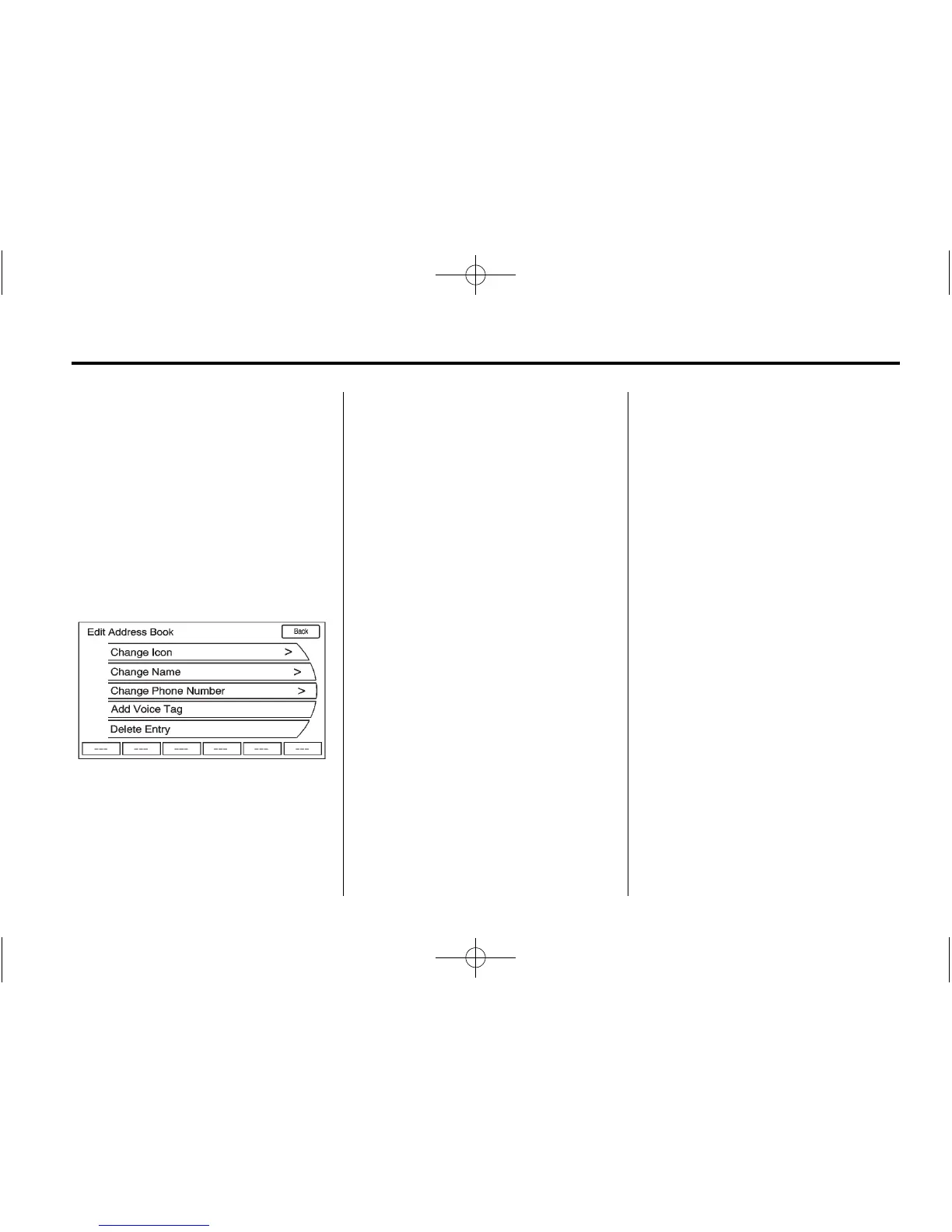
To change the map icon of an
address book entry:
1. Press DEST.
2. Press the Address Book screen
button. A list displays the
address book entries.
3. Select the address book entry to
be changed.
4. Press the Edit screen button.
5. Press the Change Icon screen
button.
6. Select an icon from the list.
7. Press OK to save changes.
To edit the name of an
address book:
1. Press DEST.
2. Press the Address Book screen
button. A list displays the
address book entries.
3. Select the address book entry to
be changed.
4. Press the Edit screen button.
5. Press the Change Name option.
6. Use the alpha keyboard to enter
the name.
7. Press OK to save your changes.
To add or change the phone number
of an address book entry:
1. Press DEST.
2. Press the Address Book screen
button. A list of address book
entries displays.
3. Select the address book entry to
be changed.
4. Press the Edit screen button.
5. Select the Change Phone
Number screen button.
6. Use the numeric keyboard to
enter or change the phone
number.
7. Press OK to save changes.














 To Next Page