Infotainment System 73
To change the route name:
1. Select the Change Route Name
screen button.
2. Using the Keypad, enter
the name.
3. Select the Favorite Route entry
to be edited.
4. Press OK. The new name will be
in the Favorite Route Menu.
To add a voice tag:
1. Press Add Voice Tag.
2. Speak the name after the beep
within four seconds. The name is
repeated back.
To delete a favorite route:
1. Press the Delete Favorite Route
screen button. The confirmation
screen displays.
2. Press Yes to delete the route
and No to cancel from deleting
the route.
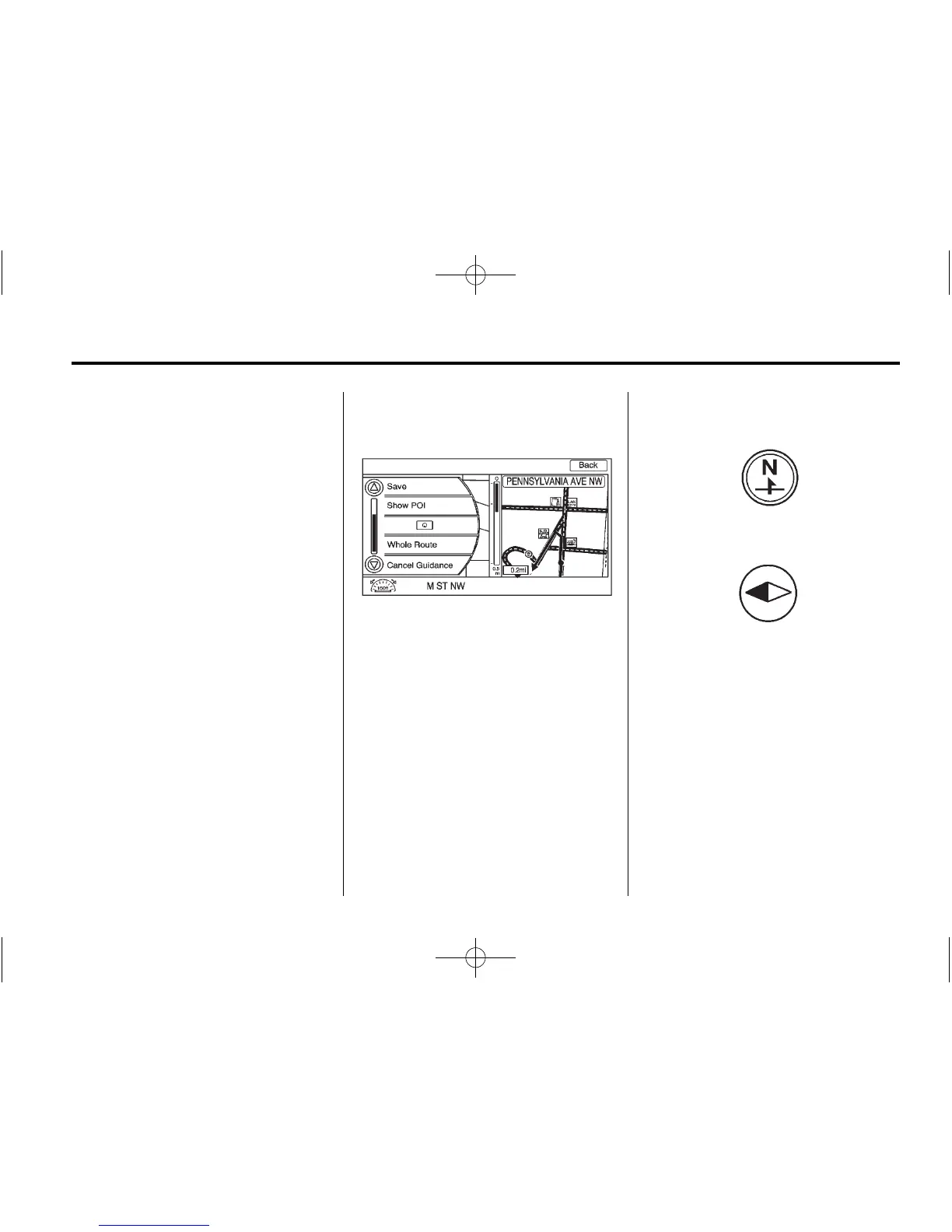
Menu Screen Button
Various navigation system settings
are available through the Menu
screen button. Some options are
only available after a route is
planned.
1. Press NAV to view the Map
screen.
2. Press the Menu screen button or
the MENU/SEL knob.
Map Heading
Press to change the view to North
Up, Heading Up, or 3-D mode. See
Navigation Symbols on page 57 for
more information.
Traffic: Press to view the Traffic
Information screen. See Configure
Menu on page 76 for more
information.
Save: Press to save a location to
the Address Book.







 To Next Page