Troubleshooting
What does the colours of the LED ring mean?
(Colour codes correspond to the factory setting)
Page 25
To switch between Internet access and hotspot, use
the WiFi settings of your mobile phone. If your
Charger has permanent access to the Internet via
your WiFi network at home, you should use the
connection via WiFi by default. If it is outside the WiFi
range, you can use the "automatically connect"
function for the hotspot connection with the go-
eCharger under the WiFi settings of your
smartphone in order to have quick access to the
charging unit.
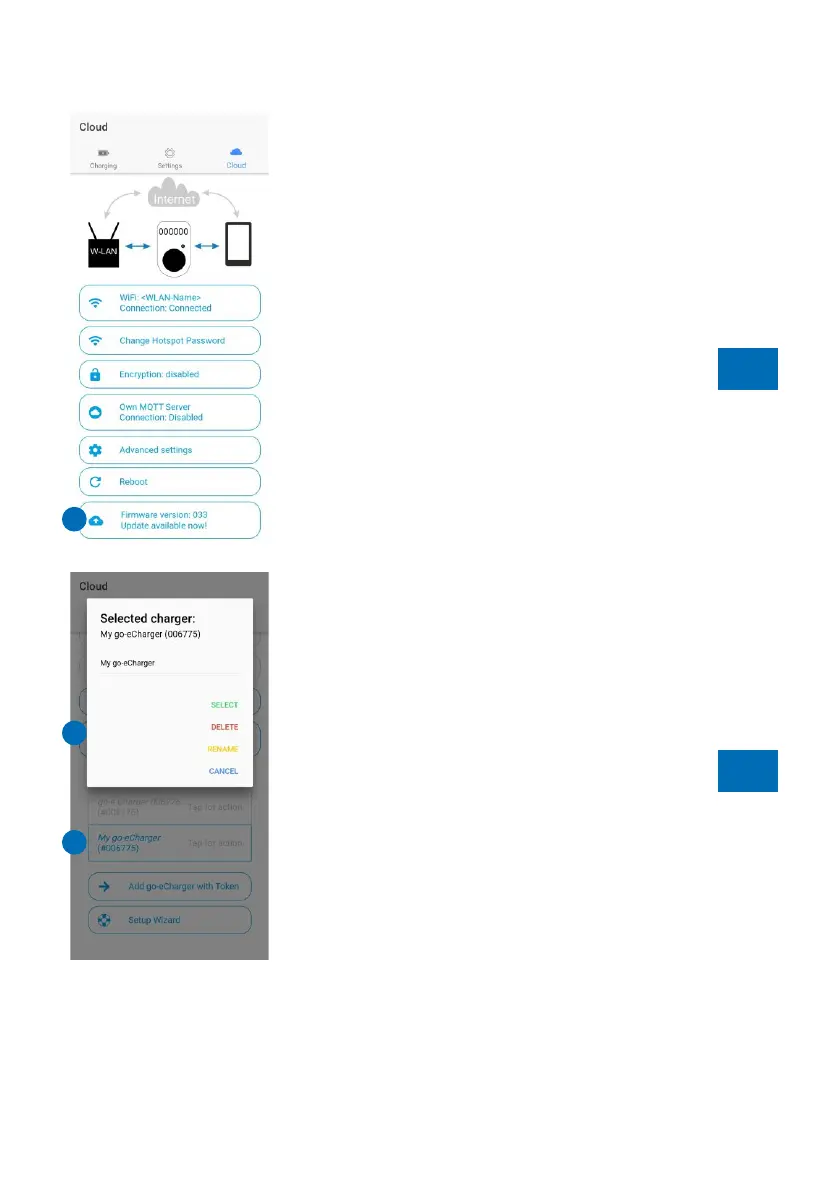
Firmware update (E)
We will inform you in the app when a new firmware
update is available for the Charger. Execute this for
new functionalities or to eliminate errors.
Add/control more chargers with the app
If required, add further go-eChargers as described
above or in the short instructions. All added charging
units are displayed in the "Cloud" area of the app
under the heading "My chargers". You can control
each individual charger by going to "Tap for action"
(F) in the app and confirming "Select" (G) in the
window that opens. In the pop-up window you also
have the option of renaming the charging unit or
deleting it from the app.
Reset with reset card
You can use the go-eCharger reset card to revert the
access settings of the charging unit to the factory
settings. To do this, hold the reset card close to the
RFID reader of the go-eCharger. The LED ring briefly
lights up red to confirm.
Deposit the reset card in your car. This way you can
reset the charger at any time and log into it again with
the factory settings. This is particularly important if
you have activated the charging control option via
RFID and have misplaced the chip/card.
Page 24
TIP
WiFi settings
G
E
F
No LEDs light up
although the charger is
connected.
No current in
the supply line
or fuse
defective
Check the overload protection of the connection.
Check the device fuse on the back of the go-
eCharger. If it is defective, the power connection is
probably not installed properly. Make sure that the
connection is correctly installed before you start a
new attempt.
The LEDs light up blue
(standby mode).
However, the charging
process does not start.
Vehicle is not
recognised
Check the charging cable and the tight fit of the
plugs.
The LEDs flash red at
the top and light up
static yellow/green at
the bottom.
Check that the supply line is properly earthed.
The LEDs light up red
at the top and pink at
the bottom.
RCD has
detected an
error
The Charger has detected a fault current >= 6
mA.To acknowledge the fault, press reboot in the
app or disconnect the Charger from the power
supply for a short time. If necessary, the charging
current can be reduced, but the connection used
must also be checked. (The charging device in your
vehicle may also be defective.)
Please check the error code in the go-eCharger app.
The LEDs light up blue
at the bottom and flash
red at the top.
Check the supply line; there may only be 2 phases
are present. If no function occurs, please contact go-
e customer support.
4 LEDs light up red (3,
6, 9, 12 o'clock).
The earth detection is deactivated. Attention: This
function should only be used if the power grid does
not have an earth connection (IT grid).
The LED ring lights up
permanently in rainbow
colours.
Start of the
charger does
not finish
If the charger does not leave this mode, the WiFi
signal may be disturbed. Please remove possible
sources of interference (e.g. devices with a WiFi
mesh network).
The LEDs light up blue
and some white LEDs
move from the top and
bottom to the middle.
The access control is not set to open. To activate,
use a learned RFID chip or the app.
5 LEDs light up red on
top.
Use a learned RFID chip for activation.
TIP


 To Next Page
 Loading...