Need help?
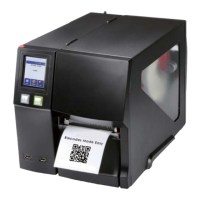
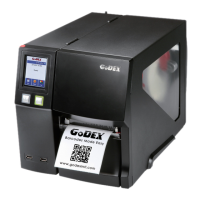
Do you have a question about the Godex ZX1000i Series and is the answer not in the manual?
Lists all items included with the printer.
Overview of the printer's front and rear views, identifying components.
Step-by-step guide for loading label rolls for thermal transfer and direct thermal printing.
Instructions on how to load and remove printer ribbons correctly.
Details on connecting the printer to a computer via USB and power.
Guide to installing the printer driver and label design software from the CD.
Explanation of the printer's operation panel buttons and their functions.
Introduction to the printer's LCD interface, touch gestures, and basic navigation.
Detailed explanation of functions available on the Main and Device pages of the LCD interface.
Procedures for automatic label calibration and running a self-test.
Table detailing printer error messages, beeps, descriptions, and solutions.
Information on using USB host ports for memory sticks, keyboards, and scanners.
Guide to installing the NetSetting software for network configuration.
Overview of the NetSetting software interface for managing network settings.
General preparation steps before installing optional modules.
Step-by-step guide for installing the cutter module.
Instructions for safely installing and removing the print head module.
Procedure for adjusting the print line for optimal print quality.
Guide to adjusting ribbon tension for proper printing.
Steps for cleaning the thermal print head to ensure print quality.
Method for adjusting print head pressure for even ink distribution.
Adjusting ribbon shield screws to prevent ribbon wrinkling.
Instructions related to cutter settings and maintenance.
Common problems and their solutions for printer operation.
Pinout and handshaking details for the parallel port interface.
Default settings and pinout for the serial port interface.
Pinout configurations for USB Type A and Type B connectors.
Pinout details for the Ethernet RJ-45 port.
Pinout and function mapping for the applicator interface.
 General
| Print Technology | Direct Thermal / Thermal Transfer |
|---|---|
| Print Resolution | 203 dpi |
| Maximum Print Width | 4.09 inches (104 mm) |
| Connectivity | USB, Serial, Ethernet |
| Operating System Compatibility | Windows |
| Processor | 32-bit RISC |

 To Next Page