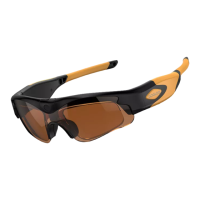
Note: Remove the protective film on the lenses before wearing the sunglasses.
To remove the lenses, start on the nose side and pull the lens out (see below)
To insert the lens, start on the arm-side and plug it into the guides.
(See below)
How to fix prescription Lenses frame part & Lenses (Option) EN
https://www.youtube.com/watch?v=BujzDYahsKg
Power Supply and Low Battery Hinting EN
Note: This device can record during wall charging or power bank charging.
After connecting the power ready, the blue/green/red LED lights on. Press
“ON/OFF” button for 1 second, the glasses enters into recording automatically.
1. For optimum use of the power supply and battery health, DO NOT charge
2. To maximize the storage capacity of the battery, continue to charge for 30
minutes to 1 hour after the red LED light goes off after every charge.
3. You can charge the battery by using the Micro USB2.0 HS cable provided or
power adapter. Usually a full charge will take about 1.5 hours.
4. The red LED will turn on when starting charging and it will turn off when the
battery is fully charged.
5. If the camera has not been used for a long time, recharge it before using.
6. For a fast recharge and best product protection charge, keep the battery in
the ‘power-off’ mode and take out the memory card.
7. Low battery hinting: When the battery low, both the green LED and blue
LED flashing speed status begins changed from flashing slowly into flashing
This section explains how to turn on the WiFi signal of the glasses so you can
connect your iOS/Android device to it and use the glasses APP.
1.1. While the glasses is power on, press the WiFi button(next to the power
button) for 1 second. The glasses vibrating alerts “Z” 1 time and yellow LED
flashes, that indicates WiFi is turned on. To turn off WiFi, press the WiFi
1.2. Turn to your iOS/Android device WiFi settings and connect to the WiFi
Network “Gogloo_E7E9” (the default WiFi password is 12345678). Wait until
your iOS/Android device is connected (Now the yellow LED keeps steady)
Before use this function, you have to download APP from APP store by
searching keywords “Gogloo_E7E9”. After installation, you can use APP to
control your glasses for recording, taking photos etc.


 To Next Page