86 87
SD CARD STATUS
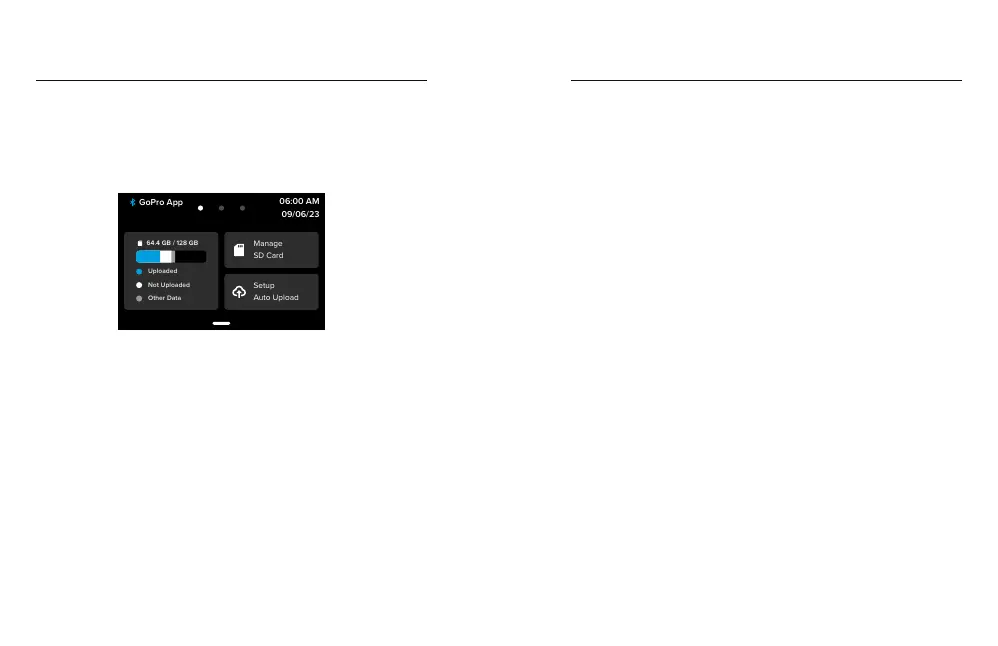
With your camera in landscape orientation, swipe down on the rear
screen to access the Dashboard, and then swipe right to access your
SD card status. From this screen you can manage SD card storage and
set up cloud upload with a GoPro subscription.
SD Card Storage
The tile on the left shows your SD card capacity.
• The blue bar shows the amount of media on your SD card that has
been uploaded and saved to the GoPro cloud.
• The white bar shows the amount of media on your SD card that
hasn't been uploaded to the GoPro cloud.
• The gray bar represents any other data on your SD card that your
GoPro doesn't use and recognize (this data is not backed up to the
GoPro cloud).
Setting Your Preferences Setting Your Preferences
Manage SD Card
This tile gives you several options for manually deleting files on your
SD card. For details, see Manage SD Card (page 83).
Start Upload
Tap here to back up your media to the cloud with a GoPro subscription.
There are 3 options available based on your camera's upload and
connection status.
• Setup Auto Upload: Cloud upload has not been set up. Tap to set
up cloud upload for your media.
• Start Upload: There is media on your SD card that has not been
uploaded. Tap to start uploading your media manually.
• Cloud Upload (in gray): There is no media to upload or your camera
is not connected to a network.
For information on uploading to the cloud, see Auto Upload (page
89).


 To Next Page