26
DISPLAY SETUP
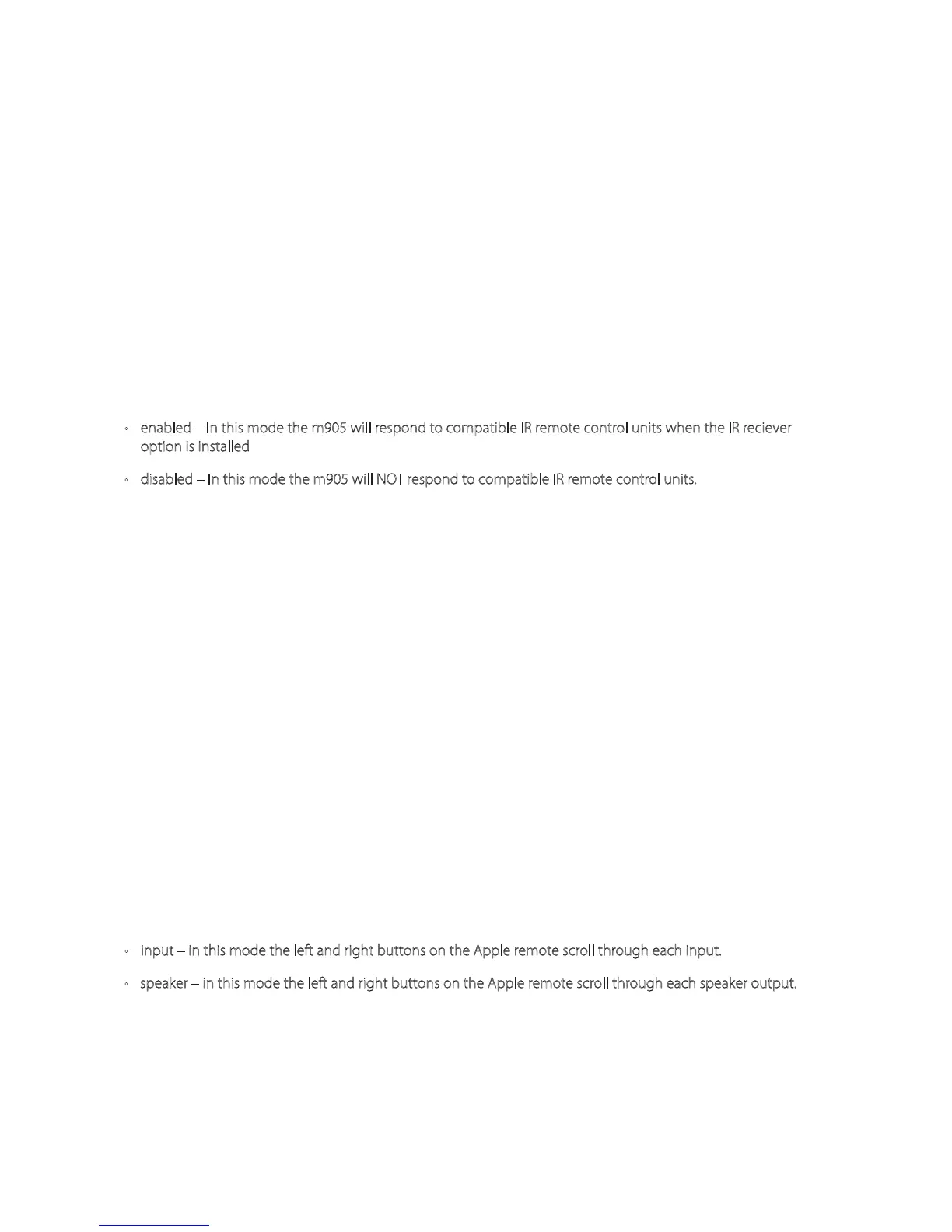
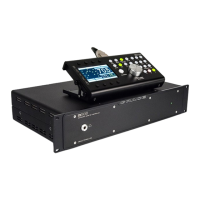
This mode adjusts the RCU display settings. The parameters are:
BACKLIGHT this parameter adjusts the RCU display brightness. Available range is 0 (min) to 9 (max). The
default is max.
AUTO OFF TIME This controls the auto-dim function of the display. When the system does not have any
user activity for the displayed amount of time, the display automatically dims to the minimum brightness.
Any user activity turns the display back on to the chosen brightness above and the timeout restarts. Avail-
able settings are 5 minute, 15 minutes and 30 minutes. The default is 30 minutes.
IR (INFRARED) REMOTE SETUP
IR REMOTE This parameter allows the user to disable the optional infrared remote control operation of the
m905. The m905 IR remote control uses command codes that are quite obscure, but they are not propri-
etary. Should interference occur from another manufacturer’s remote control unit, the IR remote control
operation of the m905 can be turned o to prevent improper operation. Available options are:
• enabled – In this mode the m905 will respond to compatible IR remote control units when the IR reciever
option is installed
• disabled – In this mode the m905 will NOT respond to compatible IR remote control units.
The default is enabled.
REMOTE PAIRED The Apple IR Remote provides a pairing feature that allows devices to only respond to
specic remote controls. To pair an Apple IR Remote, press and hold the MENU and RIGHT buttons or the
MENU and CENTER buttons ( Pressing MENU and CENTER also increments the Apple IR Remote ID ) for ap-
proximately 5 seconds. The m905 will indicate that the remote is paired by displaying “yes’ in this param-
eter eld. To unpair this a remote, change this paramter to ‘no’. The default is ‘no’.
In the event you do not want the m905 to respond to an Apple IR remote simply pair the remote to the
m905 with your other devices turned o. Turn o the m905 and press and hold the MENU and CENTER
buttons on Apple remote for approximately 5 seconds. This increments the remote ID and it will no lon-
ger control the m905. (Note: you may need to re-pair your remote to your other device(s) if they have
pairing enabled. Turn o the m905 when doing this.)
In the event you have multiple Apple remote controls and wish to control the m905 with only one
of them, simply pair the remote to the m905 with your other devices turned o. Pairing your other
remote(s) to your other device(s) with the m905 turned o allows you to have dedicated IR remotes for
each device.
REMOTE ID this is a read-only parameter that displays the id number of the paired Apple IR remote (if
remote pairing = yes). This can be usful when trying to identify multiple remotes in your environment.
L/R CONTROLS This parameter selects the function for the left / right arrows on the Apple remote. Avail-
able options are:
• input – in this mode the left and right buttons on the Apple remote scroll through each input.
• speaker – in this mode the left and right buttons on the Apple remote scroll through each speaker output.
The default is input.
THIS PARAMETER CAN ALSO BE MODIFIED VIA THE APPLE IR REMOTE CONTROL BY PRESSING AND HOLDING THE
MENU BUTTON.


 To Next Page