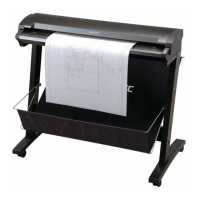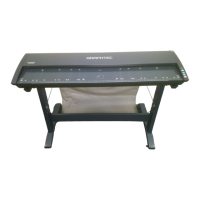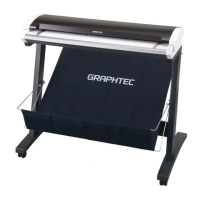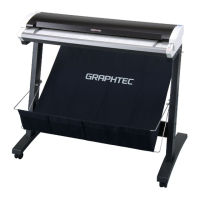
EasyManua.ls Logo

GRAPHTEC SK200-09 - User Manual

GRAPHTEC SK200-09
57 pages
Print Icon
To Next Page IconTo Next Page
Loading...
SK200-09
USER’S MANUAL
MANUAL NO. SK200-UM-151
IMAGE SCANNER

Table of Contents

Other manuals for GRAPHTEC SK200-09

Questions and Answers

  • B
    Bailey KimAug 14, 2025
    What to do if my PC does not detect the GRAPHTEC Scanner?
    • S
      schultzkayleeAug 14, 2025
      First, ensure that the GRAPHTEC scanner is turned on. Then, try reattaching the USB cable, setting it up correctly, and reinstalling the USB driver. If the issue persists, try replacing the USB cable. Finally, check the supply voltage and replace the power supply if necessary.
  • J
    Jermaine StephensAug 17, 2025
    Why is the scanned data completely black on my GRAPHTEC Scanner?
    • E
      Erin WarrenAug 17, 2025
      Try performing calibration (white correction). Also, confirm that the image sensor cables are properly connected and undamaged. Check the +5 V power supply and replace it if faulty. As well as, replace the data controller board, the CIS board or the image sensors. You can also adjust “Intensity (Brightness)” in Scanning Master 21+.
  • K
    Kevin HarmonAug 20, 2025
    How to improve poor image quality on GRAPHTEC Scanner?
    • D
      Daniel LewisAug 20, 2025
      Clean the contact glass plate(s) using purified water or alcohol, avoiding chemical solvents. Additionally, select an appropriate resolution for your scanning needs.
  • S
    Shirley EsparzaAug 25, 2025
    What to do if the document is not transported properly in GRAPHTEC Scanner?
    • A
      Amy ParkerAug 25, 2025
      Open the center cover and remove any foreign objects. Check for anomalies around the control boards and the motor. Also, check the power supply and replace if necessary. Consider replacing the control boards or the data control board if problems persist.
  • A
    annefullerAug 27, 2025
    How to remove undesired black lines from scanned drawing on GRAPHTEC Scanner?
    • M
      Mrs. Jennifer Chandler MDAug 27, 2025
      Clean the contact glass plates, replacing them if necessary. Perform calibration from the beginning (white correction). Clean the feed rollers. If the problem persists, replace the image sensors.
  • E
    Edward QuinnAug 30, 2025
    What to do if the GRAPHTEC Scanner moves the document but does not scan?
    • E
      Erin AdamsAug 30, 2025
      Check the document detection photosensor. Ensure the cable is properly connected. Specify the correct scanner model. If these steps don't resolve the issue, consider replacing the main control board.
  • O
    omaloneSep 3, 2025
    How to remove undesired white lines from scanned drawing on GRAPHTEC Scanner?
    • M
      maygarySep 3, 2025
      Clean the contact glass plates, and replace them if necessary. Perform calibration from the beginning (white correction).
  • C
    Christian HarrisSep 6, 2025
    What to do if lamps on the control panel of GRAPHTEC Scanner remain unlit?
    • M
      Michelle WilliamsSep 6, 2025
      Ensure the power switch is on and the cable is properly connected. Check the power supplies and replace if necessary. If the issue continues, replace the control panel or the data controller board.
  • P
    pauladavisSep 9, 2025
    Why does paper move beyond scanning section and drop in GRAPHTEC Scanner?
    • M
      Meghan HallSep 9, 2025
      Clean the media sensor. Check the sensor cable for contact with other cables. Replace one or both media sensors if necessary.

Summary

Safety Precautions

Conventions and Symbols

Explains safety warning symbols and their meanings.

Installation Precautions

Guidelines for safely installing the scanner to prevent hazards.

Power Supply Precautions

Safety measures related to the scanner's power cable and connection.

Handling Precautions

Instructions on safe handling and operation of the scanner.

Maintenance Precautions

Safety advice for cleaning, maintenance, and inspection procedures.

FCC Radio Frequency Interference Statement

WARNING and Compliance Measures

Warning regarding peripherals and measures to correct interference.

Introduction

Manual Information

Notes on manual content, trademarks, copyright, and usage.

Scanner Warm-up

Recommendation for warming up the scanner before scanning color documents.

Before Using the Scanner

Checking the Contents of the Package

Verifies all included items are present before initial use.

Part Names and Functions

Identifies and explains the function of each part of the scanner.

Attaching Guides

Instructions for attaching rear and anti-curling guides.

Connection and Preparations

Connecting to the Power Supply

How to connect the scanner to the power source.

System Requirements

Minimum and recommended computer specifications for scanner operation.

Installing the Driver Software

Detailed guide for installing the scanner driver software.

Checking the Interface Connection

Verifies the scanner is correctly connected and recognized by the system.

Loading a Document

Document Compatibility and Loading

Supported document types and step-by-step loading instructions.

Using the Carrier Sheet

Guidance on when and how to use the optional carrier sheet.

Daily Maintenance

Cleaning Procedures

Steps for cleaning rollers, sensors, and image sensors.

Jam Removal and Calibration

Procedures for removing jams and calibrating the scanner.

Color Correction

Steps to perform color correction for accurate color reproduction.

Troubleshooting Procedures

Common Operational Issues

Solutions for scanner not operating or improper connection issues.

Image Quality and Document Feeding Problems

Addresses issues with image quality, feeding, and alignment.

Error Indicators and Specific Problems

Explains error LED status and specific scanning problems.

Appendix

Options, Consumables, and Specifications

Lists options, consumables, and detailed technical specifications.

GRAPHTEC SK200-09 Specifications

General IconGeneral
BrandGRAPHTEC
ModelSK200-09
CategoryScanner
LanguageEnglish

Related product manuals