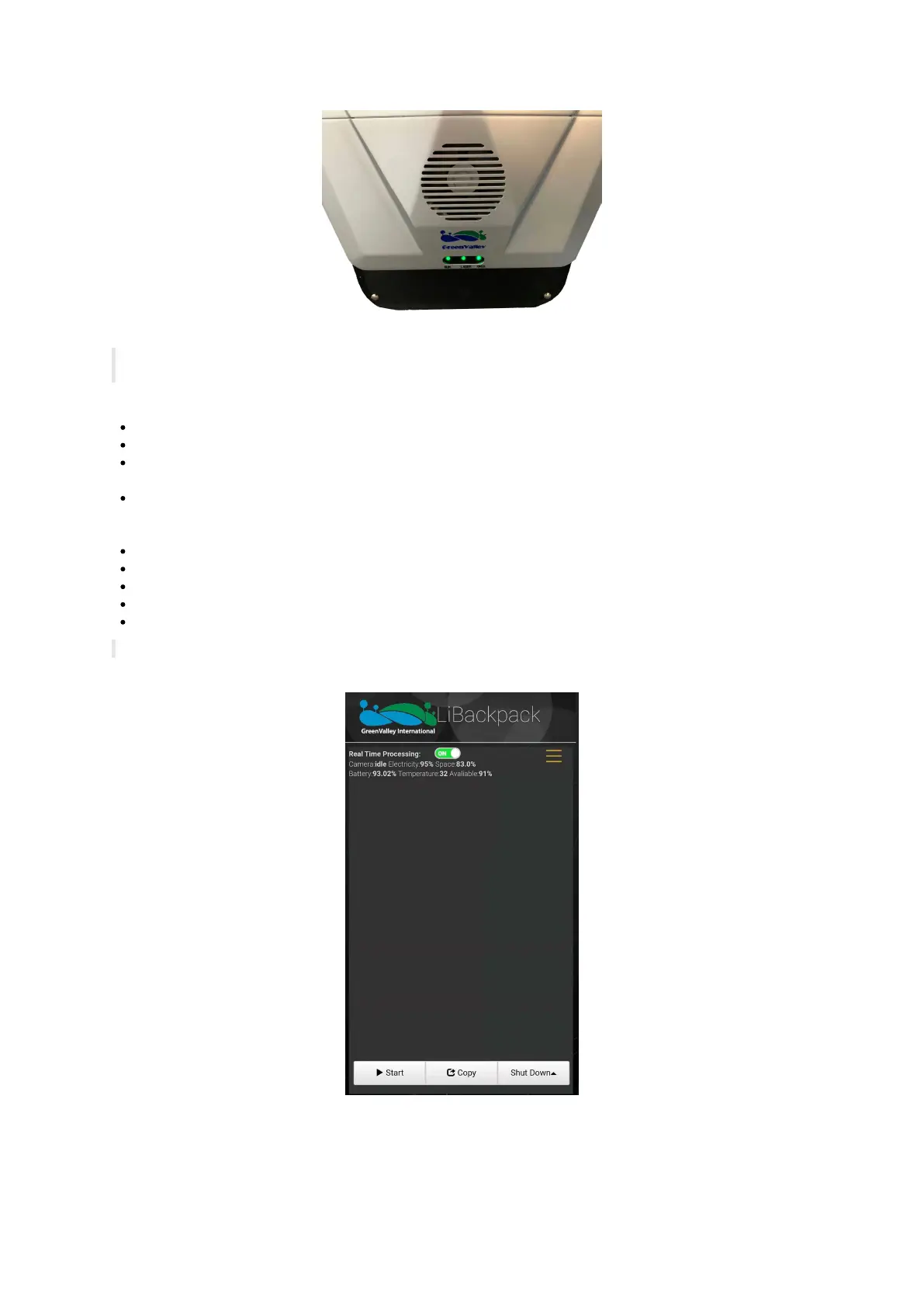
Indicator Light Status
Note: Wait for one minute before connecting a mobile device (smart phone or IPad) to LiBackpack’s Web-Browser Based User
Interface through Wi-Fi or cable.
Connecting to the LiBackpack User Interface via Wi-Fi:
From the list of networks available to your device select the network named “LiBackpack”.
When prompted to do so, enter the default password “greenvalley”.
Launch Google Chrome or Safari and navigate to 192.168.12.1 and load the LiBackpack User Interface. (If the User Interface fails to
load, please go check whether Wifi is connected to LiBackpack.)
Users using the recommended tablets can open up the UI straight from the desktop shortcut.
Connecting to the LiBackpack User Interface via Ethernet Network:
Connect LiBackpack and the tablet with the LiBackpack C50 Ethernet Cable.
Navigate to the Network settings on the tablet. Set the IP address and subnet mask to the following values:
IP address: 192.168.1.99
subnet mask: 255.255.255.0
Launch Google Chrome or Safari and navigate to http://192.168.1.200 to load the LiBackpack User Interface.
Note: The current system supports UI through Chrome and Safari.
Successfully connected Mobile UI is shown as follows.
Mobile UI
5.3 Start Scanning



 To Next Page