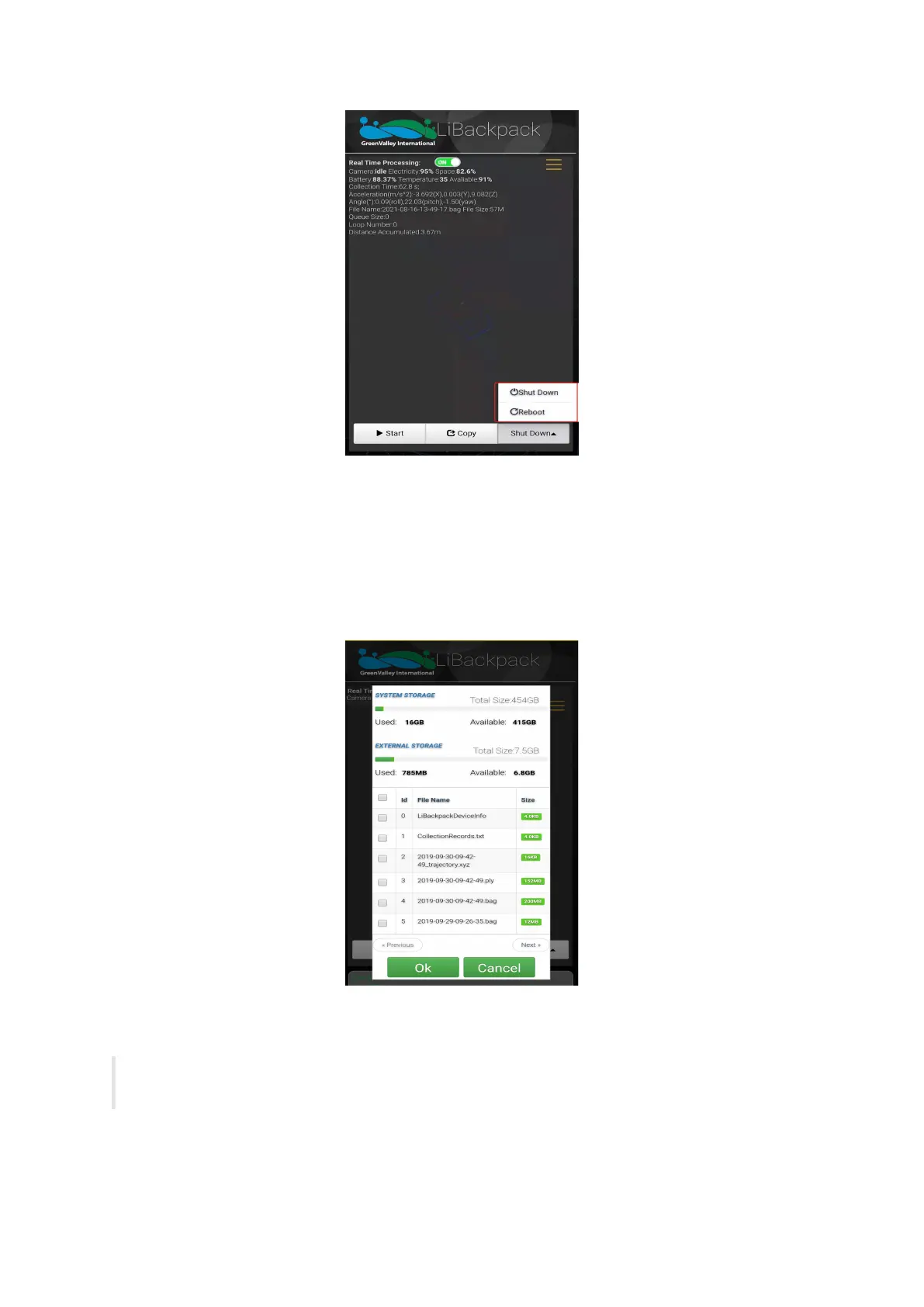
Shut down the mainframe
5.5 Export Data
5.5.1 Export Point Cloud Data
1.USB flash disk transmission:Insert a USB storage device into the USB ports. Click the Copy Button below the Main Window of the web-
based UI. Select the .ply and .bag files to be transferred to the USB storage device. Details of data transfer will be displayed in the dynamic
status bar, including the number of files being passed to the external storage device, the total size and speed of the data being transferred.
The total and spare storage space of system and USB are also displayed there.
Copy Data
When the data copy process is done, the message bar will prompt "Copy is completed!" and a dialog box saying "Completed!" will pop up.
Click the OK button and unplug the USB storage device.
Note: When large amounts of data are transferred from the LiBackpack to an external storage device, the progress bar may stay at
99% for a long time. Wait until the dialog box pops up indicating that the file transfer has completed before unplug USB to prevent from
data corruption.



 To Next Page